How to Reject Invalid Dates
With Data Validation, you can make a cell accept only dates in a certain range, and reject anything else. Here, the range is 1 January 2010 to today.
-
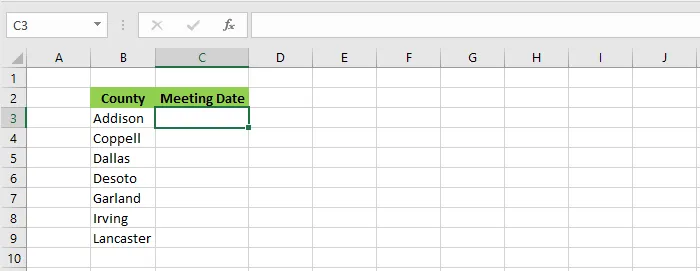
Select cell C3.
-
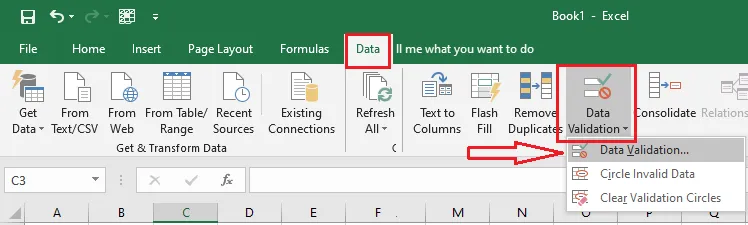
On the Data tab, click Data Validation.
-
On the Settings tab, under Allow, choose Date. Under Data, choose between. Enter a Start date of 1/1/2010 and an End date of =TODAY().
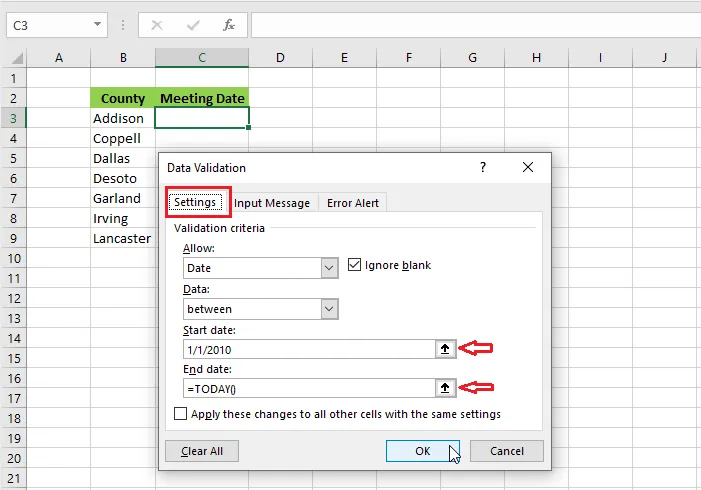
Because
TODAY()updates every day, the latest allowed date moves forward automatically. -
On the Input Message tab, type a title (County Level Meeting) and a message (Please enter a date from 1/1/2010 to today).
-
On the Error Alert tab, type a title (Invalid Entry) and a message (Please type a date within the date range).
-
Click OK.
-
Test it: select C3, type a date outside the range, such as 1/2/2009, and press Enter.
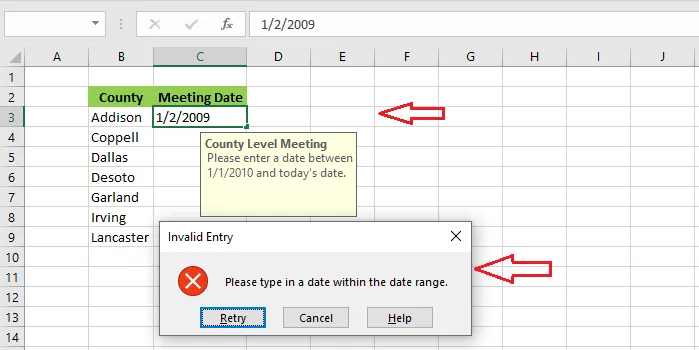
Result: Excel rejects the date and shows your error message. Text that isn’t a date is rejected too.
Note: Type dates in the format your computer uses. The examples here use the US format (month/day/year).
To remove the rule, select the cell, click Data > Data Validation > Clear All, then OK.