How to Recover an Unsaved Excel File
Excel quietly saves a backup of your work every few minutes. If Excel crashes, your computer shuts down, or you close a file without saving, AutoRecover can usually bring your work back.
After Excel crashes
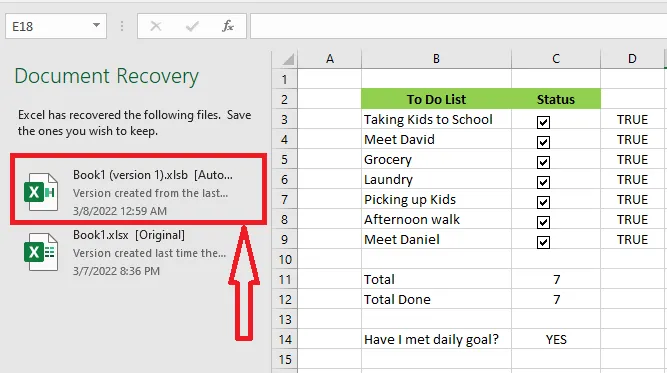
When you open Excel again after a crash, the Document Recovery pane appears on the left. Click the file at the top of the list, the most recent version, to restore it, then save it.
A file you never saved
If you closed a new workbook without saving it, and Excel had auto-saved it at least once:
-
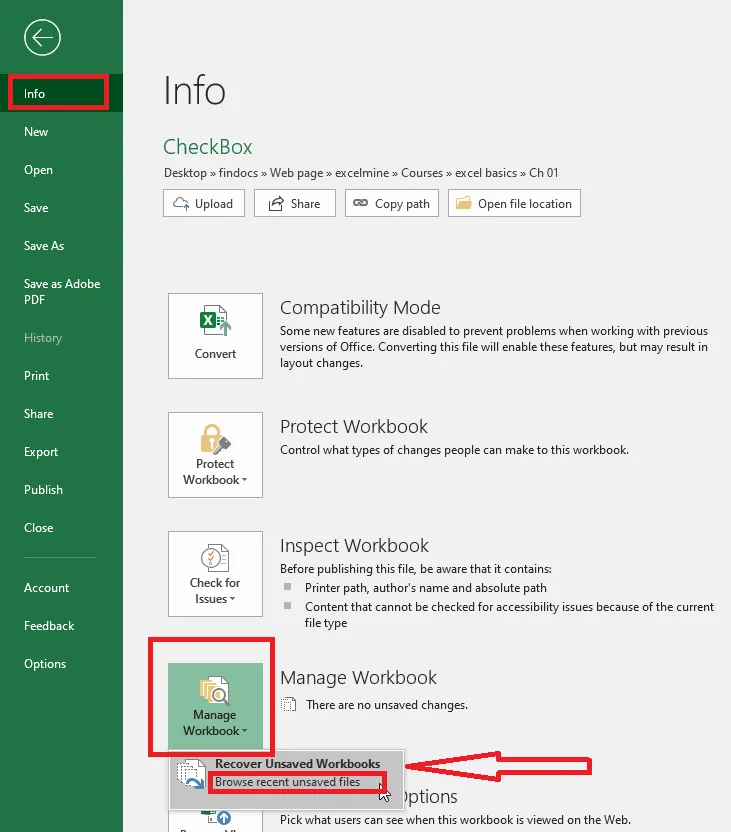
Click File > Info.
-
Click Manage Workbook, then Recover Unsaved Workbooks. A folder of unsaved files opens. Pick yours and open it.
A file you saved before
If you saved the file at least once but closed it without saving your latest changes:
- Reopen the file.
- Click File > Info > Manage Workbook. Recent auto-saved versions are listed there. Click one to open it.
Note: These auto-saved versions are kept only for a short time and are usually removed once you close the file normally, so recover what you need straight away.
Change the AutoRecover settings
-
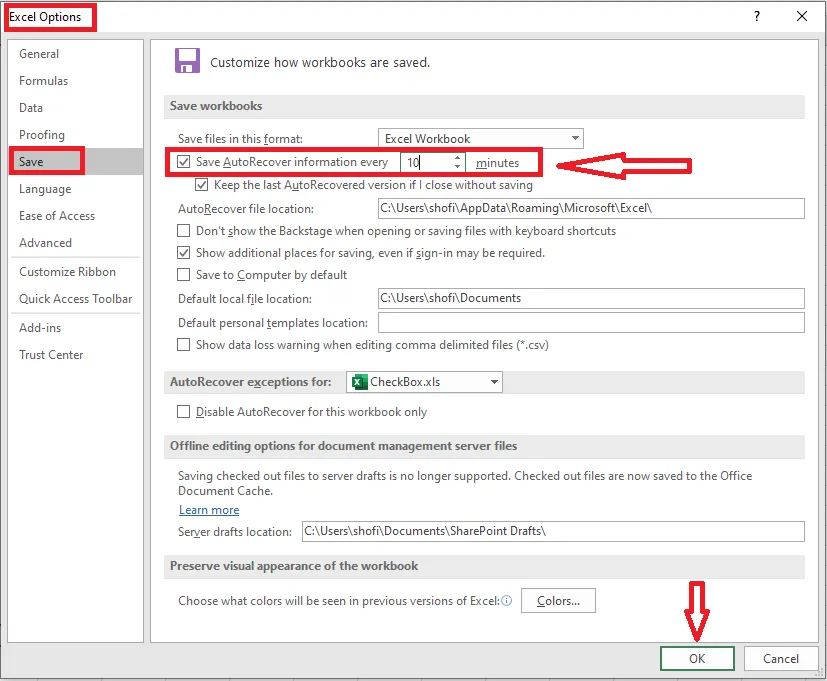
Click File > Options.
-
Click Save.
-
Make sure Save AutoRecover information every is ticked, and set how often, for example every 5 minutes. Then click OK.
Using Microsoft 365? Turn on AutoSave (top-left of the window) for files stored in OneDrive or SharePoint. It saves every change as you go, and File > Info > Version History lets you open any earlier version.