How to Customize the Quick Access Toolbar
The Quick Access Toolbar is the small row of buttons in the top-left corner of Excel. By default it shows three or four commands, such as Save, Undo and Redo. If you use a command often, add it here so it’s always one click away, whichever tab is open.
Using Microsoft 365? If you don’t see the toolbar, right-click the Ribbon and click Show Quick Access Toolbar.
Add a command from the Ribbon
-
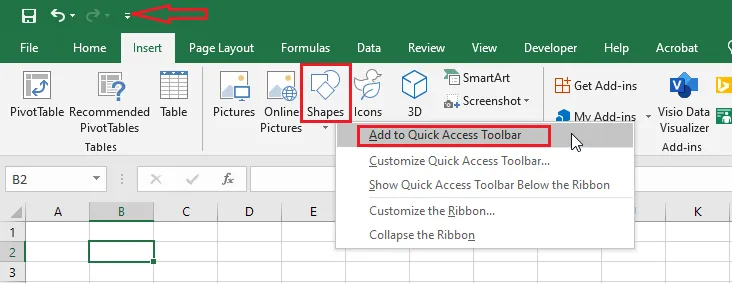
Right-click the command you want to add, then click Add to Quick Access Toolbar. In this example, we add Shapes from the Insert tab.
-
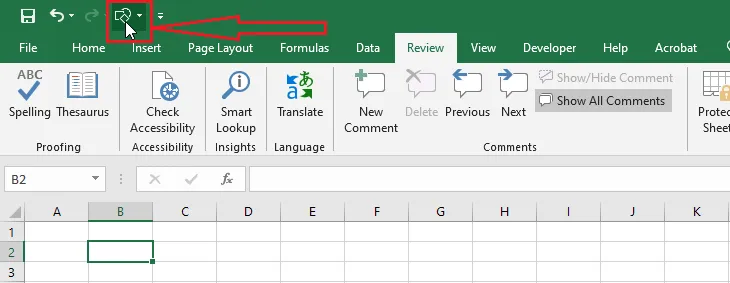
The Shapes button now appears in the Quick Access Toolbar.
-
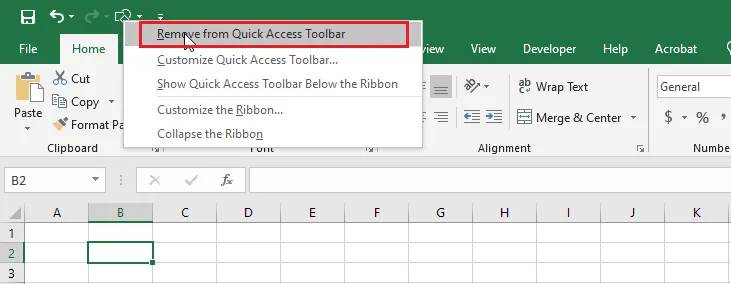
To remove a command, right-click it in the toolbar and click Remove from Quick Access Toolbar.
Add a command that isn’t on the Ribbon
Some useful commands, like the Windows Calculator, aren’t on the Ribbon at all. You can still add them to the toolbar:
-
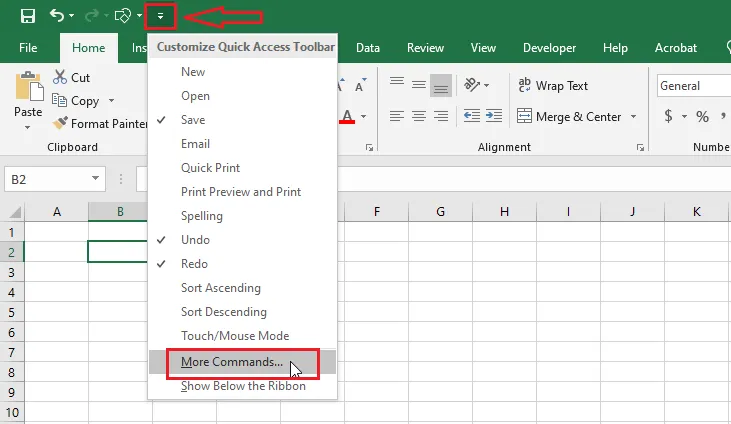
Click the small down arrow at the end of the Quick Access Toolbar.
-
Click More Commands.
-
Under Choose commands from, select Commands Not in the Ribbon.
-
Scroll down, select Calculator, and click Add.
-
Click OK.
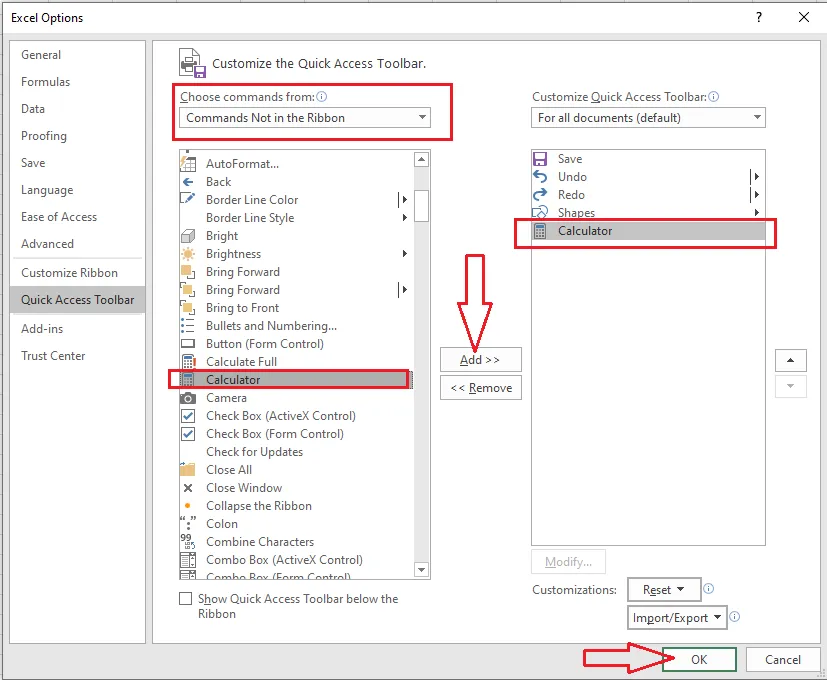
Result: the Calculator button is added to the Quick Access Toolbar.
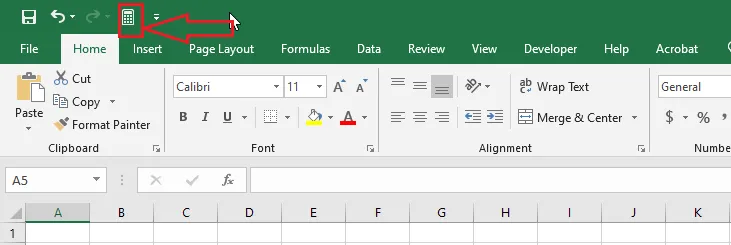
You can add or remove any command this way, so the toolbar always holds the tools you reach for most.