How to Copy Visible Cells Only
When you copy a range with hidden rows, Excel copies the hidden rows too. Here’s how to copy only what you can see.
-
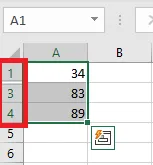
In this sheet, row 2 is hidden.
-
If you copy A1:A4 and paste it into A6 the usual way, the hidden cell comes along: Alpha (A2) appears in A7.
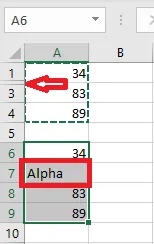
To leave the hidden cell out:
-
Select A1:A4.
-
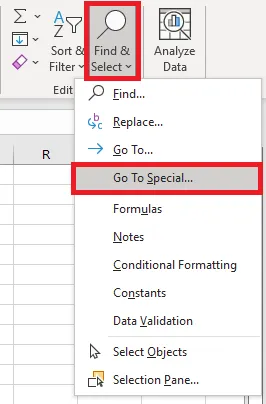
On the Home tab, click Find & Select > Go To Special.
-
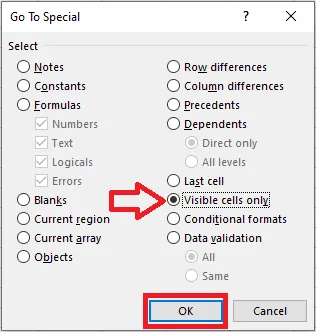
Choose Visible cells only and click OK.
-
Press Ctrl + C to copy, select A6, and press Ctrl + V to paste.
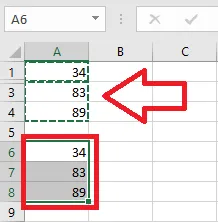
Result: this time, Excel leaves out the hidden cell Alpha.
Tip: Shortcut: select the range and press Alt + ; to select visible cells only, then copy. In a filtered list, Excel already copies only the visible rows.