How to Create a Number Sequence in Excel
Excel can create almost any number sequence for you, using AutoFill or a simple formula. Here are three examples.
Example 1: even numbers
-
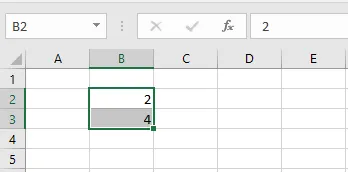
Type 2 in cell B2 and 4 in B3, then select both cells.
-
Drag the fill handle down to B10.
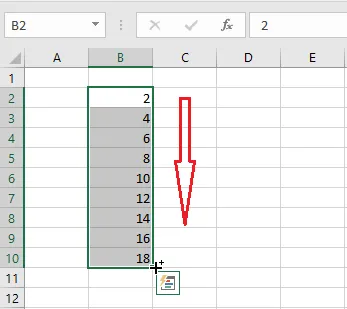
Excel continues the pattern: 6, 8, 10 and so on.
Example 2: a geometric progression
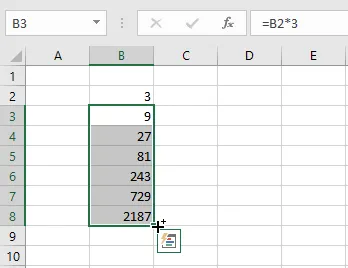
In a geometric progression, each number is the previous one multiplied by the same amount. Here we multiply by 3 each time.
-
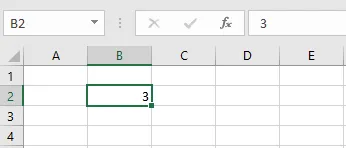
Type 3 in cell B2.
-
In B3, enter a formula that multiplies the cell above by 3:
=B2*3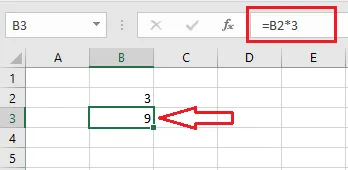
-
Drag the fill handle of B3 down.
Result: 3, 9, 27, 81 and so on.
Example 3: the Fibonacci sequence
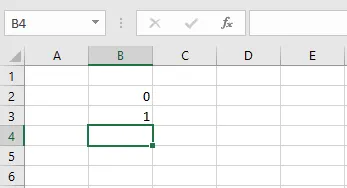
In the Fibonacci sequence, the first two numbers are 0 and 1, and every number after that is the sum of the two before it.
-
Type 0 in cell B2 and 1 in B3.
-
In B4, enter the formula
=B3+B2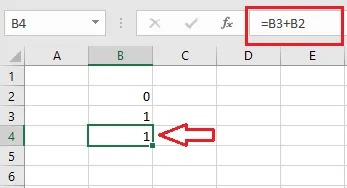
-
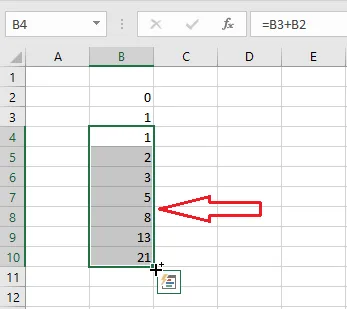
Drag the fill handle of B4 down as far as you like.
Result: 0, 1, 1, 2, 3, 5, 8, 13 and so on.
Using Microsoft 365? The
SEQUENCEfunction creates simple sequences without dragging. For example,=SEQUENCE(10, 1, 2, 2)lists the first 10 even numbers.