How to Use Data Validation in Excel
Data Validation controls what people can type into a cell. For example, you can allow only whole numbers from 5 to 20, show a hint when the cell is selected, and show an error when someone types something else.
Set up the rule
-
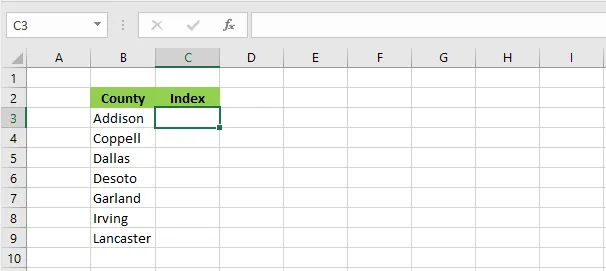
Select cell C3.
-
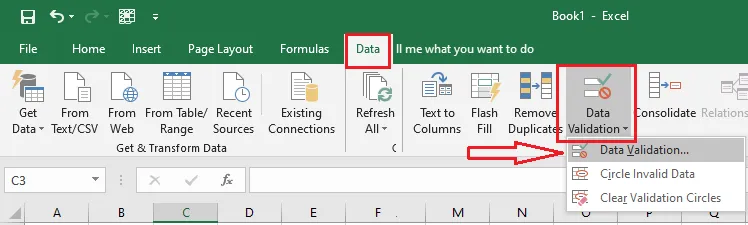
On the Data tab, click Data Validation.
-
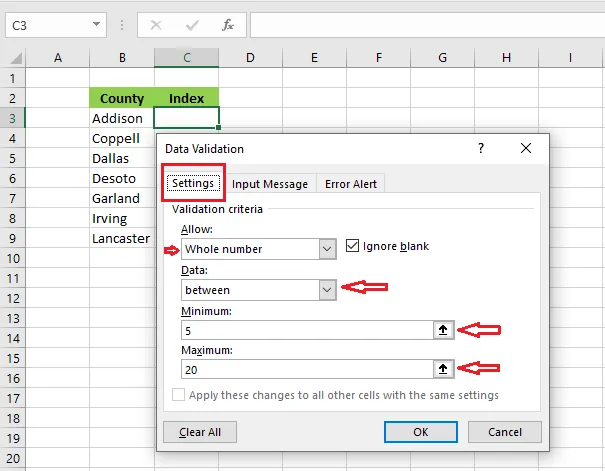
On the Settings tab, under Allow, choose Whole number. Under Data, choose between. Enter a Minimum of 5 and a Maximum of 20.
-
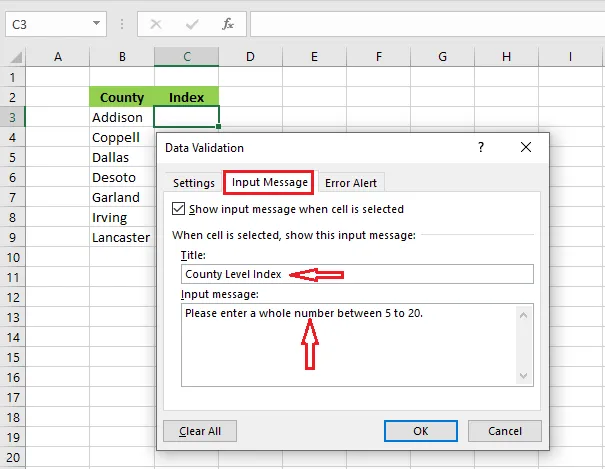
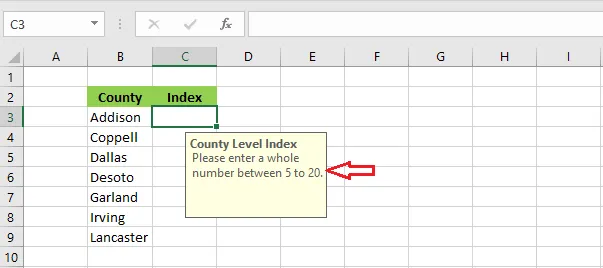
On the Input Message tab, type a title (County Level Index) and a message (Please enter a whole number from 5 to 20).
-
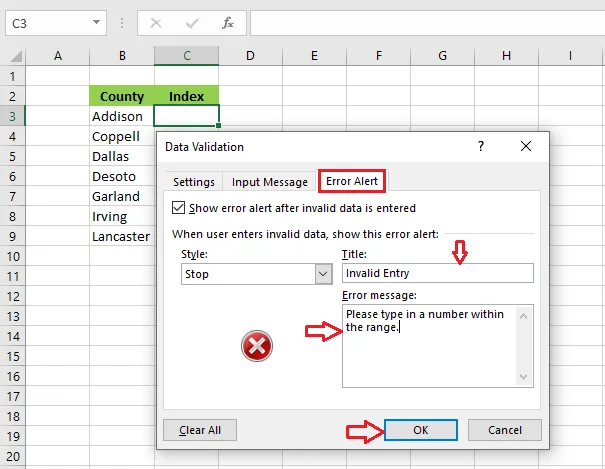
On the Error Alert tab, type a title (Invalid Entry) and a message (Please type a number within the range).
-
Click OK.
Test it
-
Select cell C3. A yellow box shows your input message.
-
Type a number outside the range, such as 25, and press Enter.
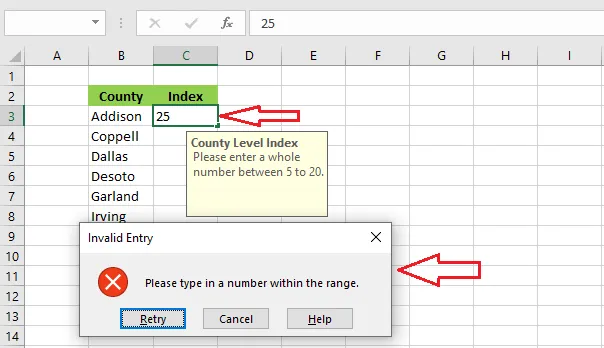
Result: Excel blocks the entry and shows your error message.
Note: To remove the rule, select the cell, click Data > Data Validation > Clear All, then OK.
Note: Validation only checks what people type. Values pasted into the cell can still get through. To find them, click Data > the arrow next to Data Validation > Circle Invalid Data.