How to AutoFit Columns and Rows in Excel
AutoFit resizes a column or row to fit its contents exactly, so nothing is cut off and there’s no wasted space. You can do it with a double-click or from the Ribbon.
AutoFit column width
-
To set a column’s width by hand, drag the right border of its column heading.
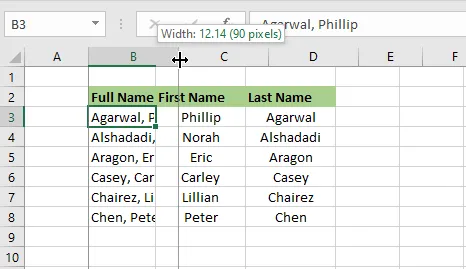
-
To fit the column to its contents, double-click that right border instead.
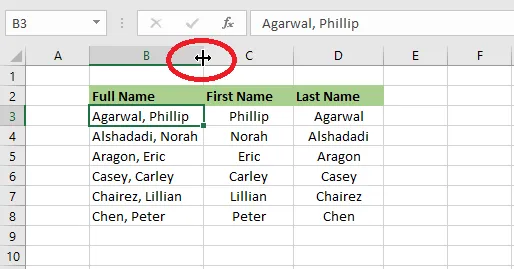
-
To fit several columns at once, first select them by their column headings.
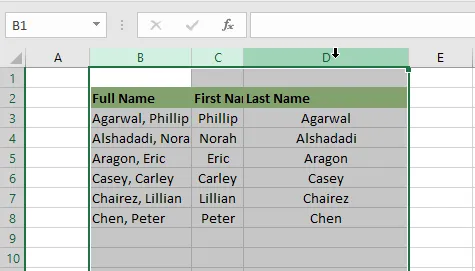
-
Then double-click the right border of any one of the selected headings.
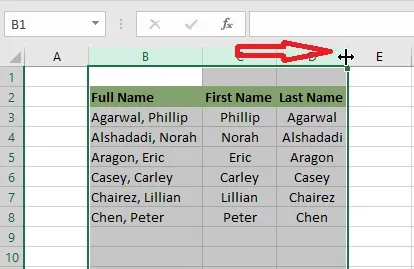
AutoFit row height
Rows work the same way.
-
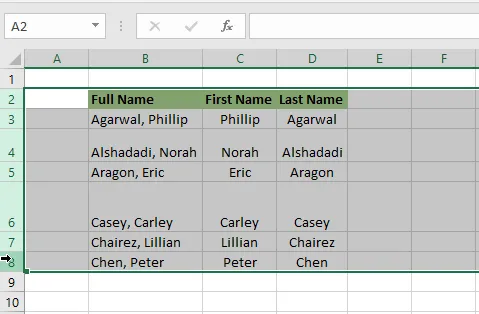
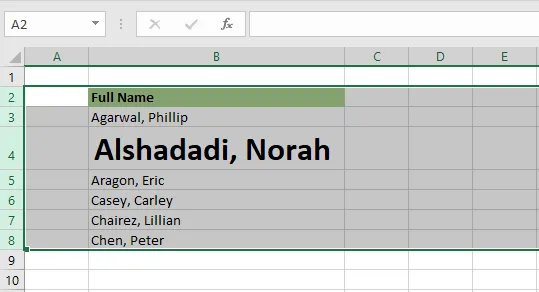
Select the rows by their row headings. To fit every row, select them all.
-
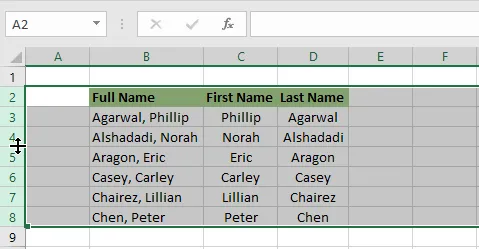
Double-click the bottom border of any one of the row headings.
AutoFit from the Ribbon
-
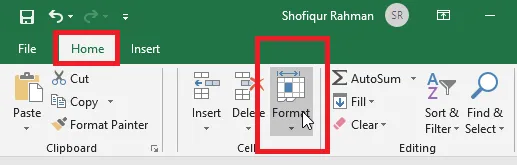
Select the rows or columns. On the Home tab, in the Cells group, click Format.
-
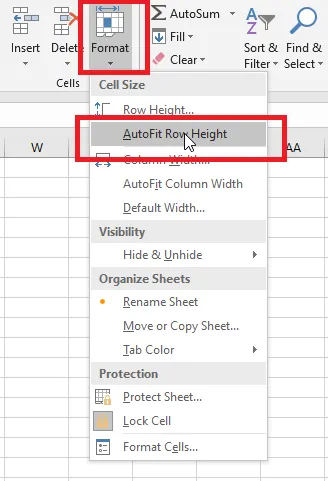
Click AutoFit Row Height (or AutoFit Column Width for columns).
Result: the rows fit their contents.
Tip: Keyboard fans can press Alt, H, O, I (one after another) to AutoFit column width, or Alt, H, O, A for row height.