How to Insert Comments in Excel
Comments let you leave a note on a cell: an explanation, a question, or feedback for someone else working on the file. Cells with a comment show a small red triangle in the corner.
Using Microsoft 365? The yellow sticky notes shown here are now called Notes (right-click > New Note). New Comment in Microsoft 365 creates a threaded comment that others can reply to. The steps below work for both.
Insert a comment
-
Select the cell you want to comment on.
-
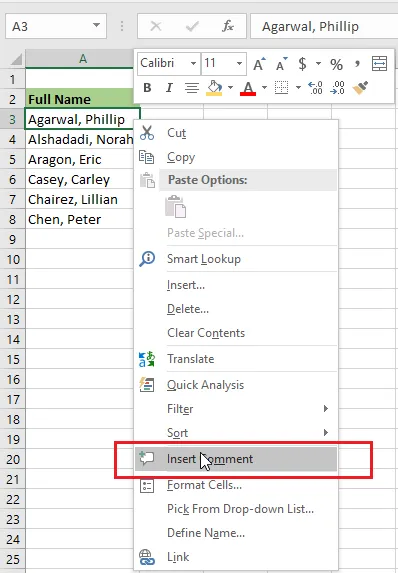
Right-click and click Insert Comment (New Note in Microsoft 365).
-
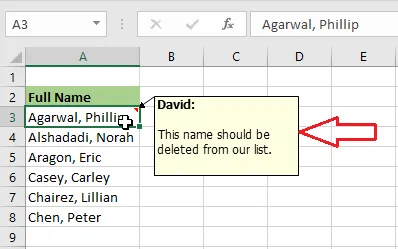
Type your comment, then click anywhere outside it.
-
The comment stays hidden until you point to the cell.
-
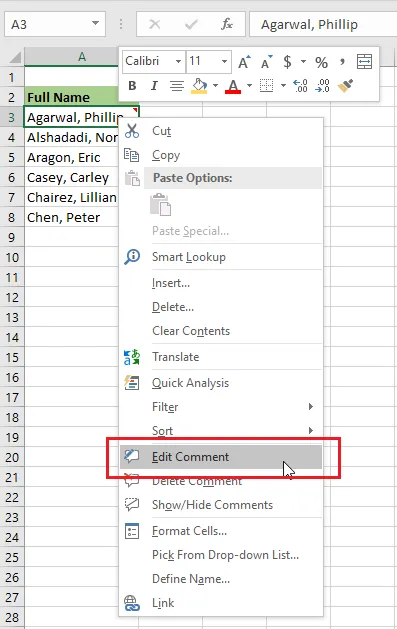
To change it, right-click the cell and click Edit Comment.
Delete a comment
-
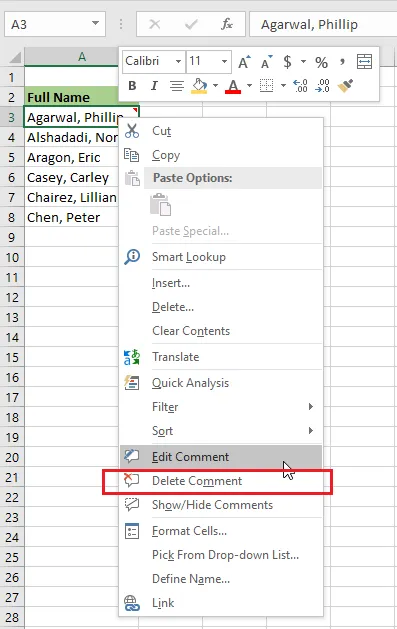
Right-click the cell with the comment.
-
Click Delete Comment.
Show all comments
To keep every comment on screen, like sticky notes:
-
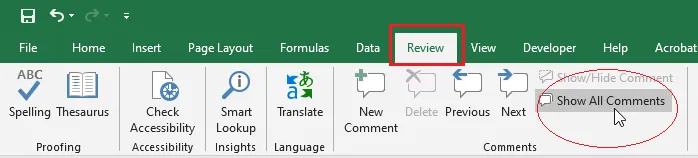
On the Review tab, in the Comments group, click Show Comments (Notes > Show All Notes in Microsoft 365).
-
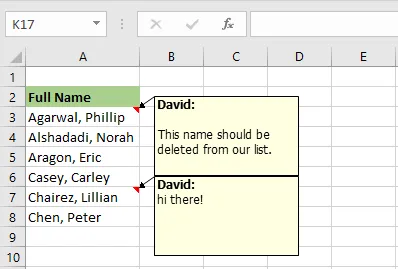
Excel shows every comment on the sheet.
Click the same button again to hide them.