How to Divide in Excel
In Excel, the division sign is the forward slash (/). There’s no DIVIDE function, but there are two functions related to division. Here are three examples.
Example 1: a formula
-
Select cell F3.
-
Type
=D3/E3and press Enter.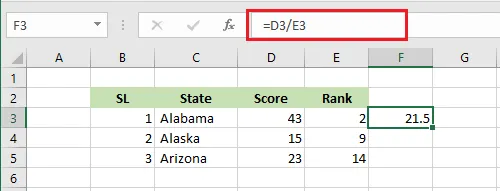
Note: If the cell you divide by is empty or 0, Excel shows the #DIV/0! error. To show a blank instead, use
=IFERROR(D3/E3,"").
Example 2: the remainder with MOD
MOD returns what’s left over after a division.
-
Select cell F3.
-
Type
=MOD(D3,E3)and press Enter.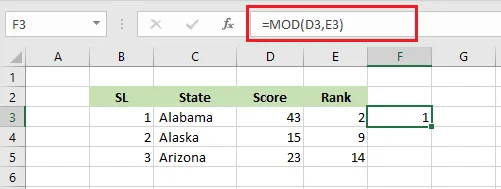
To get only the whole-number part of a division, use QUOTIENT instead, for example =QUOTIENT(D3,E3). Drag the fill handle down to repeat either calculation for each row.
Example 3: divide without a formula
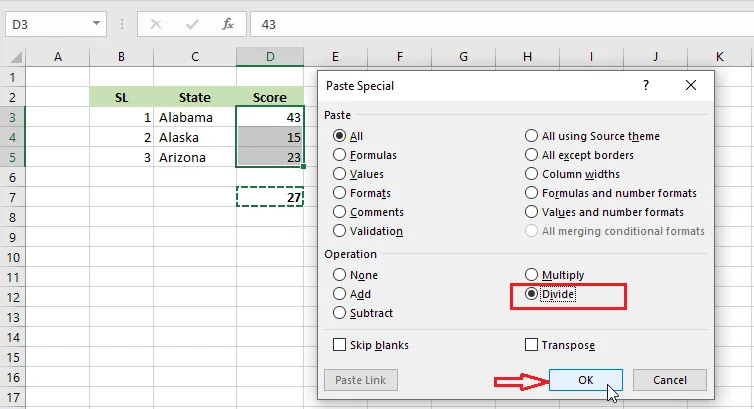
To divide each value in D3:D5 by the number in D7:
-
Select D7 and copy it (Ctrl + C).
-
Select D3:D5, right-click, and click Paste Special.
-
Under Operation, choose Divide, then click OK.
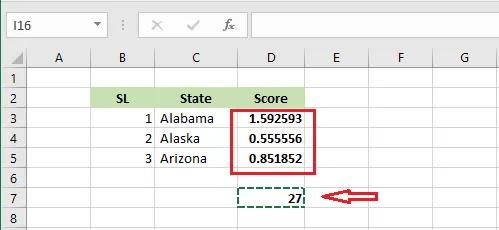
Result: each number in D3:D5 has been divided by the value in D7.