How to Group Worksheets in Excel
Grouping worksheets lets you change several sheets at once: anything you type, delete or format on one grouped sheet happens on all of them. It’s ideal for sheets with the same layout, such as one per month.
-
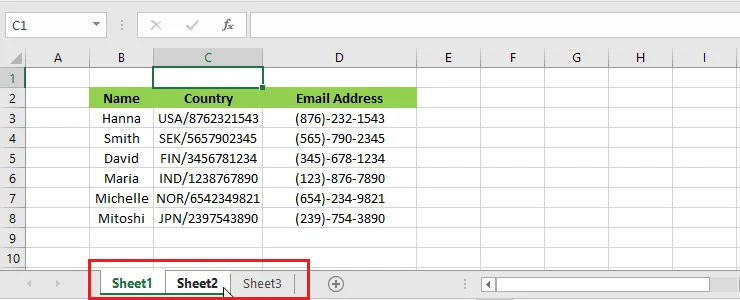
Hold down Ctrl and click the tabs of the sheets you want to group, here Sheet1 and Sheet2. (To group a run of neighboring sheets, click the first tab, then hold Shift and click the last.)
-
Release Ctrl. The sheets are now grouped, and [Group] appears after the workbook name in the title bar.
-
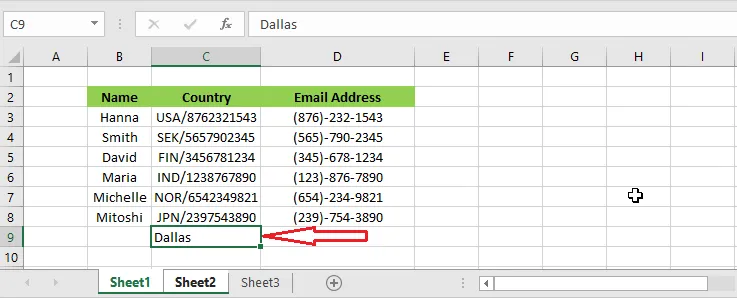
Make a change. Here we type Dallas in cell C9 on Sheet1.
-
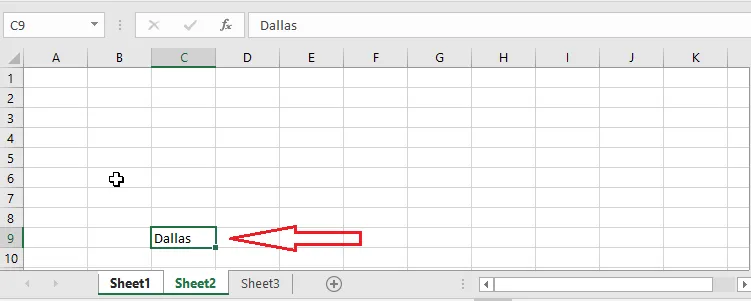
Open Sheet2: Dallas is in cell C9 there too.
-
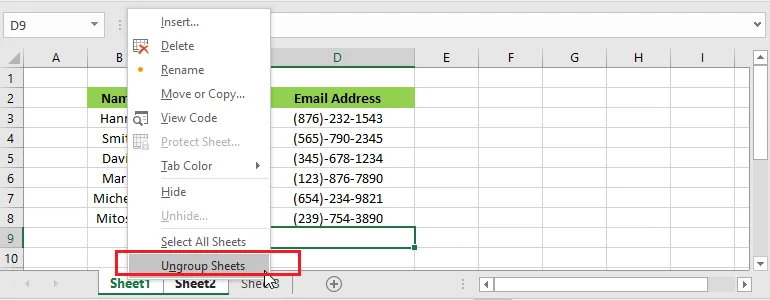
To ungroup, right-click one of the grouped tabs and click Ungroup Sheets, or click any sheet tab that isn’t in the group.
Warning: Remember to ungroup when you’re done. While sheets are grouped, every edit changes all of them.