How to Paste and Skip Blanks in Excel
Skip blanks is an option in Paste Special. When it’s ticked, empty cells in what you copy are ignored, so they don’t wipe out the values already in the cells you paste over. It’s handy for merging two partly filled columns.
-
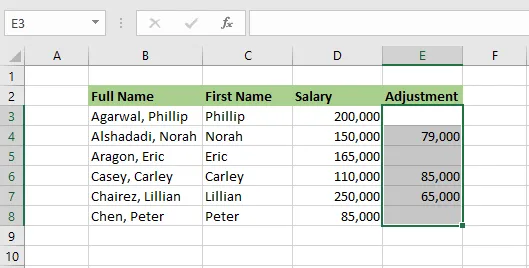
Select the range to copy, here E3:E8. Some of its cells are empty.
-
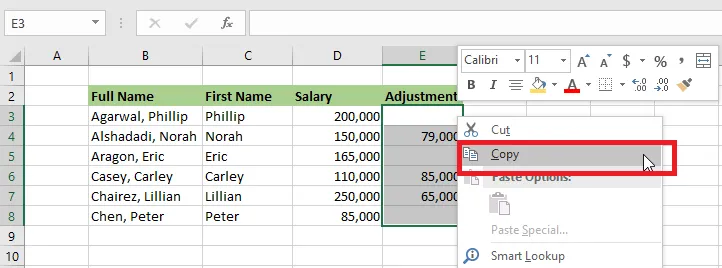
Right-click and click Copy (or press Ctrl + C).
-
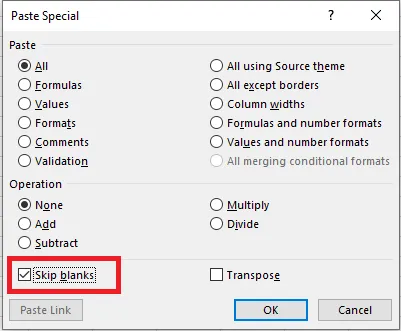
Right-click cell D3 and click Paste Special. In the dialog box, tick Skip blanks.
-
Click OK.
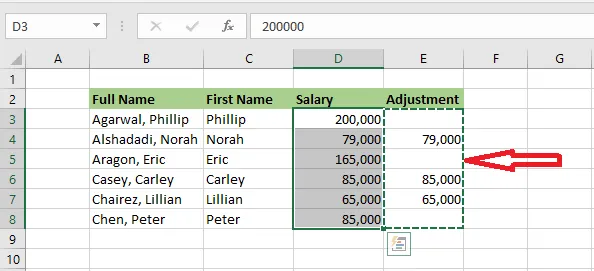
Result: the copied values are pasted, but where the copy had empty cells, the original values in column D are kept.