How to Convert Formulas to Values
Sometimes you want to keep a formula’s result but remove the formula, for example before sending a file or deleting the source data. Here’s how.
One cell
-
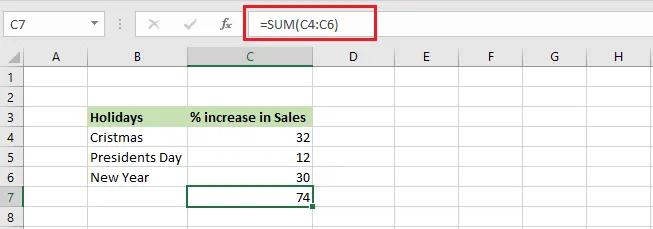
Select cell C7, which has a SUM function.
-
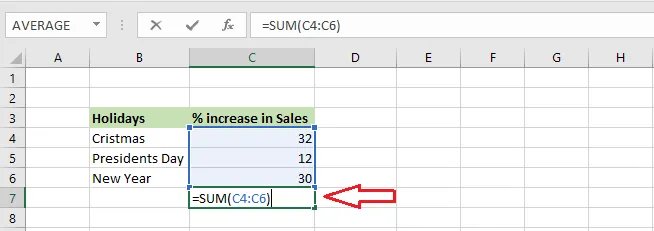
Press F2 to edit the cell.
-
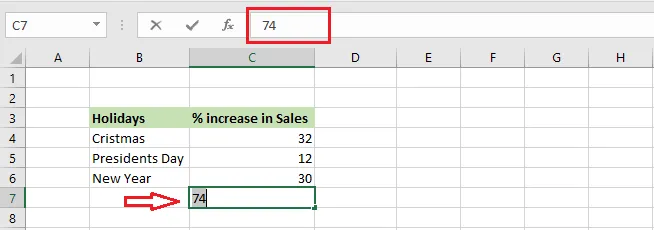
Press F9. The formula changes to its value.
-
Press Enter.
Now, when you select C7, there’s only a number, no formula.
A range of cells
-
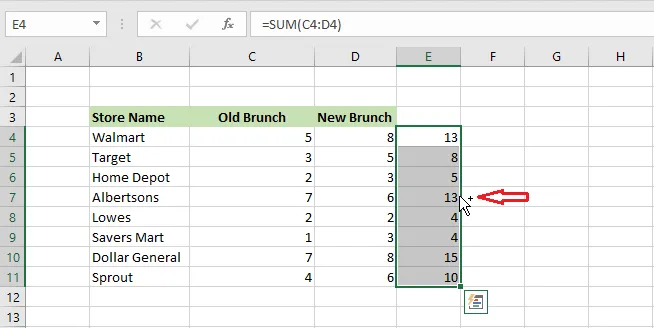
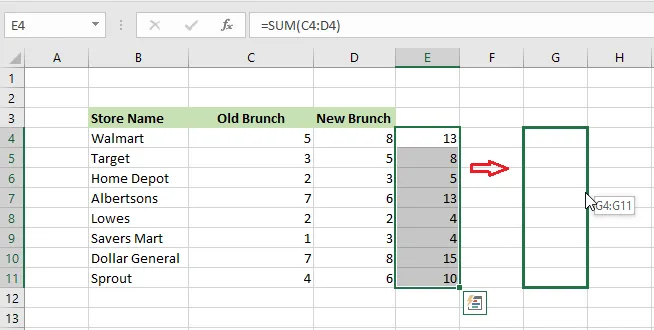
Select the formula cells, E4:E11.
-
Point at the edge of the selection until the pointer becomes a four-headed arrow. Hold down the right mouse button and drag the range a little to the right.
-
Still holding the button, drag it back to where it was, and release.
-
In the menu that appears, click Copy Here as Values Only.
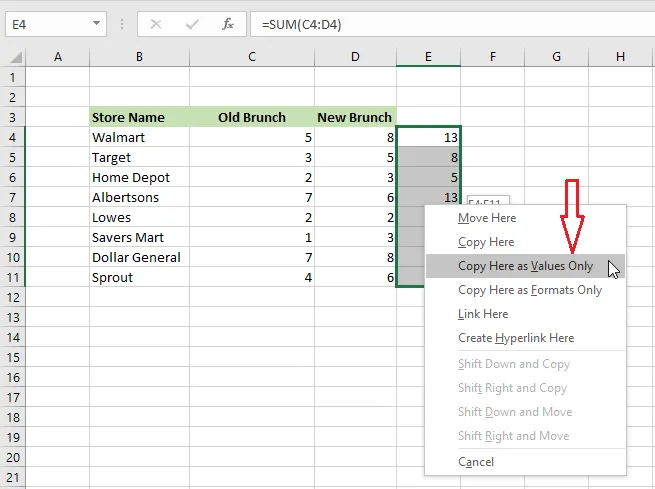
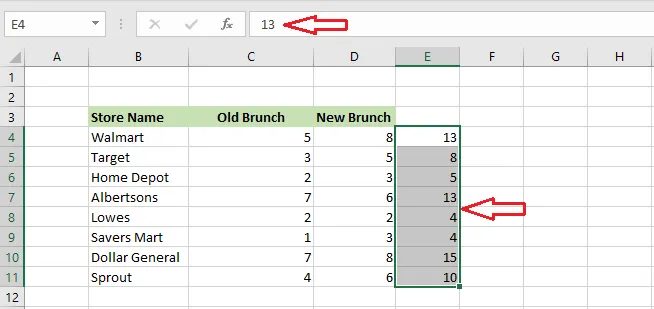
Result: all the formulas are replaced with their values.
Tip: Another way: copy the range (Ctrl + C), then paste it over itself as values. See Paste Options.