Excel Workbook Views
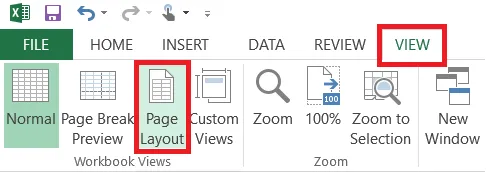
Excel has three workbook views, all on the View tab: Normal, Page Break Preview and Page Layout. The last two help you get ready to print.
Normal
This is the view you work in every day. To switch back to it, click View > Normal.
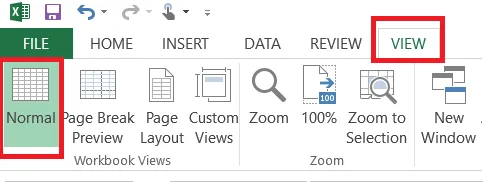
Note: After using the other views, Excel may show dotted page-break lines in Normal view. To hide them, untick Show page breaks under File > Options > Advanced (in Display options for this worksheet), or close and reopen the file.
Page Break Preview
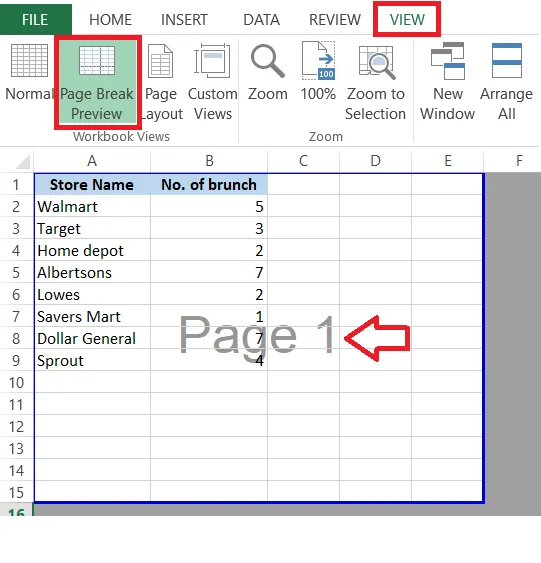
This view shows where each printed page begins and ends, with page numbers. You can drag the blue lines to move the page breaks.
-
Click View > Page Break Preview.
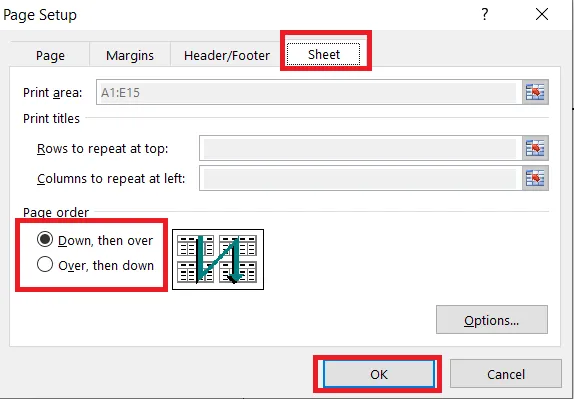
For a large sheet that’s several pages wide and tall, you can choose the page order. Click File > Print > Page Setup, open the Sheet tab, and under Page order, choose Down, then over or Over, then down.
Page Layout
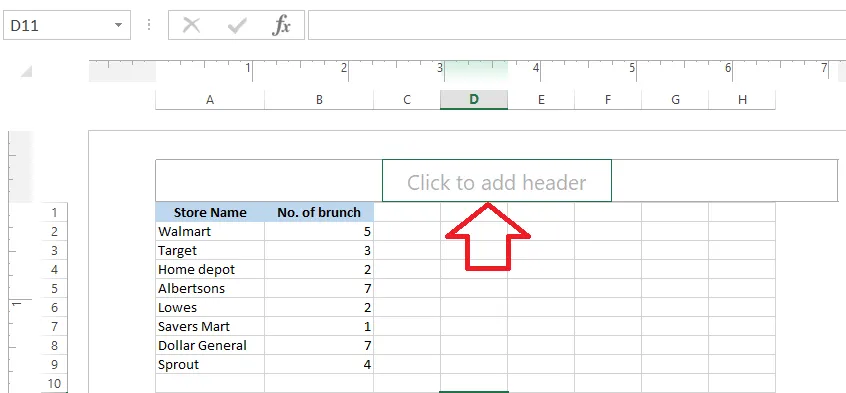
This view shows each page as it will print, with its margins. You can also add headers and footers here.
-
Click View > Page Layout.
-
Click in the header area at the top of the page and type a header.