How to Insert Page Breaks in Excel
Excel decides where printed pages break, but you can choose for yourself. A page break tells Excel to start a new page at a certain row or column.
-
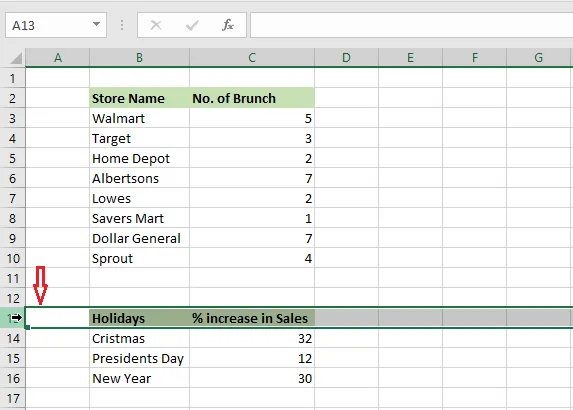
Select the row where the new page should start. Here, row 13.
-
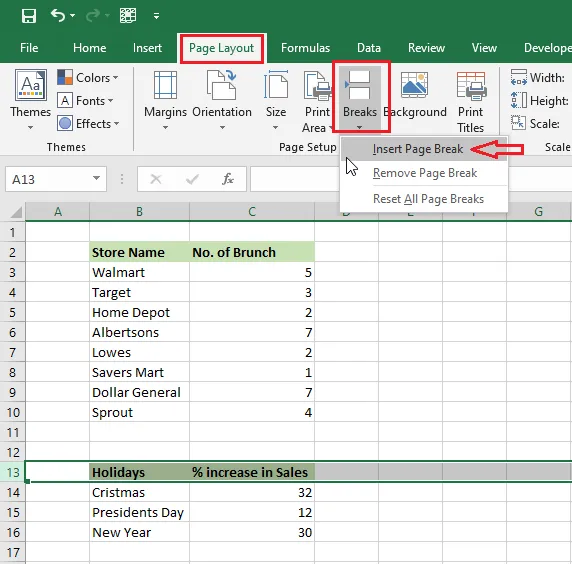
Click Page Layout > Breaks > Insert Page Break.
Result: a line across the sheet shows where the new page begins.
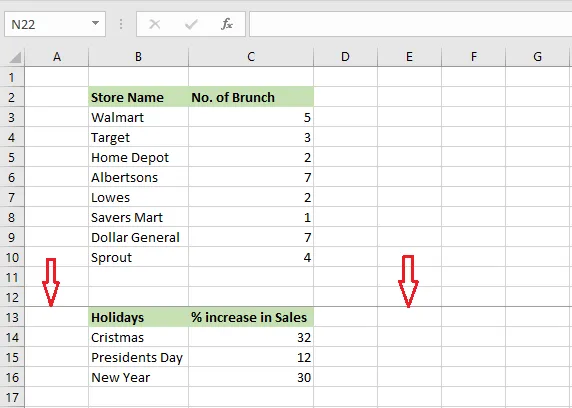
For a vertical page break, select a column instead and follow the same steps. If you select a single cell, Excel adds both a horizontal and a vertical break.
-
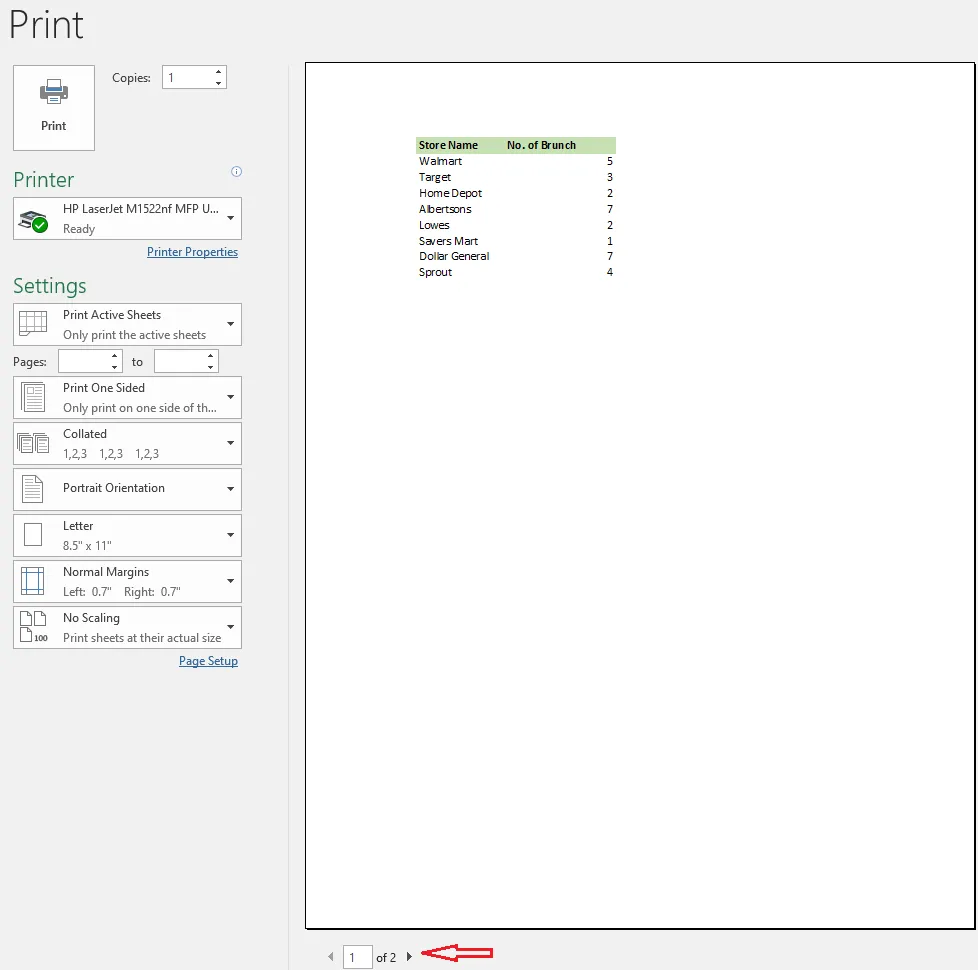
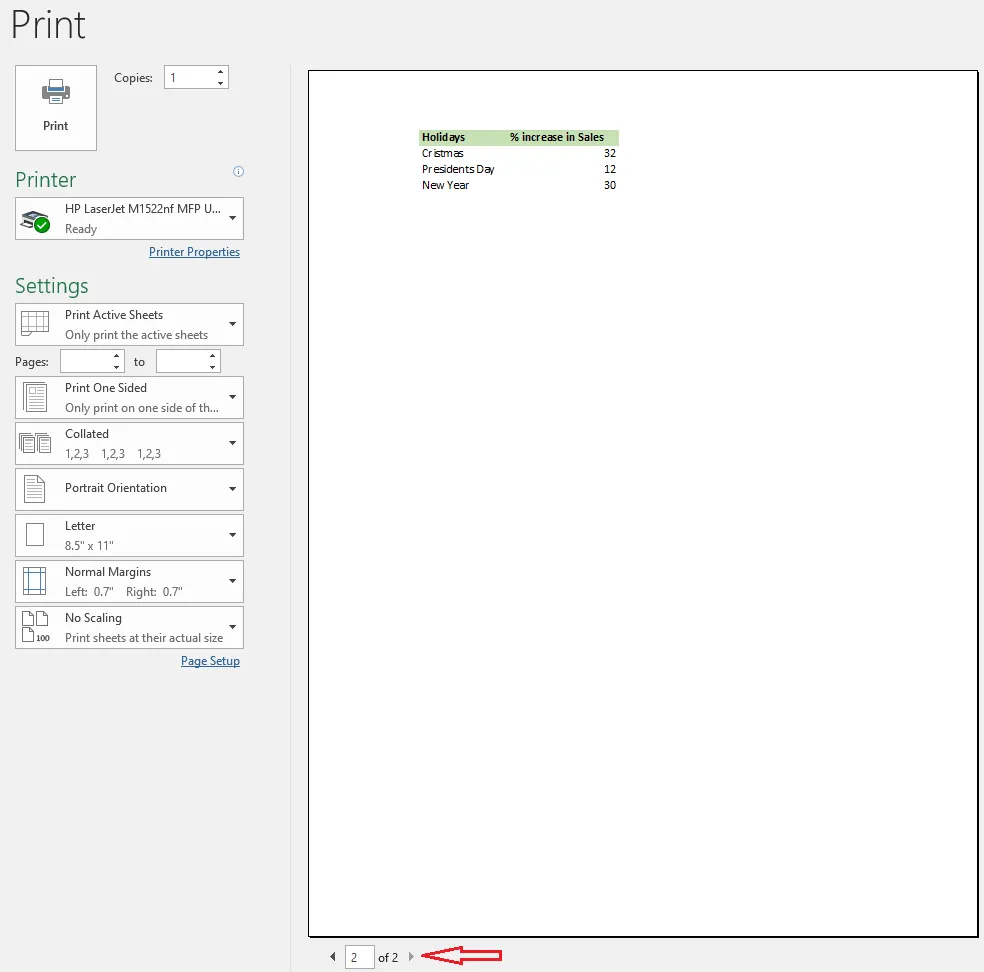
To check the result, click File > Print. Page 1 ends at row 12, and page 2 starts at row 13.
Note: To remove a page break, select the row just below it and click Page Layout > Breaks > Remove Page Break. To remove them all, choose Reset All Page Breaks.
Tip: In Page Break Preview, you can drag page breaks to move them.