How to Make a Workbook Read-Only
A read-only workbook can be opened and viewed, but changes can’t be saved to it. Only to a new copy. Use a password to modify so only you can edit the original.
-
Open the workbook.
-
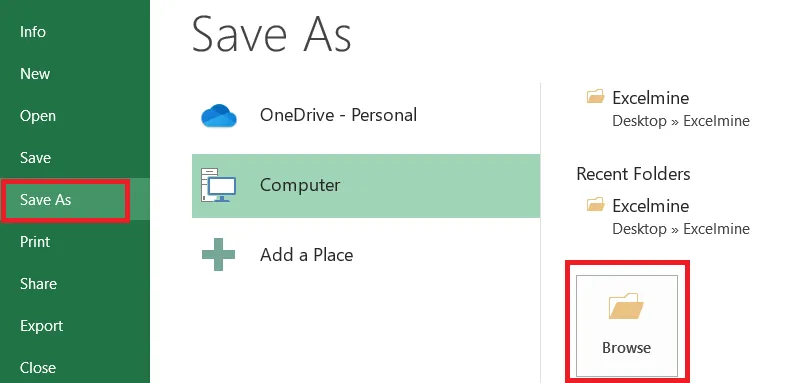
Click File > Save As > Browse.
-
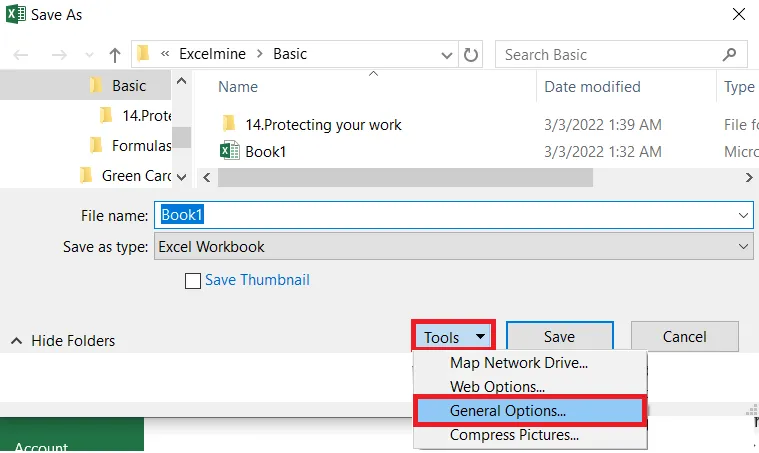
In the Save As dialog box, click Tools > General Options.
-
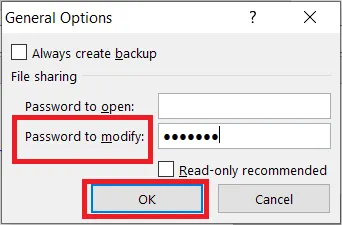
Type a password in Password to modify. (This example uses protect.)
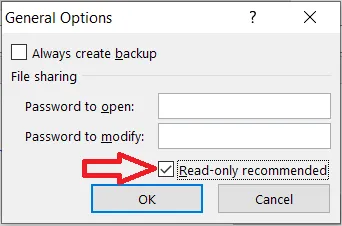
To simply suggest read-only without a password, tick Read-only recommended and leave the password boxes empty. People then see a message suggesting they open it read-only, but they can choose not to.
-
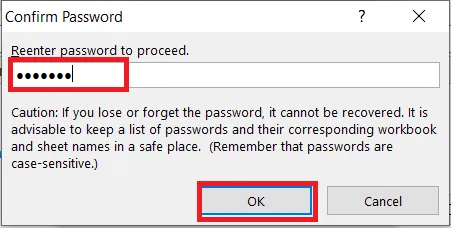
Click OK, type the password again, and click OK.
-
Type a file name and click Save.
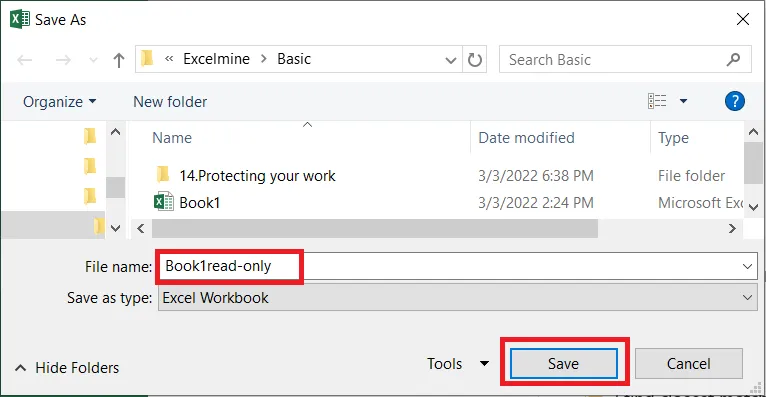
Result: when someone opens the file, Excel asks for the password to edit, or lets them open it Read Only.
Note: Anyone can still open the file read-only and save a copy under a new name. For stronger protection, also protect the sheet.