Excel Function Keys F1 to F12
The function keys along the top of your keyboard are shortcuts to some of Excel’s most useful tools. Here’s what each one does.
Note: On many laptops, you need to hold the Fn key as well, for example Fn + F2.
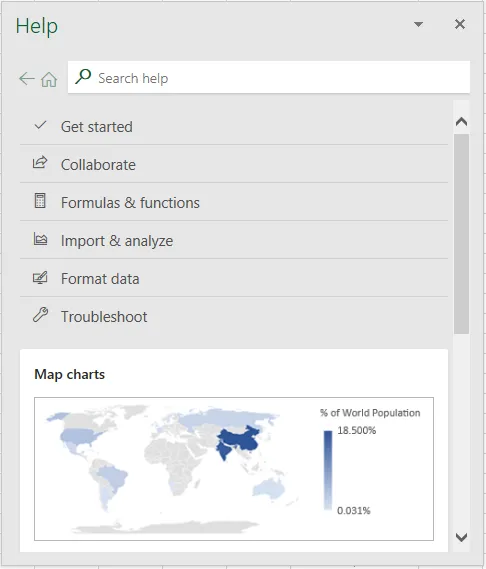
F1: Help
F1 opens Excel Help.
F2: edit the active cell
F2 puts the cursor at the end of the active cell so you can edit it. For example, select D11 and press F2.
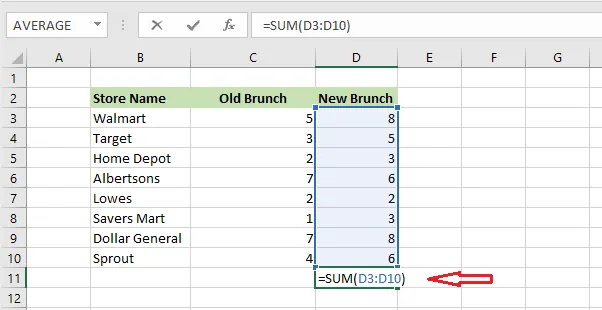
Note: If Allow editing directly in cells is turned off (File > Options > Advanced), F2 puts the cursor in the formula bar instead.
F3: paste a name
F3 opens the Paste Name box. For example, in D11 type =SUM( and press F3 to choose a named range.
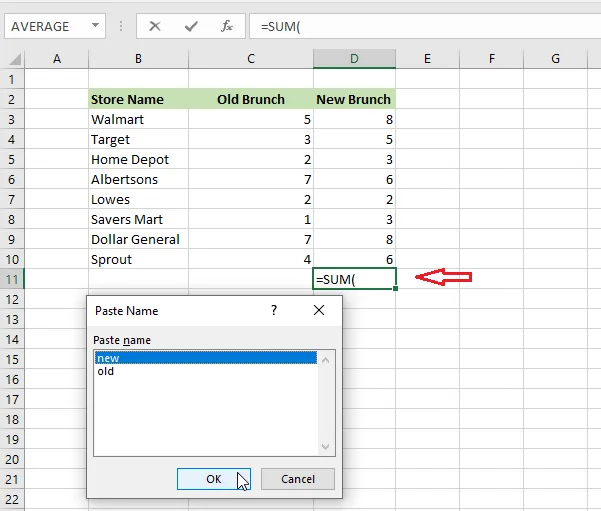
F3 only works if the workbook has at least one named range.
F4: absolute references
F4 adds $ signs to a cell reference to make it absolute. Say E3 has =D3*F2 and you want F2 to stay fixed when you copy the formula down. Click on F2 in the formula and press F4. It becomes $F$2.
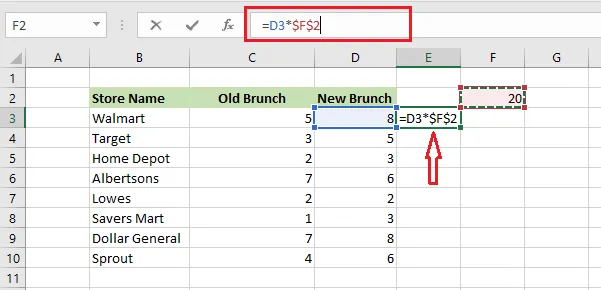
Press F4 again to cycle through F$2, $F2 and F2.
F5: Go To
F5 opens the Go To box. Type a cell address under Reference, such as E3, and click OK.
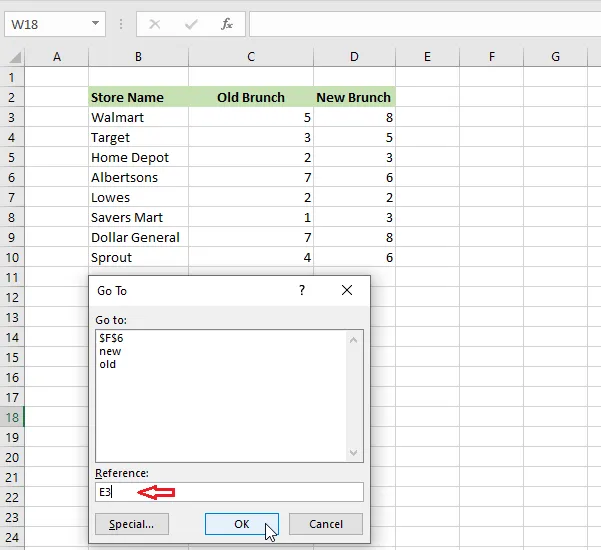
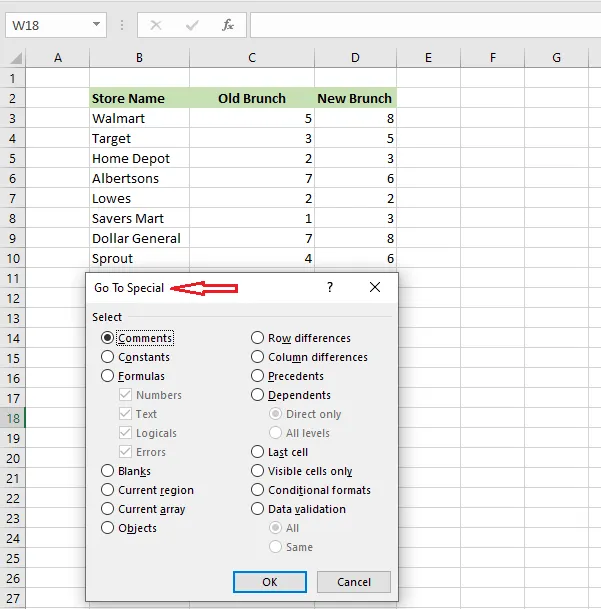
Click Special to open Go To Special. For example, choose Comments and click OK to select every cell with a comment.
F6: next pane
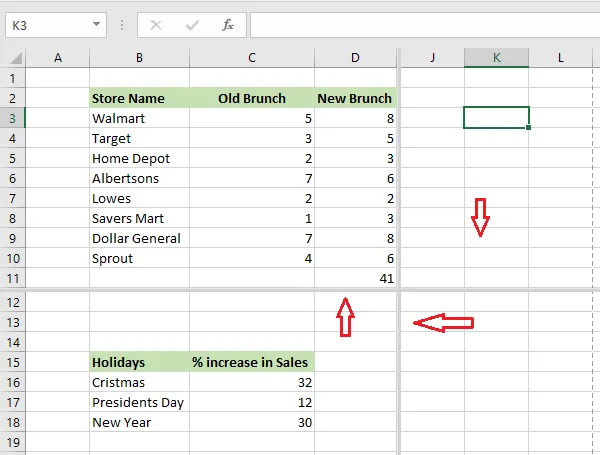
F6 moves between the panes of a split worksheet, clockwise. (In a normal sheet, it moves between the sheet, the ribbon and the status bar.)
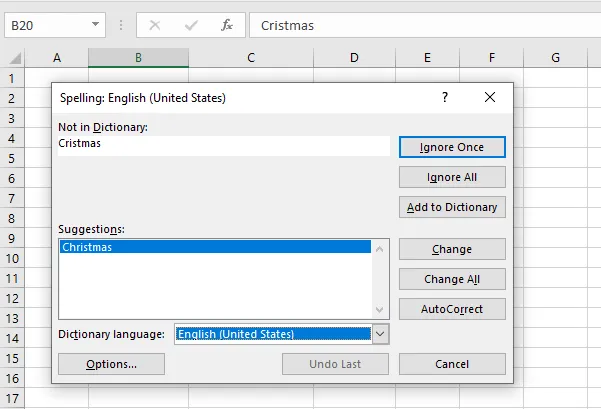
F7: spell check
F7 opens the Spelling dialog box.
F8: extend selection
F8 turns on Extend Selection mode. Select B3, press F8, and then use the arrow keys to extend the selection without holding Shift.
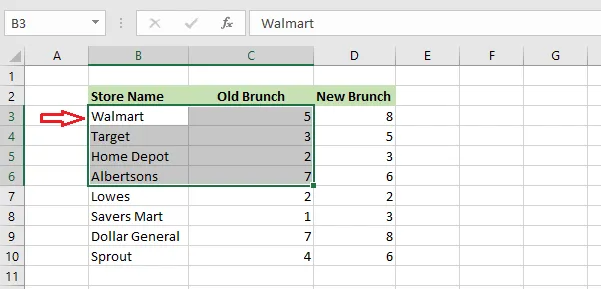
Press F8 again or Esc to turn it off.
F9: check part of a formula
F9 calculates the selected part of a formula, so you can check it. For example, D11 has this formula:
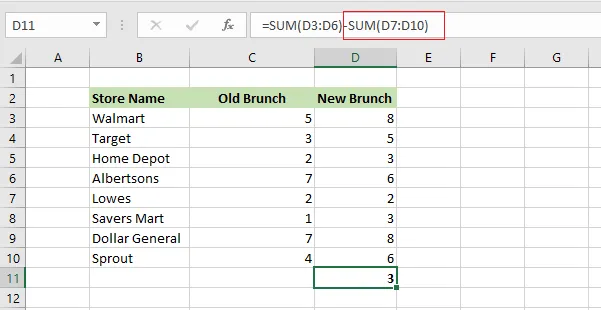
In the formula bar, select the part SUM(D7:D10) and press F9. It shows 19, the result of that part.
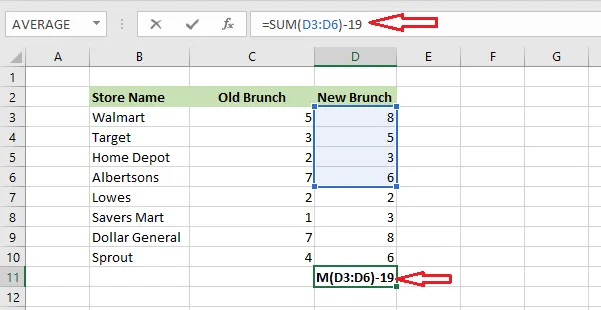
Note: Press Esc afterward, not Enter. Enter would replace that part of your formula with the number.
F10: key tips
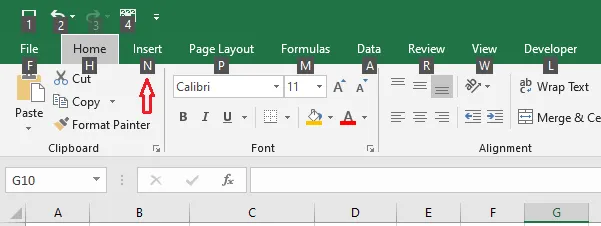
F10 (or Alt) shows letters, called key tips, on the ribbon. Press a letter to open that tab. For example, press N for the Insert tab, which then shows its own key tips.
F11: create a chart
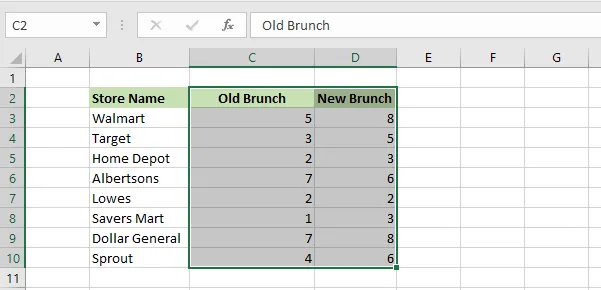
F11 creates a chart from the selected data. For example, select C2:D10:
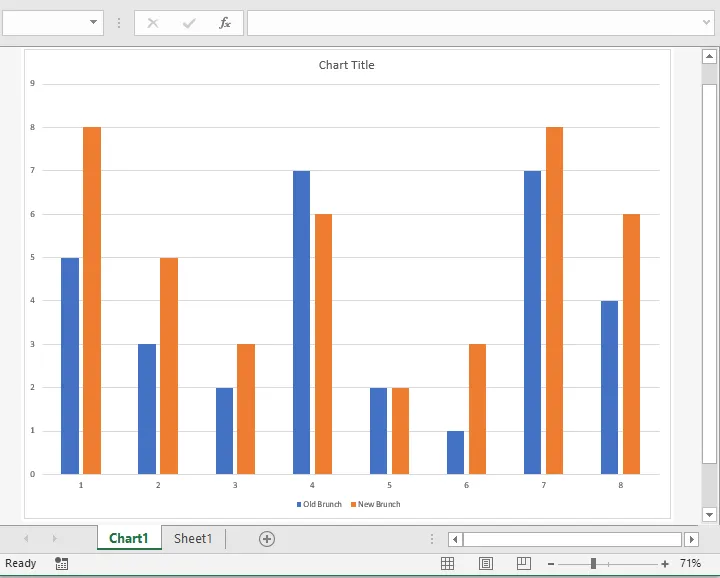
Press F11, and Excel creates a column chart on a new chart sheet.
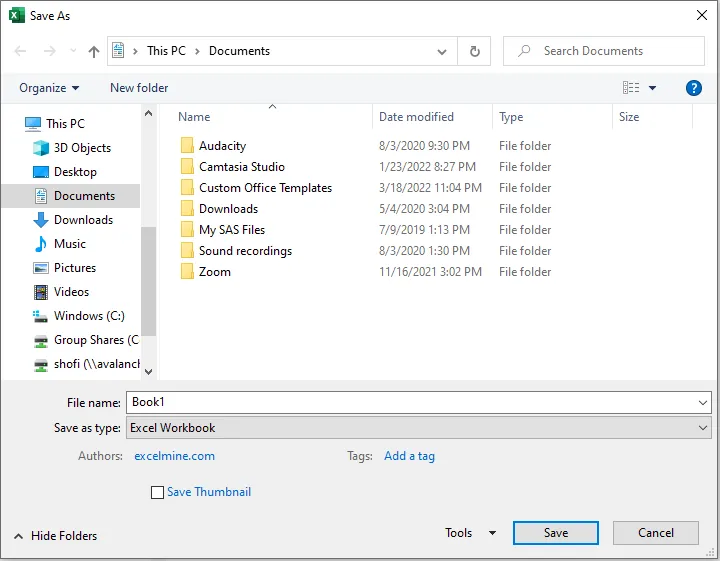
F12: Save As
F12 opens the Save As dialog box.