How to Add a Header and Footer
A header prints at the top of every page, and a footer at the bottom. They’re great for titles, dates and page numbers.
-
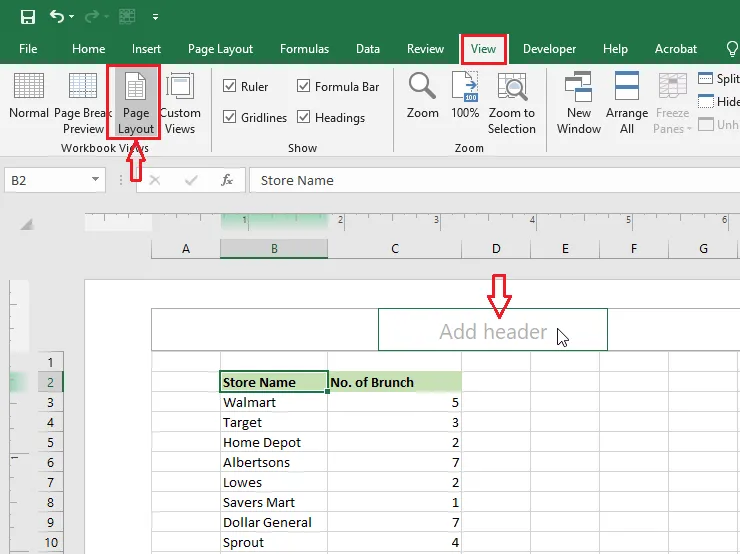
Click View > Page Layout.
-
Click Add header at the top of the page. Then, on the Header & Footer tab, click Current Date.
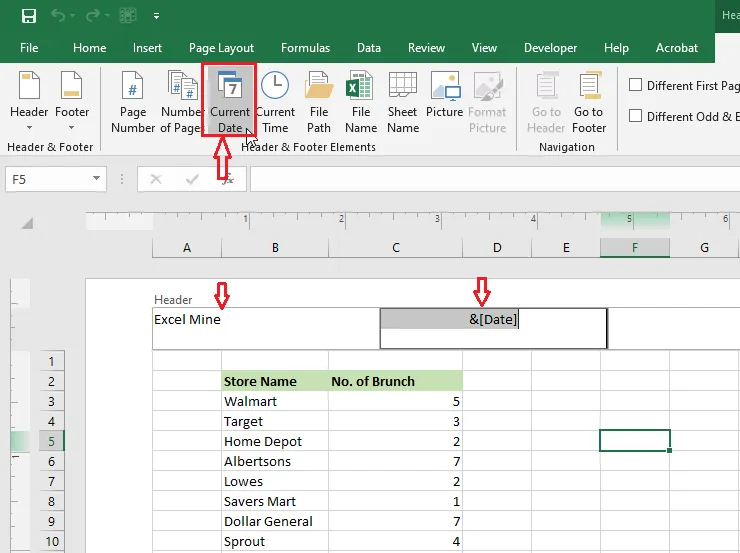
Excel adds a date code,
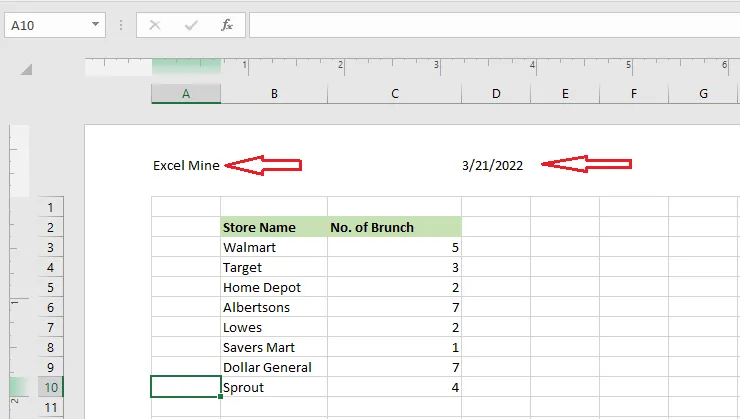
&[Date], which updates to the current date each time you print. The header has left, center and right sections; click any of them to add text there. -
Click anywhere in the sheet to see the header.
-
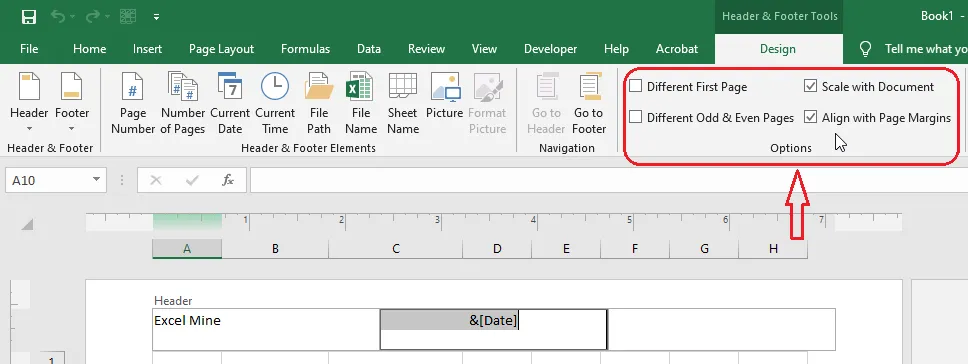
To use a different header on the first page, or on odd and even pages, tick Different First Page or Different Odd & Even Pages on the Header & Footer tab.
-
To go back to the normal view, click View > Normal.
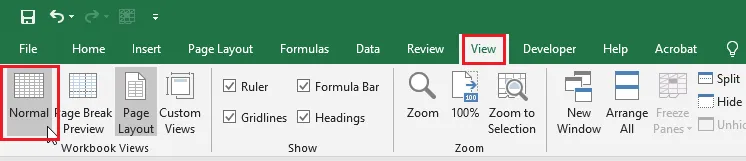
-
To check your headers and footers, click File > Print.
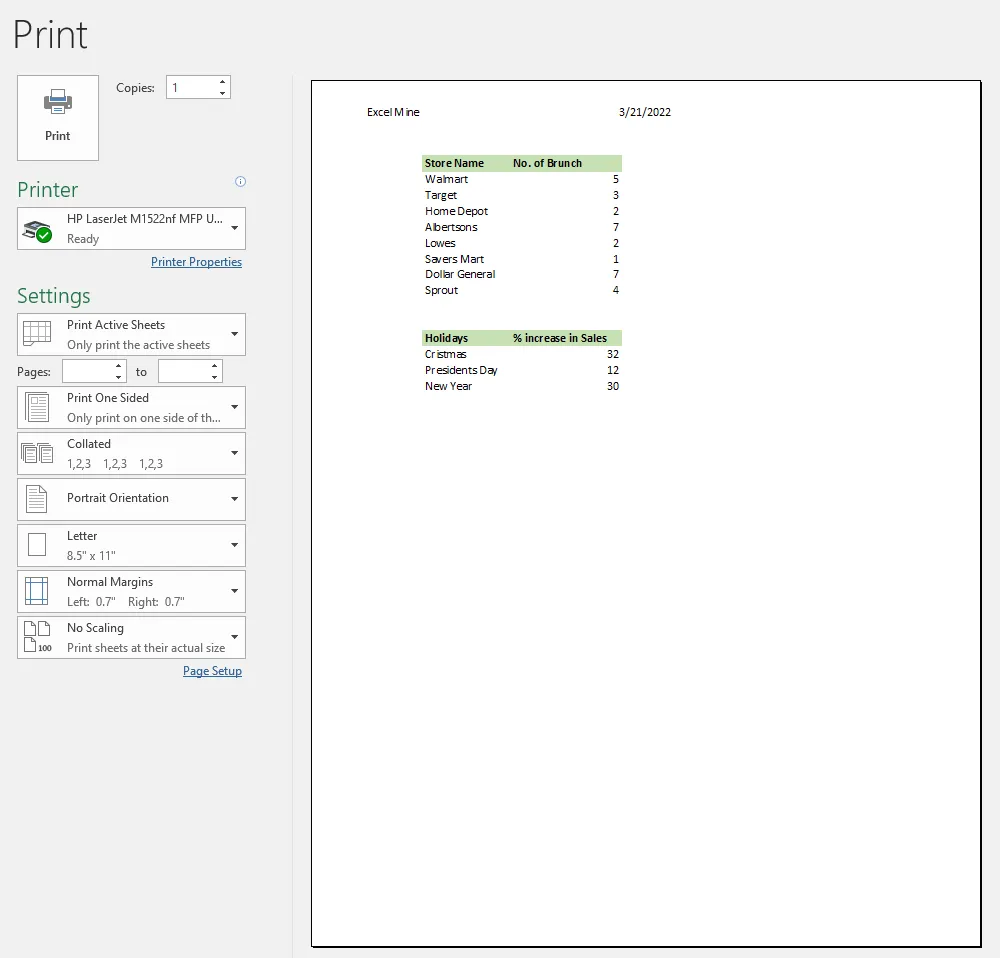
Note: In older versions of Excel, the Header & Footer tab is called Design.
Next: add page numbers to the footer.