How to Create a Cash Budget in Excel
A cash budget shows the money coming in and going out each month, and whether you end up with a surplus or a deficit. Here’s how to build one, using skills from earlier in this course.
-
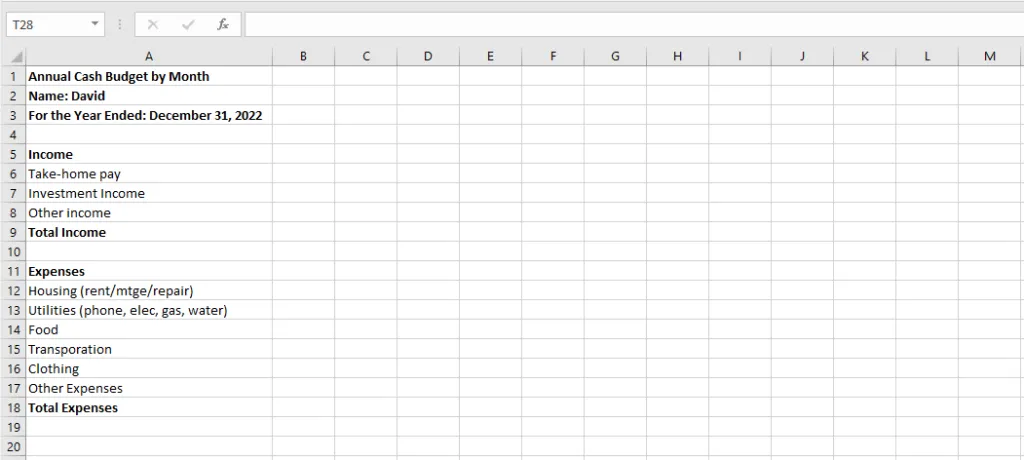
Type the budget’s headings in A1, A2 and A3.
-
List all your income sources and expenses in column A.
-
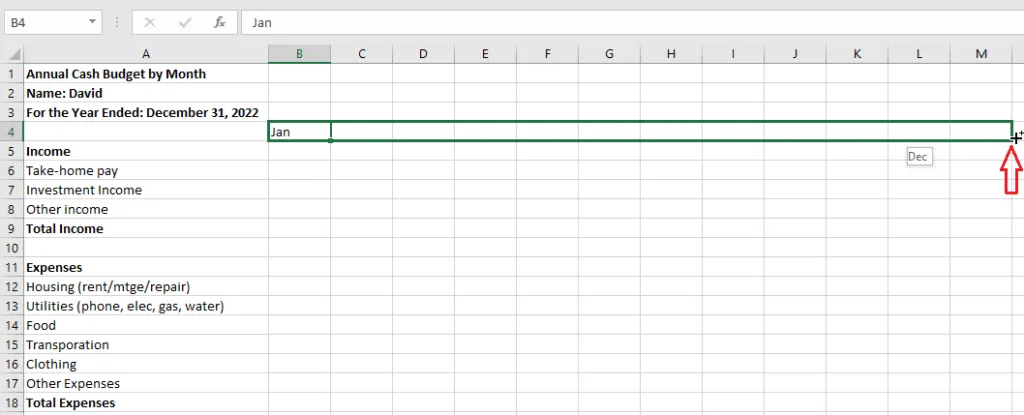
Type Jan in B4. Drag its fill handle to the right as far as M4. Excel fills in the other months (AutoFill).
-
In B9, add up January’s income with a SUM function, such as
=SUM(B6:B8). Drag the fill handle to M9 to do the same for every month.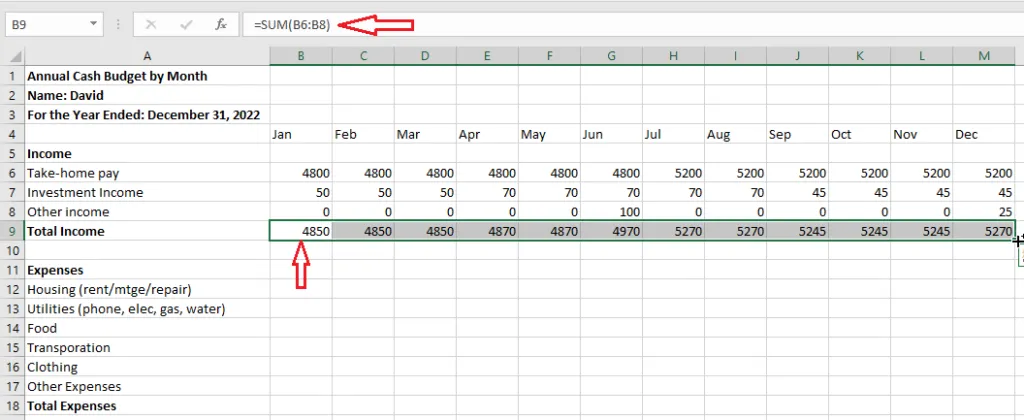
-
In N6, add up the year for the first income item, such as
=SUM(B6:M6). Drag the fill handle down to N9.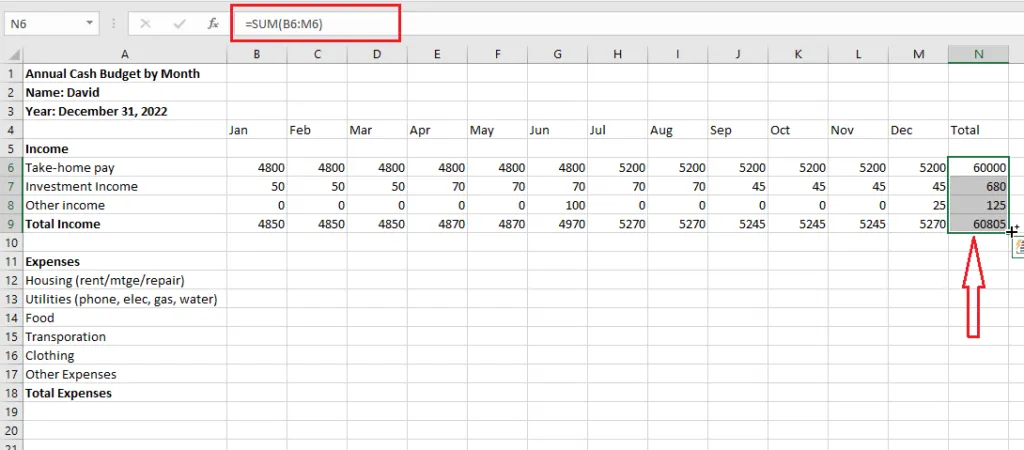
-
Repeat steps 4 and 5 for the expenses.
-
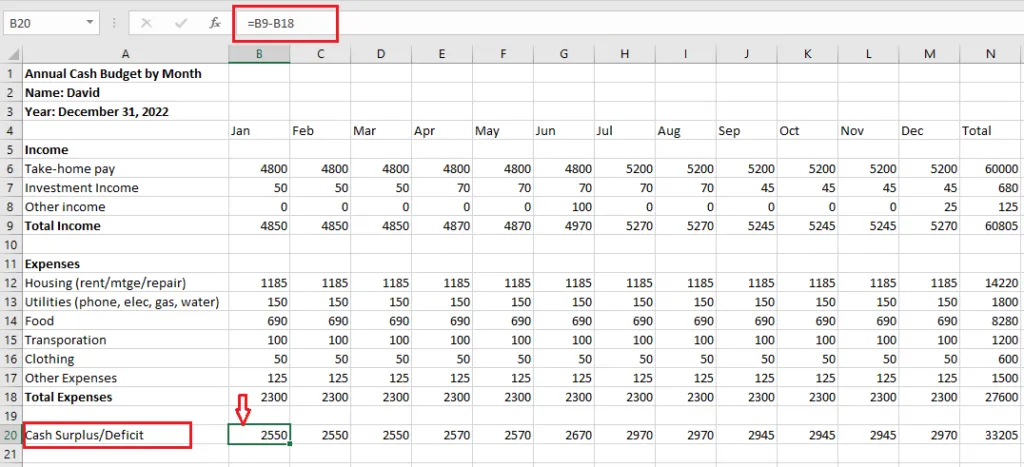
Type Cash Surplus/Deficit in A20.
-
In B20, subtract total expenses from total income:
=B9-B18. -
Drag the fill handle of B20 to the right as far as N20.
-
To make the results easy to read, add conditional formatting to B20:N20. Here, values above 2600 are green and values below 2600 are red.
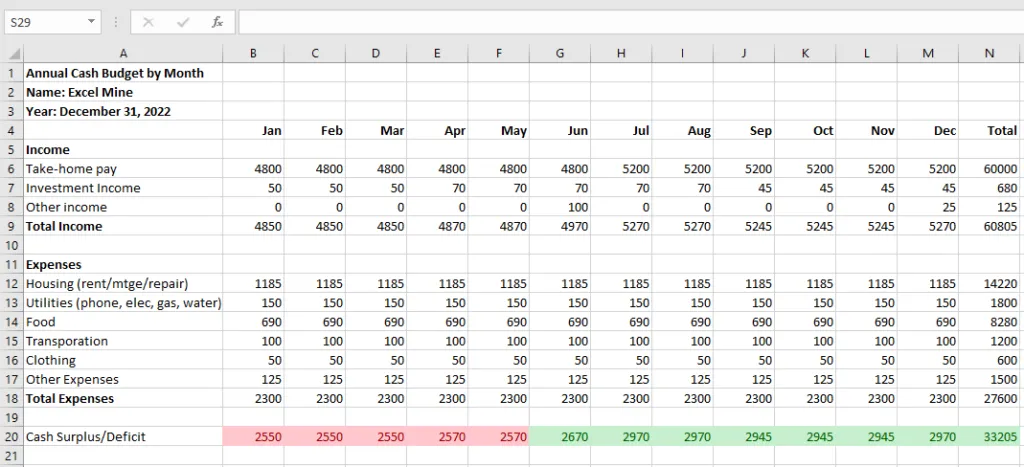
Tip: A simpler rule works for most budgets: green above 0 (a surplus) and red below 0 (a deficit). Select B20:N20, then go to Home > Conditional Formatting > Highlight Cells Rules > Greater Than (and Less Than).
Result: a working cash budget. Change the income and expense lines to match your own situation.
Download the template: excel-cash-budget.xls