How to Insert a Checkbox in Excel
Checkboxes turn a plain list into an interactive checklist. In this lesson you’ll insert a checkbox, link it to a cell, and use it to build a simple to-do list that counts what you’ve finished.
You’ll need the Developer tab. If you don’t see it, first follow How to Show the Developer Tab in Excel.
Insert a checkbox
-
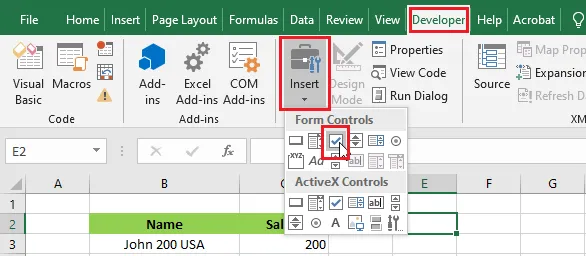
On the Developer tab, click Insert.
-
Under Form Controls, click Check Box.
-
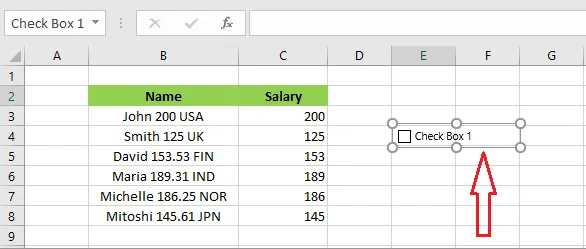
Click and drag on the worksheet to draw the checkbox, here in cell E4.
-
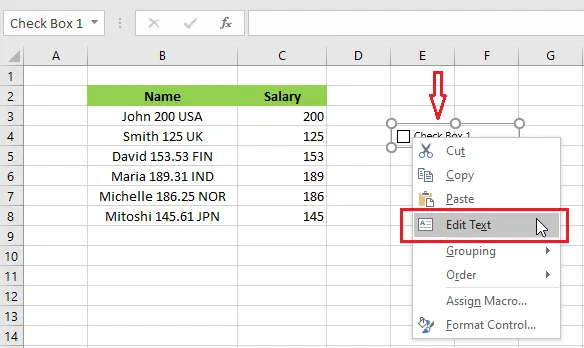
To change or remove the text next to the box, right-click the checkbox and click Edit Text.
Link a checkbox to a cell
Linking a checkbox to a cell lets formulas know whether it’s ticked.
-
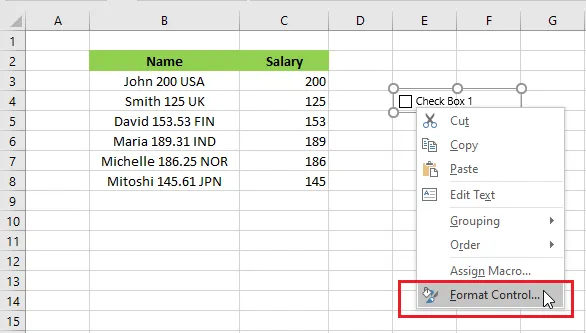
Right-click the checkbox and click Format Control.
-
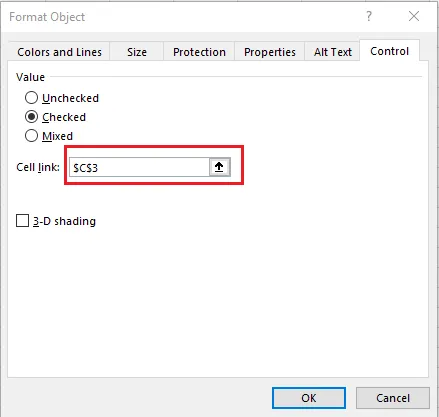
On the Control tab, set Cell link to C3, then click OK.
-
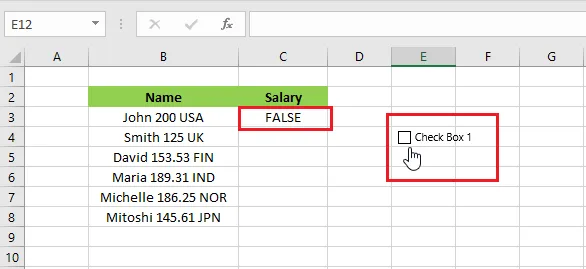
Test it: when the box is ticked, cell C3 shows TRUE, and when it isn’t, C3 shows FALSE.
Build a to-do list
-
Draw a checkbox in cell C3 and delete its text (right-click > Edit Text).
-
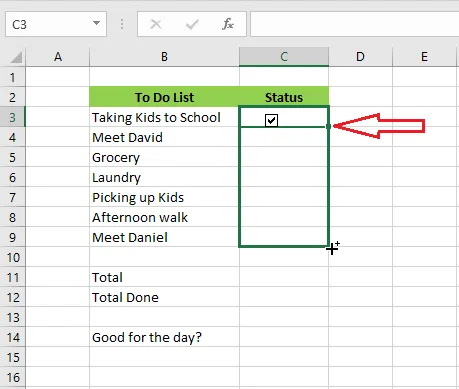
Select C3 and drag the fill handle down to C9 to copy the checkbox to each task.
-
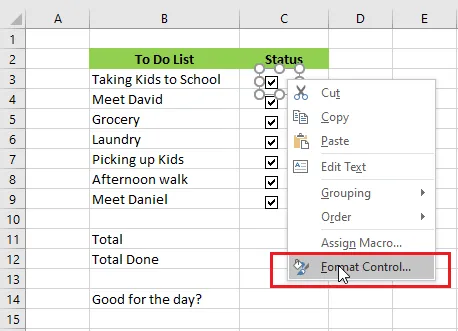
Right-click the first checkbox and click Format Control.
-
Link it to cell D3.
-
Repeat for the other six checkboxes, linking each one to the cell beside it (D4 to D9).
-
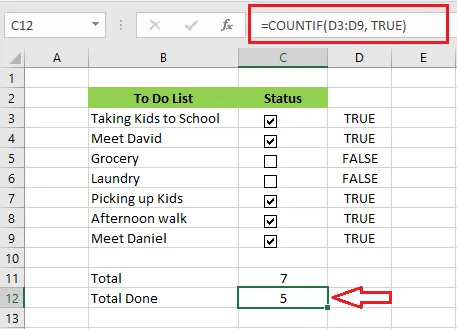
To count finished tasks, enter this formula in C12:
=COUNTIF(D3:D9, TRUE)It counts how many linked cells are TRUE, meaning how many boxes are ticked.
-
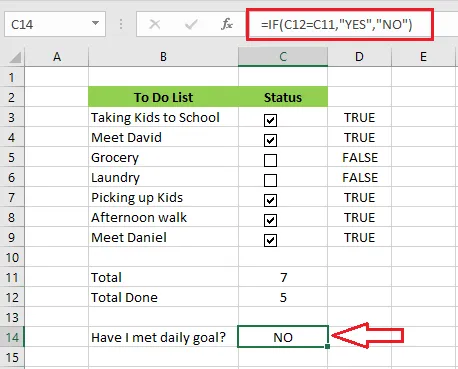
To check whether you’ve finished everything, enter this formula in C14:
=IF(C12=C11, "YES", "NO")It shows YES only when the number of tasks done equals the total in C11.
-
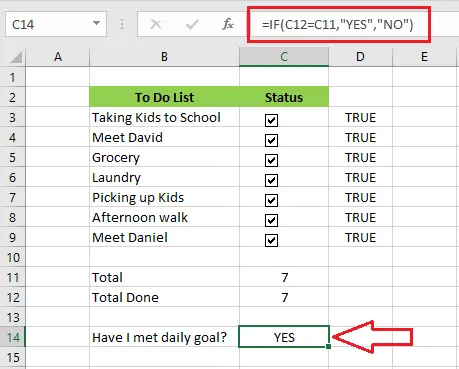
Tick all the boxes and watch the result change to YES.
Tip: Column D only helps the formulas, so you can hide it to make the list look cleaner. Right-click the column D heading and click Hide.
Using Microsoft 365? Newer versions also have built-in cell checkboxes: select the cells, then on the Insert tab click Checkbox. Each cell then holds TRUE or FALSE itself, with no linking needed.
Download the example: Excel checkbox to-do list
You’ve finished the first chapter. Next, learn how to select and work with groups of cells in What Is a Range in Excel?