How to Convert Numbers to Text in Excel
Sometimes you want Excel to treat a number as text, for example ID numbers, ZIP codes with leading zeros, or a number joined into a sentence. Remember: Excel lines up text on the left of a cell and numbers on the right.
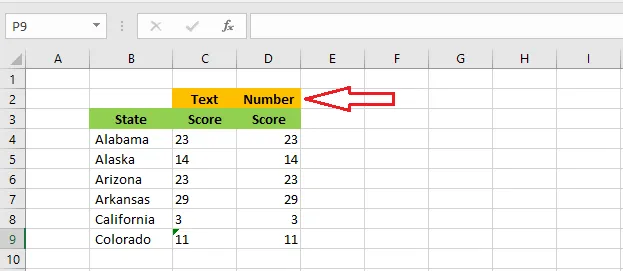
Method 1: the Text format
Select the cells, here C3:C7, and choose Text in the number format list on the Home tab. Numbers you type into these cells from now on are stored as text. See How to Format Cells.
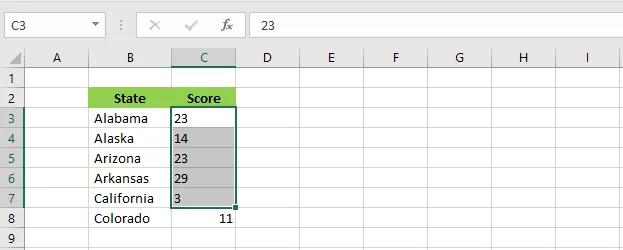
Method 2: an apostrophe
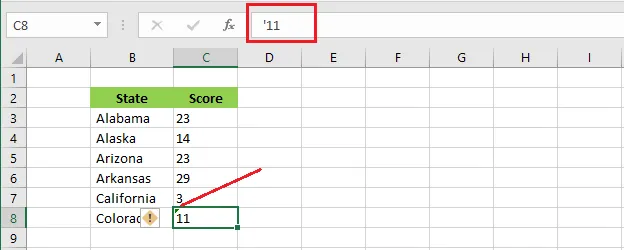
Type an apostrophe (’) before the number, such as ‘00125. Excel stores it as text (keeping the leading zeros) and doesn’t show the apostrophe. The cell gets a small green triangle in the corner, Excel’s reminder that it’s a number stored as text.
Method 3: the TEXT function
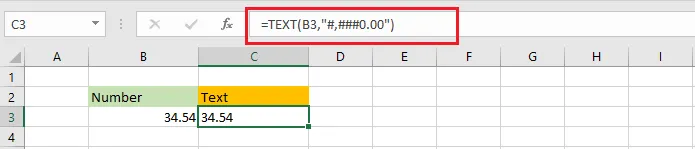
The TEXT function turns a number into text written exactly the way you specify. In cell C3, enter:
=TEXT(B3, "#,##0.00")
This writes the number in B3 with a thousands separator and two decimal places, for example 1,234.50.
Tip: TEXT is handy for sentences:
="Total: " & TEXT(B3, "$#,##0.00")gives Total: $1,234.50.