How to Consolidate Data in Excel
Consolidate combines data from several ranges into one summary: for example, adding up figures from three separate files. It can match rows and columns by their labels, so the source tables don’t need to be laid out identically.
In this example, we total three expenditure workbooks.
-
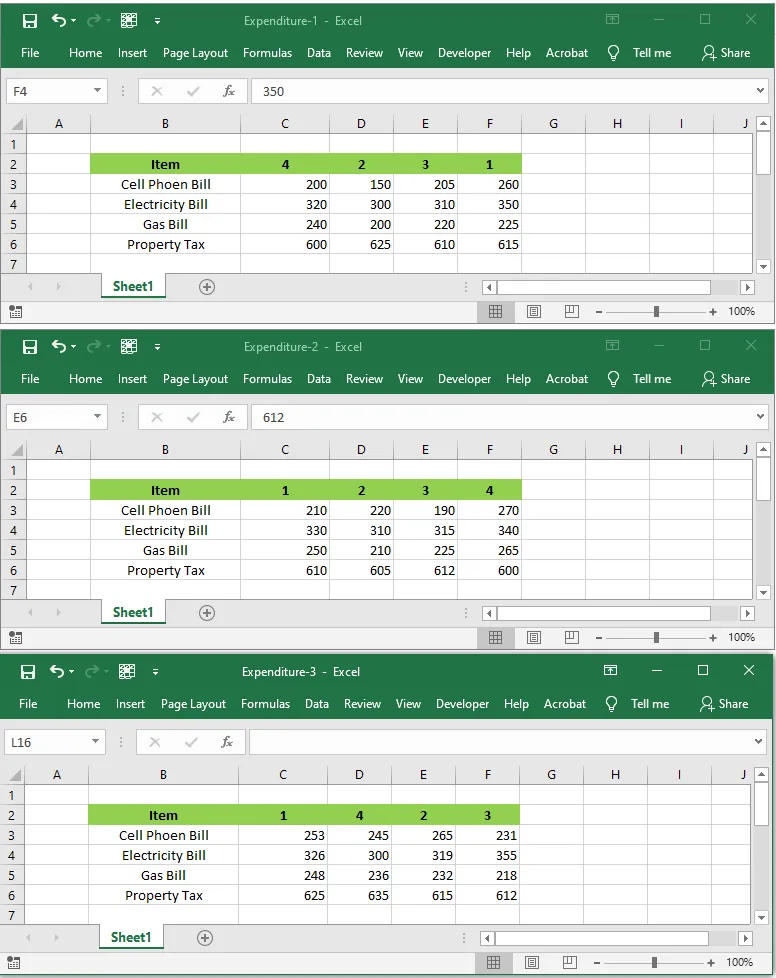
Here are the three workbooks: Expenditure-1, Expenditure-2 and Expenditure-3. Notice that their columns aren’t in the same order.
-
Open all three workbooks.
-
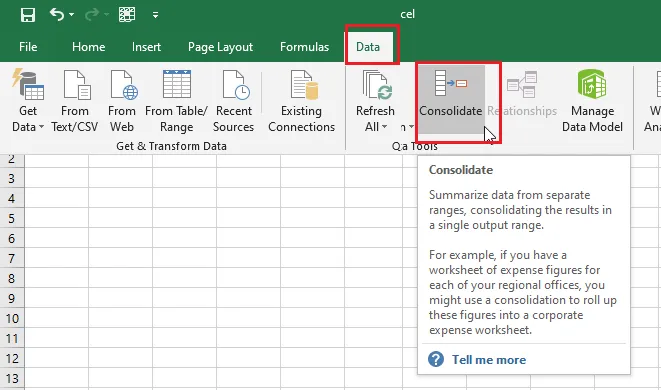
Open a new blank workbook. On the Data tab, click Consolidate.
-
In Function, choose Sum.
-
Click in the Reference box, select the range B2:F6 in the Expenditure-1 workbook, and click Add.
-
Repeat step 5 for Expenditure-2 and Expenditure-3.
-
Tick Top row, Left column and Create links to source data.

-
Click OK.
Result: a table with the totals from all three workbooks, matched by their row and column labels.
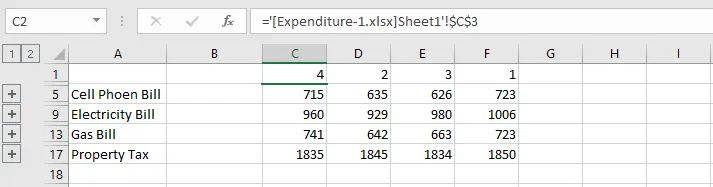
Because Create links to source data was ticked, the totals stay linked to the original files. Click the small + buttons on the left to see where each total came from.
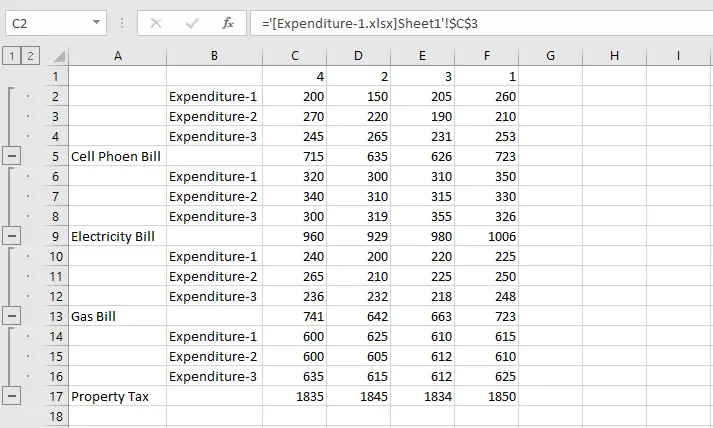
Tip: Consolidate also works with sheets in the same workbook. Choose another function, such as Average or Count, to summarize in a different way.