How to Use Flash Fill in Excel
Flash Fill fills a column for you once you show it the pattern. Type the result you want for the first row, and Excel works out the rest. It works best when the pattern is clear and consistent.
Extract numbers
-
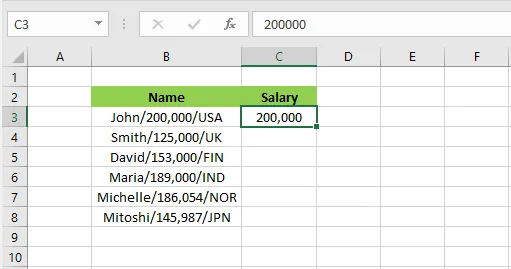
In cell C3, type 200,000, the number you want taken from cell B3.
-
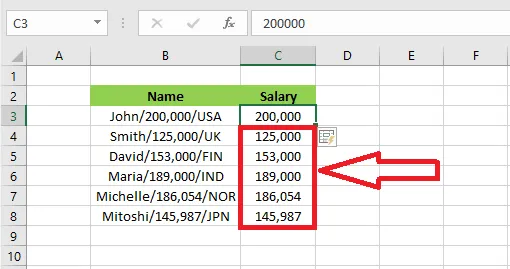
On the Data tab, click Flash Fill (or press Ctrl + E).

Result: Excel fills in the number for every row.
Combine information
Flash Fill can also join text from several cells, for example to build email addresses from first and last names.
-
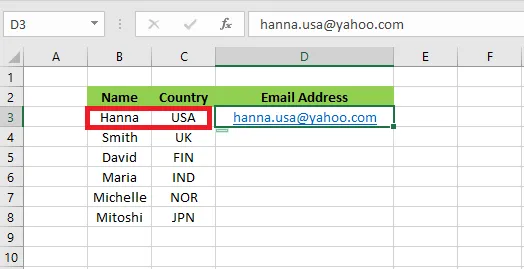
In cell D3, type the email address you want for the first person.
-
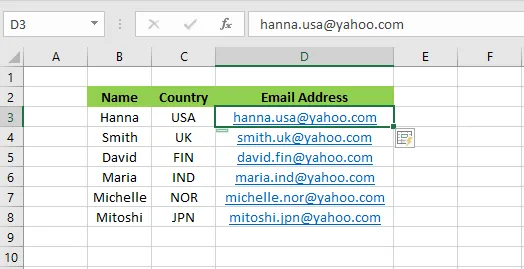
On the Data tab, click Flash Fill (or press Ctrl + E).
Result: Excel builds the email address for every row.
Format numbers
Flash Fill can reformat numbers too, for example to turn plain digits into phone numbers.
-
In cell D3, type the number from C3 the way you want it shown: (876)-232-1543.
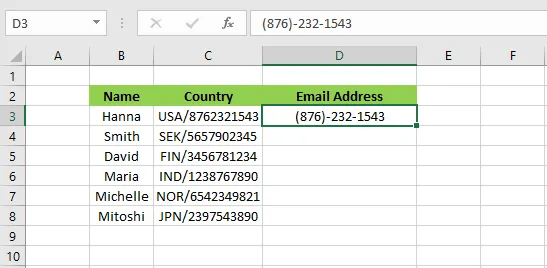
-
On the Data tab, click Flash Fill (or press Ctrl + E).
Result: every number is formatted the same way.
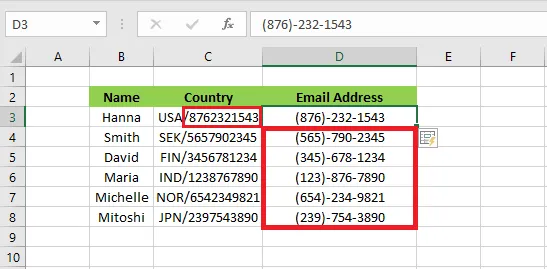
When Flash Fill gets it wrong
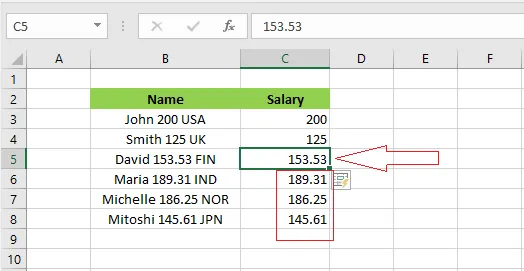
Flash Fill only guesses. If your first example can match more than one pattern, it may guess wrong.
-
In cell C3, type 200, the number you want from B3.
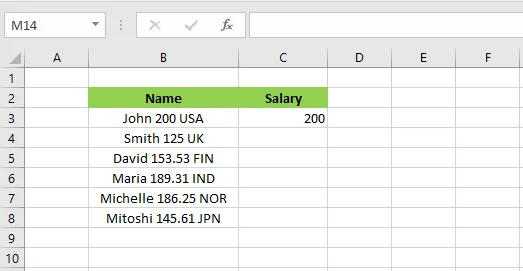
-
Run Flash Fill again. This time, cells C5 to C8 come out wrong: the decimals are missing, because the first example had none.
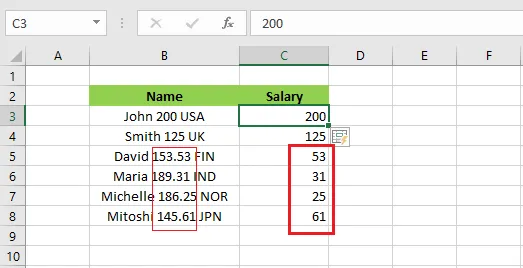
-
To fix it, give Excel a second example: change C5 to 153.53 and press the down arrow. Excel updates the rest of the column.
Note: Flash Fill doesn’t update automatically. If you later change the data in column B, column C stays the same. When you need results that update, use a formula instead (see How to Split Cells in Excel).