How to Create a Named Range in Excel
A named range gives a group of cells a name, like Discount, that you can use in formulas instead of an address like D3:D8. Your formulas become easier to read and harder to get wrong.
From the Formulas tab
-
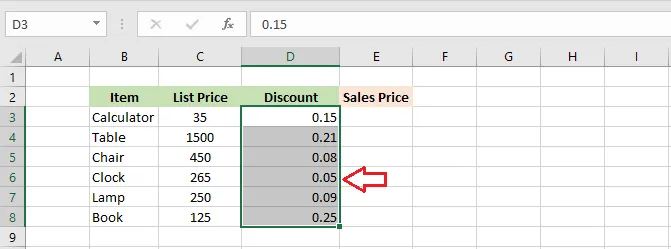
Select the range to name. Here, D3:D8.
-
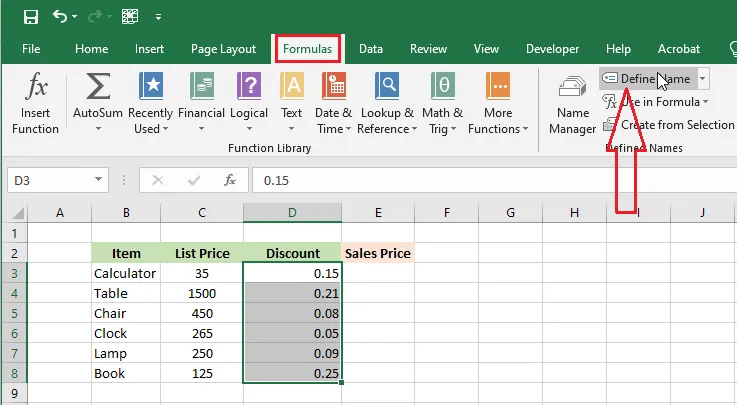
On the Formulas tab, click Define Name.
-
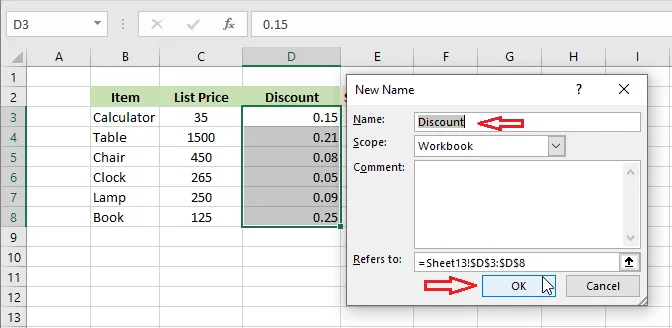
Type a name and click OK.
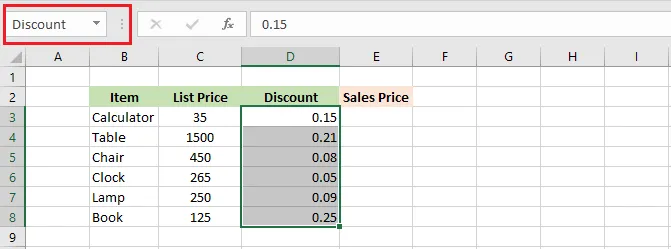
Result: when you select the range, its name shows in the Name Box (left of the formula bar).
Note: Names can’t contain spaces or start with a number. Use an underscore instead, like Sales_2025.
From the Name Box
This way is even faster.
-
Select the range, here D3:D8.
-
Click in the Name Box, type a name, and press Enter.
Use a named range in a formula
-
In cell E3, type
=C3*Discountand press Enter.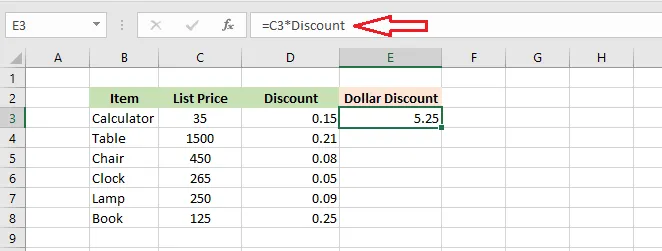
The formula bar shows the name instead of a cell address. Drag the fill handle of E3 down to E8 to copy the formula; each row uses the discount in its own row.
Edit or delete a named range
-
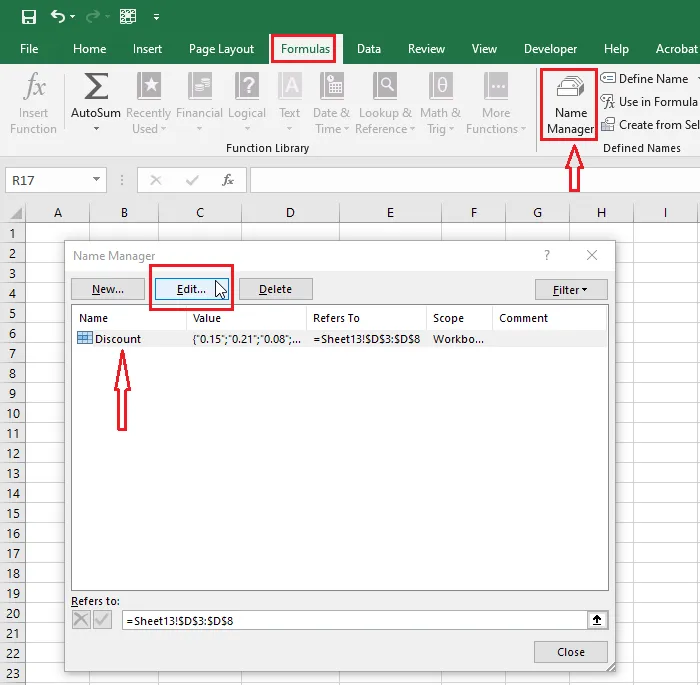
On the Formulas tab, click Name Manager.
-
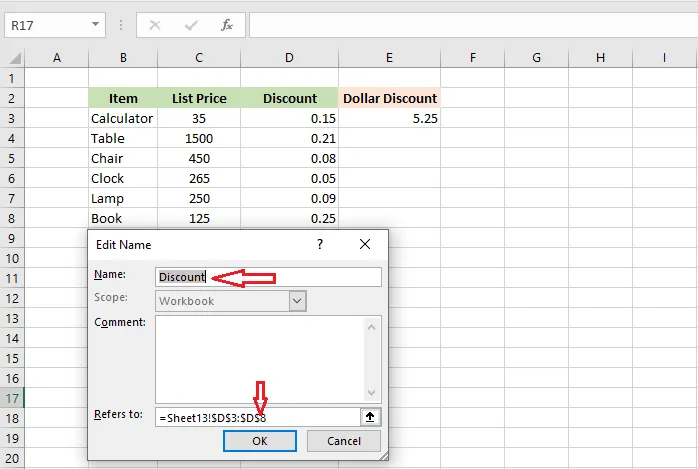
Select the name and click Edit to change the name or the range it refers to.
-
Click OK.
To delete a name:
-
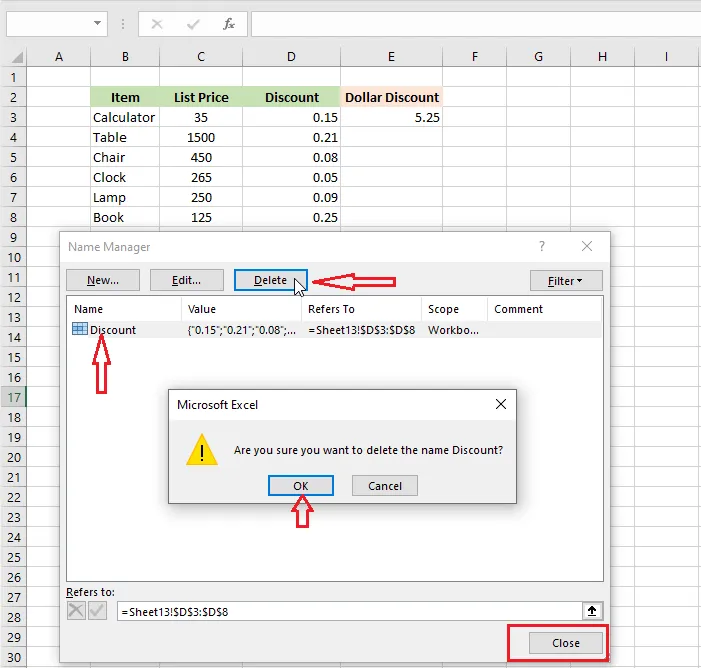
Open Name Manager again.
-
Select the name and click Delete.
-
Click OK when Excel asks you to confirm.
-
Click Close.
Note: Any formula still using a deleted name will show the #NAME? error.
Next: make a named range grow automatically with a dynamic named range.