What Is a Range in Excel?
A range in Excel is a group of cells, such as B2:D4 (every cell from B2 to D4). Almost everything you do in Excel works on a range, so this lesson covers the everyday range skills you’ll use all the time.
Select a cell, a row or a column
-
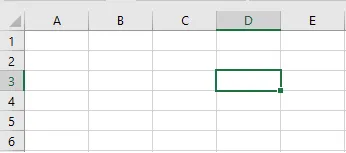
To select a single cell, click it. Here we click the cell where column D meets row 3, which is cell D3.
-
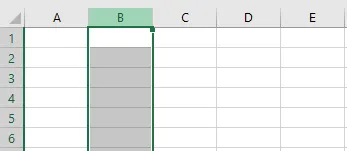
To select a whole column, click its letter in the column heading, here column B.
-
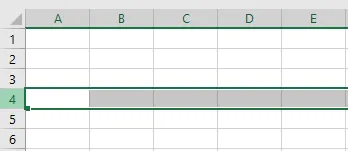
To select a whole row, click its number in the row heading, here row 4.
Select a range
-
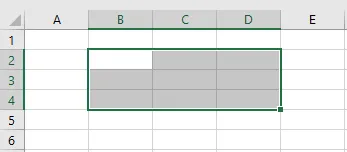
To select the range B2:D4, click cell B2 and drag to cell D4.
-
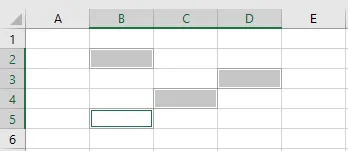
To select cells that aren’t next to each other, hold down Ctrl while you click each one.
Fill a range
-
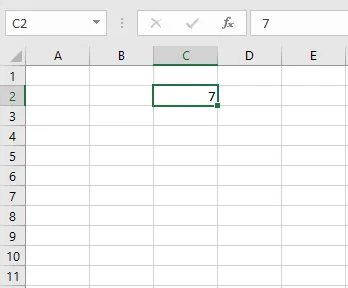
Type 7 in cell C2.
-
Select C2 and point to its bottom-right corner. When the pointer turns into a small plus sign (the fill handle), drag down to C6.
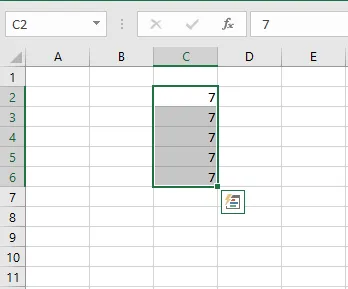
Excel copies the 7 into each cell. If you enter two numbers first, such as 1 and 2, and drag both, Excel continues the pattern: 3, 4, 5. The same works for dates, odd numbers and other series. Learn more in How to Use AutoFill in Excel.
Move a range
-
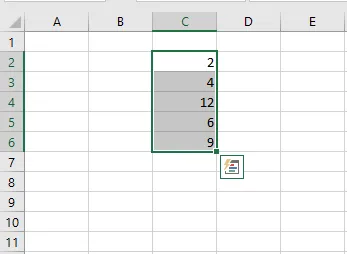
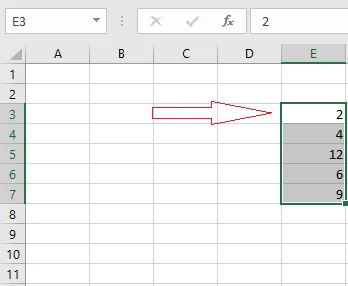
Select the range and point to its border until the pointer becomes a four-headed arrow.
-
Drag the range to its new place and release the mouse.
Copy and paste a range
-
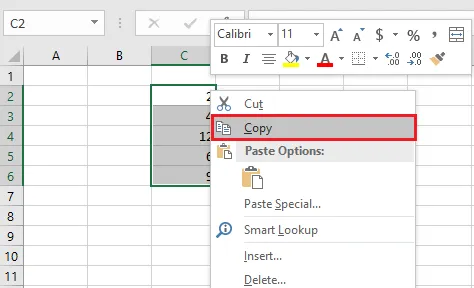
Select the range, right-click it, and click Copy (or press Ctrl + C).
-
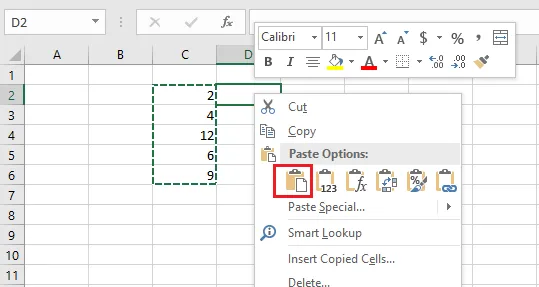
Right-click the cell where you want the copy to start, and click Paste under Paste Options (or press Ctrl + V).
Insert a row or a column
-
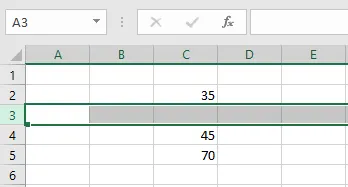
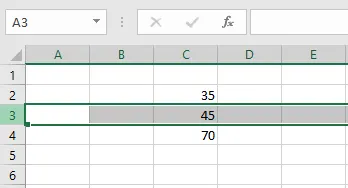
To add a row between the values 45 and 70, select row 3.
-
Right-click and click Insert.
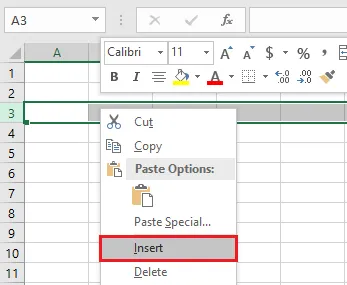
Result: a new, empty row appears between 45 and 70. Insert a column the same way: select a column, right-click and click Insert.