How to Import and Export Text Files
Text files are a simple way to move data between programs. There are two common types: comma-separated (.csv) and tab-delimited (.txt).
Export from Excel
-
Open the workbook.
-
Click File > Save As > Browse.
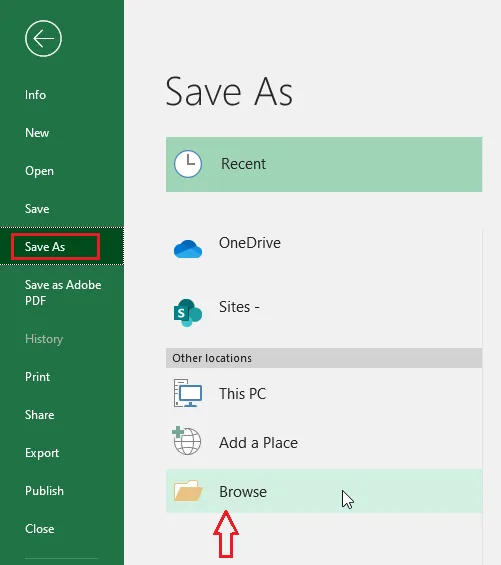
-
Under Save as type, choose Text (Tab delimited). For a CSV file, choose CSV UTF-8 (Comma delimited) instead.
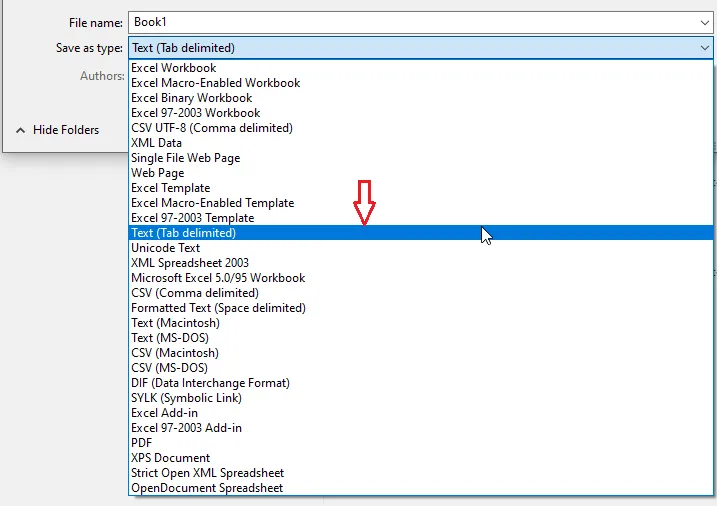
-
Click Save.
Result: a tab-delimited text file.
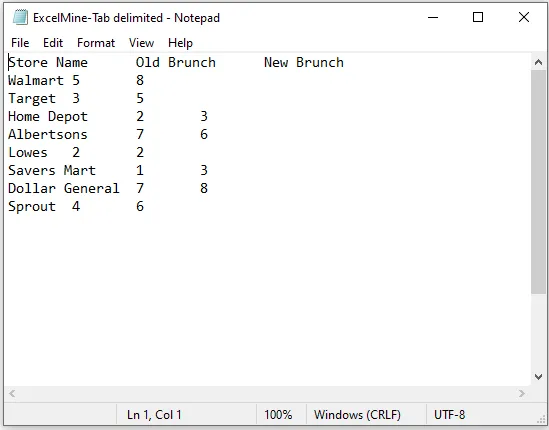
Note: Text files save only the active sheet, and only values. Formulas, formatting and other sheets are lost, so keep your original .xlsx file too.
Import into Excel
-
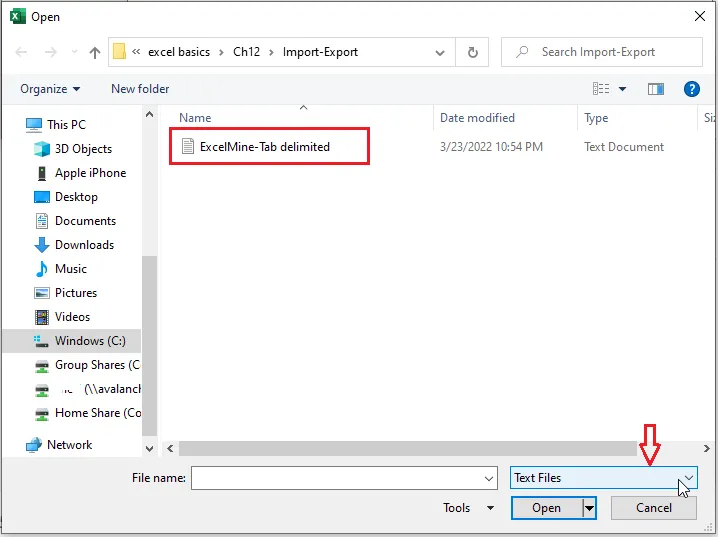
Click File > Open > Browse.
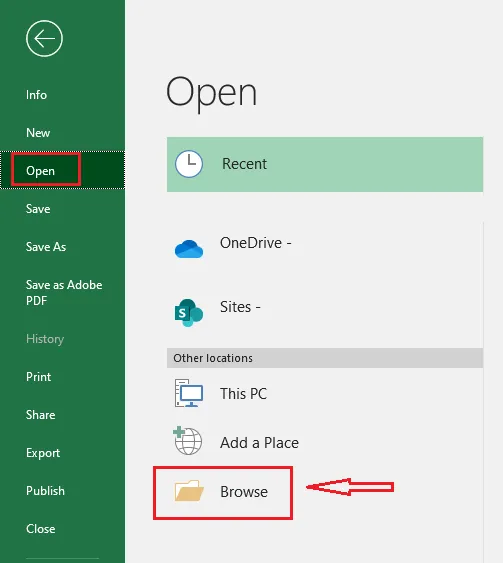
-
Go to the file’s folder and choose Text Files from the file type list.
-
Select your file (here, ExcelMine- Tab delimited) and click Open.
-
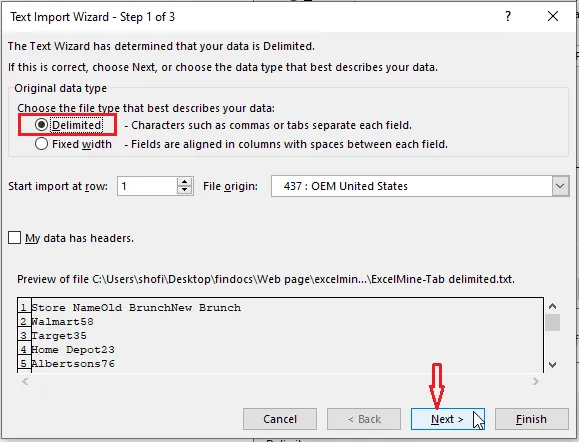
In the Text Import Wizard, choose Delimited and click Next.
-
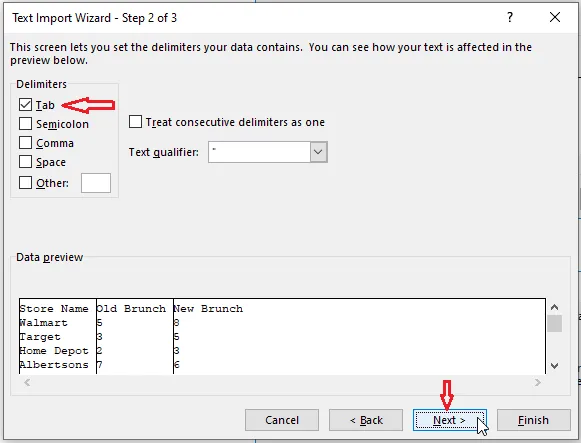
Tick Tab, untick the other delimiters, and click Next.
-
Click Finish.
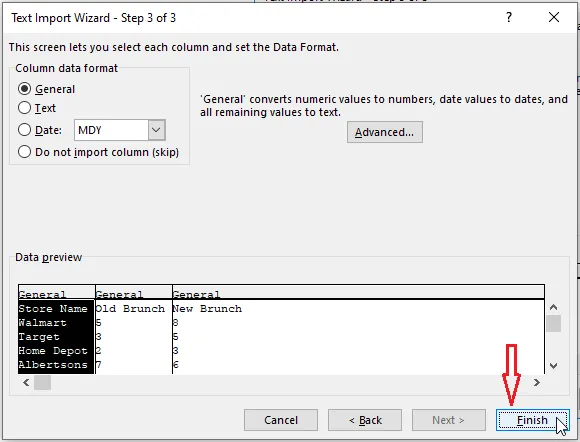
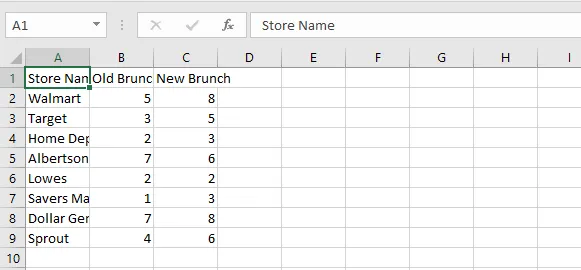
Result: the data from the text file is in Excel, one value per cell.
Using Microsoft 365? You can also use Data > From Text/CSV. It shows a preview and detects the delimiter for you.