How to Subtract in Excel
Excel has no SUBTRACT function. Instead, you use the minus sign (-) in a formula. Here are three ways to subtract.
Example 1: subtract cells
-
Select cell D6.
-
Type
=D3-D4-D5and press Enter.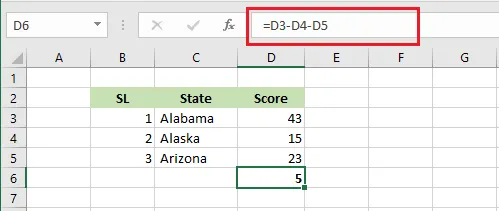
You can subtract as many cells as you like in the same way. To subtract a group, you can also write =D3-SUM(D4:D5).
Example 2: subtract a fixed number from a column
Here, the number in D6 (27) is subtracted from each value in the list.
-
Select cell E3.
-
Type
=D3-$D$6.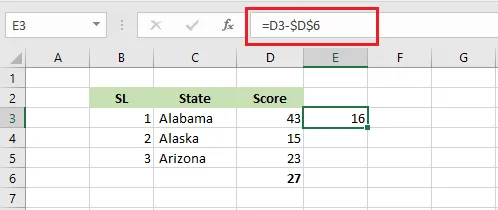
Note: The
$signs lock the reference to D6, so it doesn’t move when you copy the formula down. (Shortcut: click on D6 in the formula and press F4.) Try copying it without the$signs to see the difference.
-
Drag the fill handle down to copy the formula.
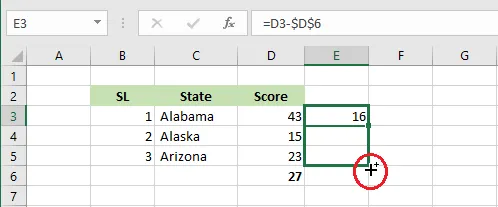
Result:
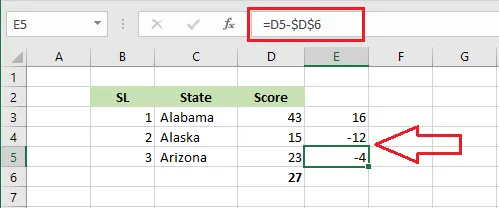
If you click E4 or E5, you’ll see that D3 changes to D4 and D5, but D6 stays fixed.
Example 3: subtract without a formula
You can also subtract a number straight from the values themselves, with no formula left behind.
-
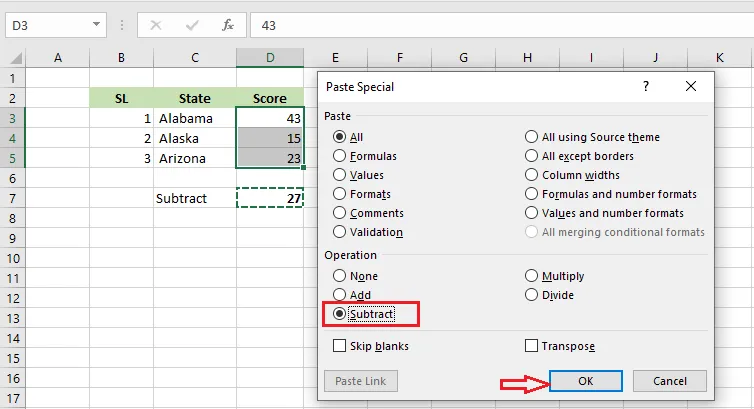
Select the cell with the number to subtract, here D7, and copy it (Ctrl + C).
-
Select D3:D5, right-click, and click Paste Special.
-
Under Operation, choose Subtract, then click OK.
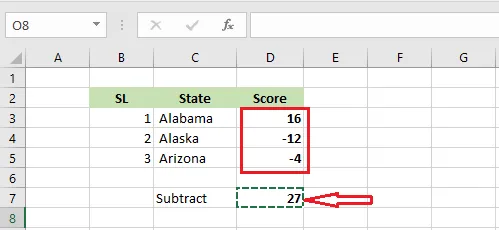
Result: each number in D3:D5 is now 27 lower. Because the original values are replaced, use Ctrl + Z if you need them back.