How to Convert Text to Numbers in Excel
Sometimes numbers come into Excel as text, for example from another program or a website. They look like numbers, but formulas such as SUM ignore them. A quick way to tell: Excel lines up text on the left of a cell and numbers on the right.
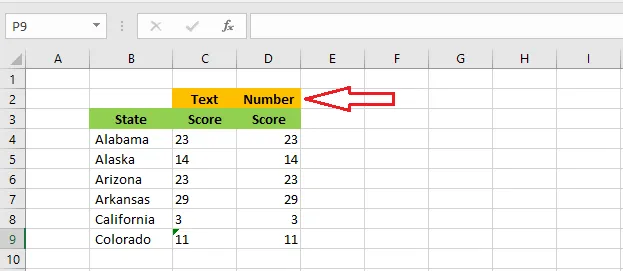
Here are four ways to turn them into real numbers.
Method 1: change the format
Select the cells, here C3:C7, and set the number format to General on the Home tab. (You may need to press F2 then Enter in each cell for Excel to re-read it.) Learn more in How to Format Cells.
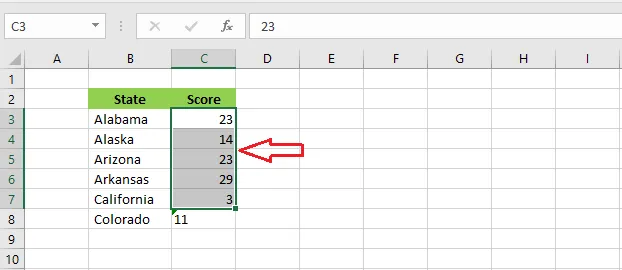
Method 2: Convert to Number
Cells holding numbers as text usually show a small green triangle. Select them, click the warning icon that appears, and click Convert to Number.
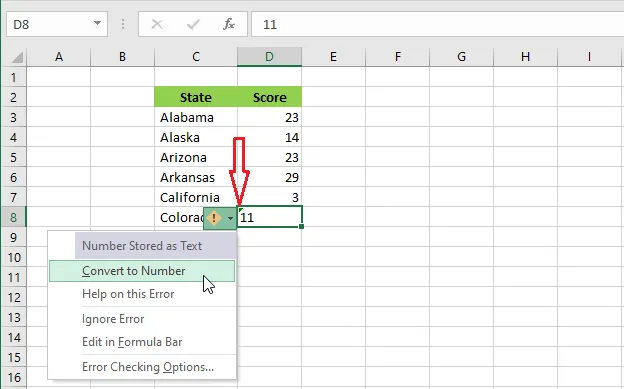
Method 3: Paste Special > Add
-
Right-click an empty cell, here E3, and click Copy.
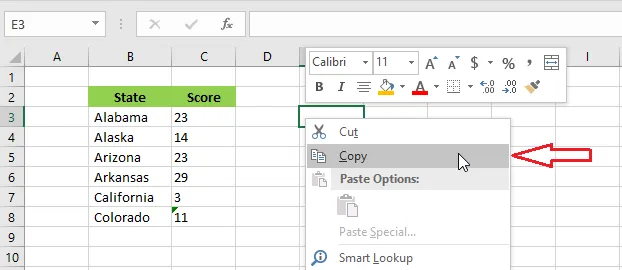
-
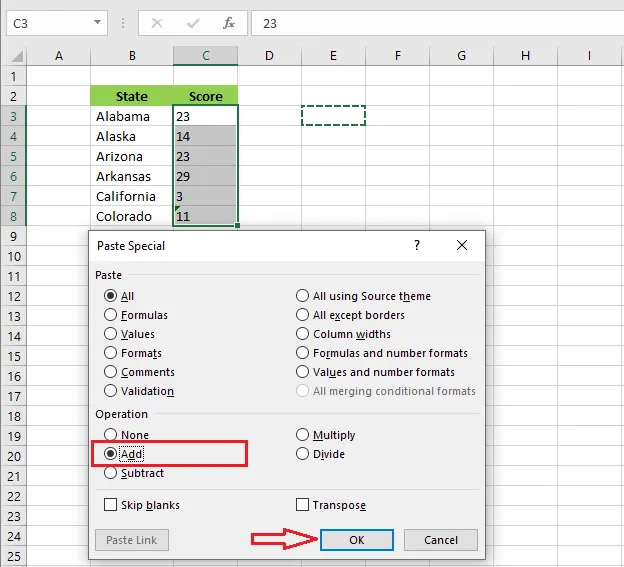
Select the text-numbers, C3:C8, right-click and click Paste Special. Under Operation, choose Add.
-
Click OK.
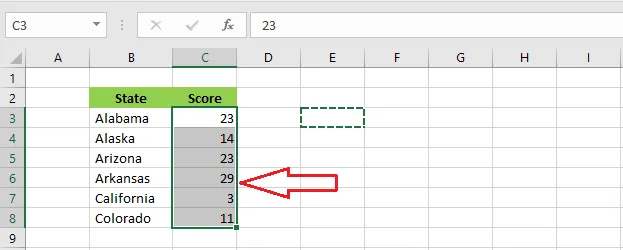
Result: adding zero forces Excel to turn each value into a number, and they now line up on the right.
Method 4: the VALUE function
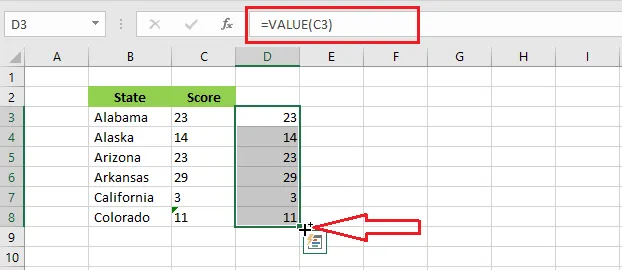
The VALUE function converts text to a number in a new column. In cell D3, enter =VALUE(C3) and drag the fill handle down.
To replace the original column with the results, copy them and use Paste Special > Values (see How to Convert Formulas to Values).