How to Lock Cells in Excel
Locking cells stops others from editing them. It takes two steps: mark the cells as Locked, then protect the sheet. Locking has no effect until the sheet is protected.
Lock all cells
Every cell is Locked by default, so protecting the sheet locks all of them. To check:
-
Select all cells (Ctrl + A, or the triangle at the top-left of the sheet).

-
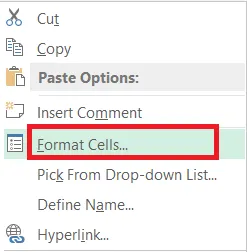
Right-click and click Format Cells (Ctrl + 1).
-
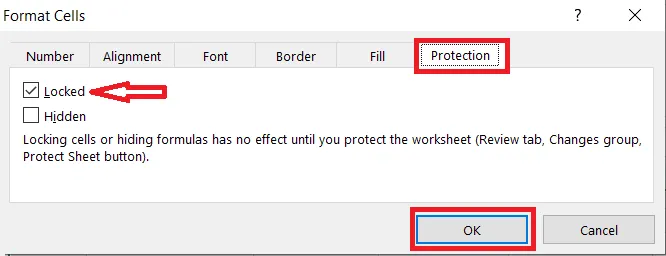
On the Protection tab, Locked is ticked.
-
Click OK, then protect the sheet.
To edit the cells again, unprotect the sheet (the password here is protect).
Lock only specific cells
First unlock everything, then lock just the cells you want.
-
Select all cells, press Ctrl + 1, untick Locked on the Protection tab, and click OK.
-
Select the cells to lock, here B1:B7.

-
Press Ctrl + 1, tick Locked, and click OK.
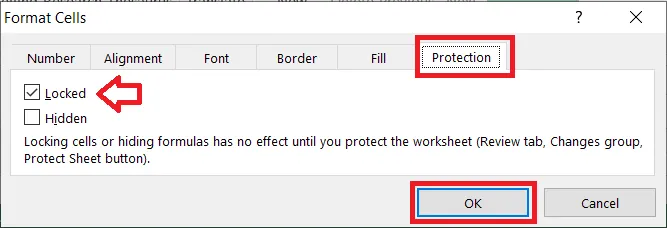
Result: B1:B7 are locked, while the rest of the sheet can still be edited.
Lock only formula cells
This lets people type in the input cells but not break your formulas.
-
Select all cells, press Ctrl + 1, untick Locked, and click OK.
-
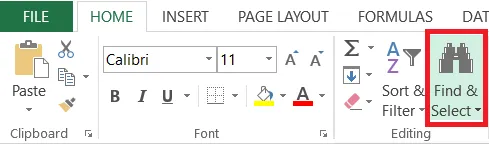
On the Home tab, click Find & Select.
-
Click Go To Special.
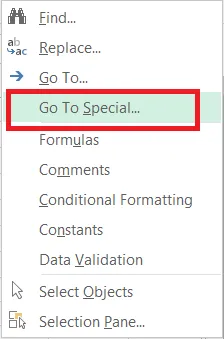
-
Choose Formulas and click OK.
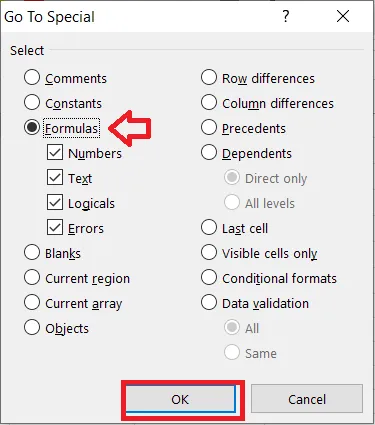
Excel selects every cell with a formula.
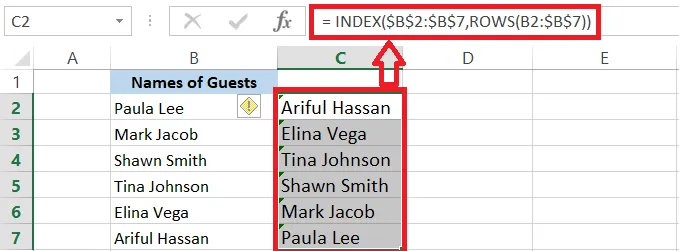
-
Press Ctrl + 1 and tick Locked on the Protection tab. Tick Hidden too if you don’t want others to see the formulas in the formula bar.
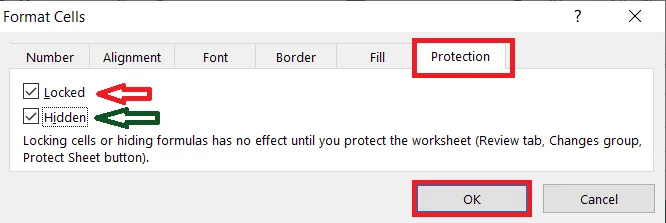
-
Click OK, then protect the sheet.
Result: all formula cells are locked. To change them later, unprotect the sheet first. And remember your password!