How to Insert Page Numbers in Excel
Page numbers make a printed sheet with several pages easier to follow. Here’s how to add them to the footer.
-
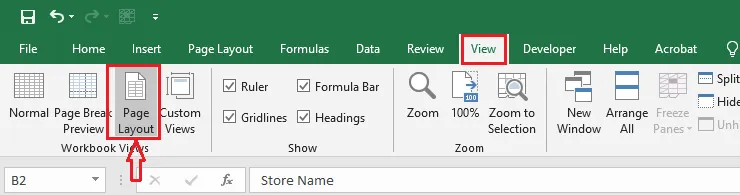
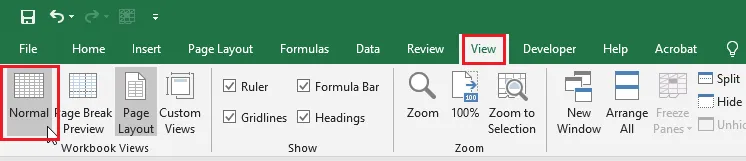
Click View > Page Layout.
-
Scroll down and click Add footer at the bottom of the page.
-
On the Header & Footer tab, click Page Number.
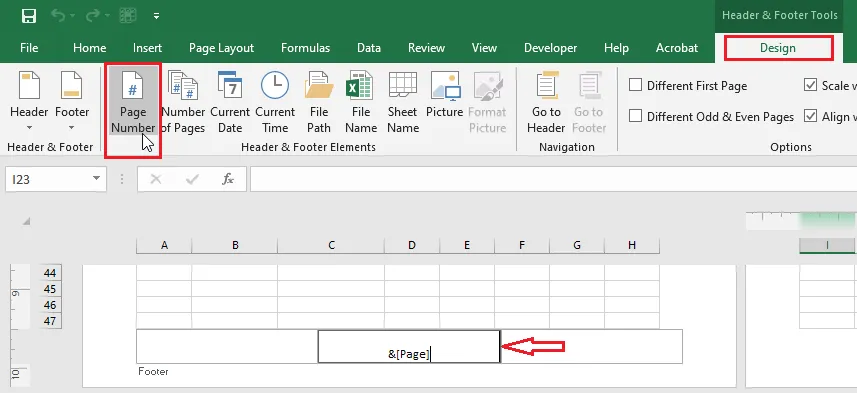
Excel adds a code,
&[Page], which shows the right number on each page. For Page 1 of 5, type Page, click Page Number, type of, then click Number of Pages. -
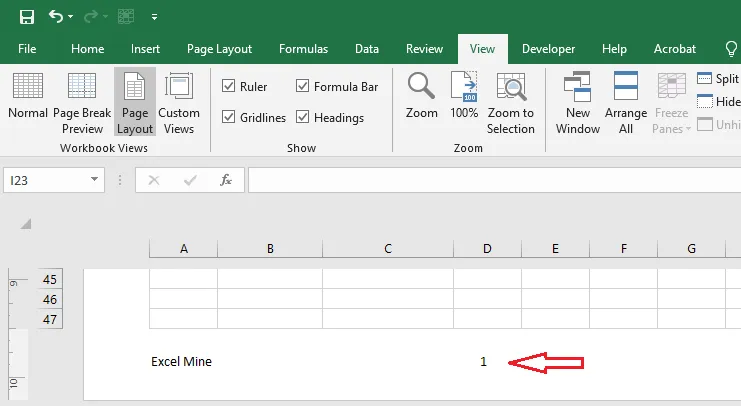
Click anywhere in the sheet to see the page number.
-
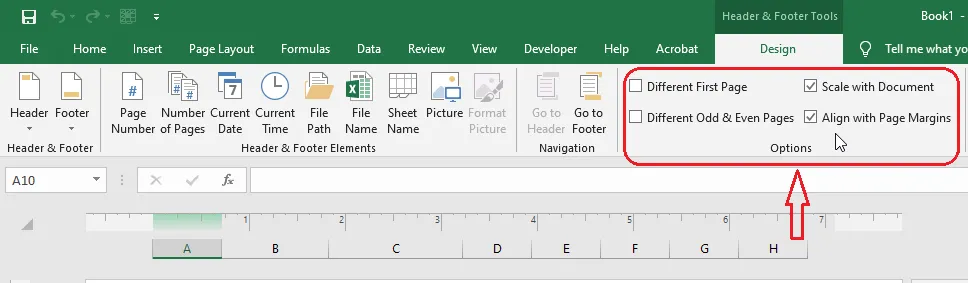
To leave the number off the first page (for a cover page, say), tick Different First Page on the Header & Footer tab.
-
To go back to the normal view, click View > Normal.
Tip: To check the page numbers, click File > Print (Ctrl + P).