How to Change Decimal Places in Excel
You can show more or fewer decimal places in a cell without changing the number Excel stores and calculates with.
-
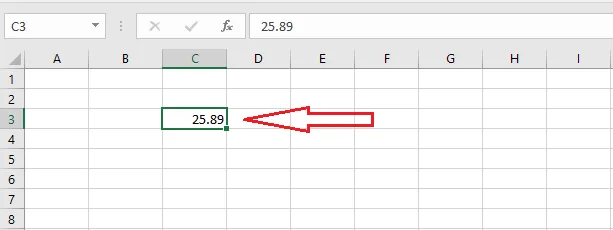
Type 25.89 in cell C3.
-
Select C3.
-
On the Home tab, in the Number group, click Decrease Decimal.
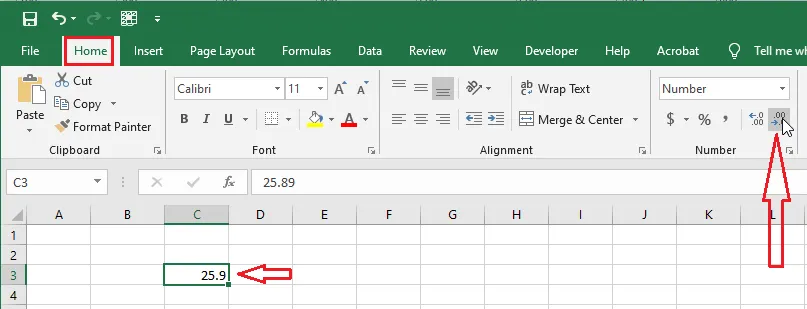
Result: the cell shows 25.9, one decimal place fewer, rounded for display. The formula bar still shows 25.89, which is the value Excel uses in calculations. Click Increase Decimal, the button beside it, to add decimal places.
Note: To actually round the stored value, use a formula such as
=ROUND(C3, 1). You’ll learn more about formulas in the next chapter.