How to Create Dependent Drop-Down Lists
With dependent drop-down lists, the choice in the first list decides what the second list shows. For example, choose a state, and the second list shows only that state’s cities.
-
On Sheet1, create four named ranges:
- state: B4:B6 (the state names)
- texas: C4:C7
- nevada: D4:D6
- florida: E4:E7
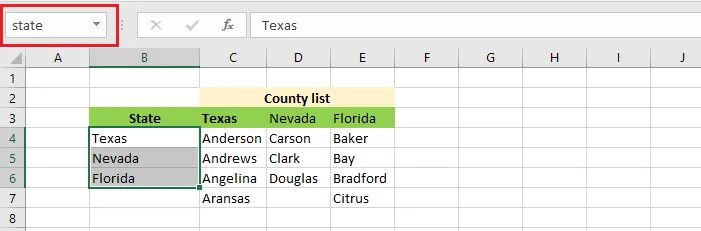
Note: Each city list’s name must match a state name exactly as it appears in the first list (case doesn’t matter). Names can’t contain spaces, so for a state like New York, name the range New_York and use
=INDIRECT(SUBSTITUTE($C$2," ","_"))in step 6. -
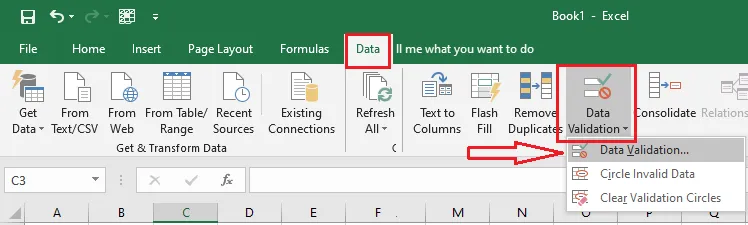
On Sheet2, select cell C2, and on the Data tab, click Data Validation.
-
Under Allow, choose List. In Source, type
=state.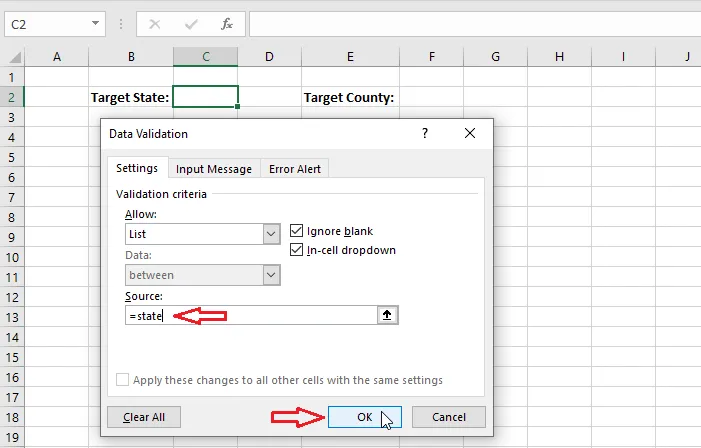
-
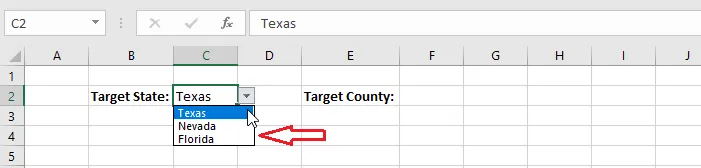
Click OK. C2 now has a drop-down list of states.
-
Select cell F2 and open Data Validation again.
-
Under Allow, choose List. In Source, type
=INDIRECT($C$2).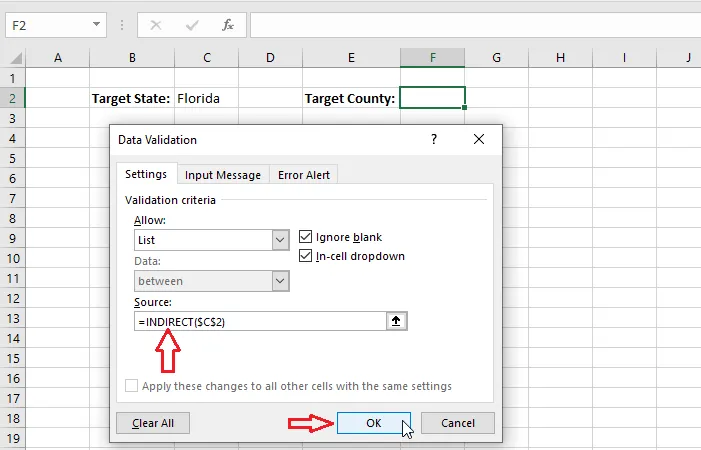
-
Click OK.
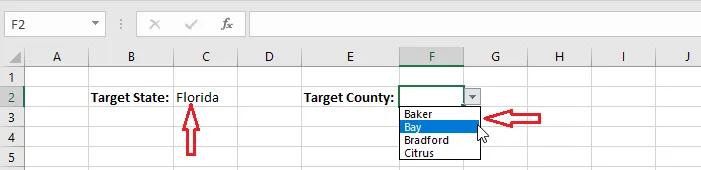
Result: choose Texas in C2, and F2 lists only Texas cities. INDIRECT turns the text in C2 into a reference to the named range with that name.
Note: If someone changes the state after choosing a city, the old city stays in F2. Clear F2 whenever you change C2.
Download the practice file: excel-dependent-drop-down-list.xls