How to Embed an Excel Worksheet in Word
Embedding puts a small Excel worksheet inside your Word document. Double-click it, and you can use Excel formulas and tools without leaving Word.
-
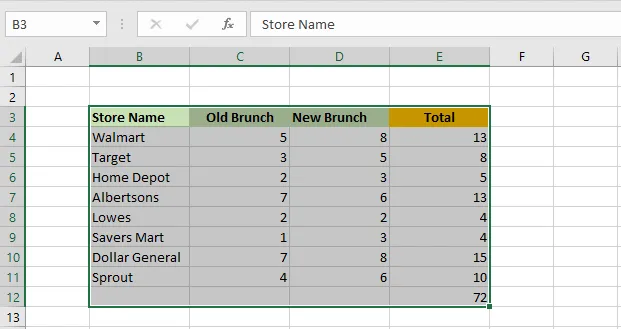
In Excel, select B3:E12.
-
Copy it (Ctrl + C).
-
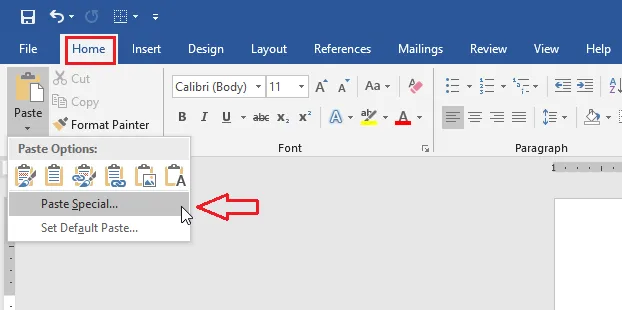
In Word, click where the table should go, then click Home > the arrow under Paste > Paste Special.
-
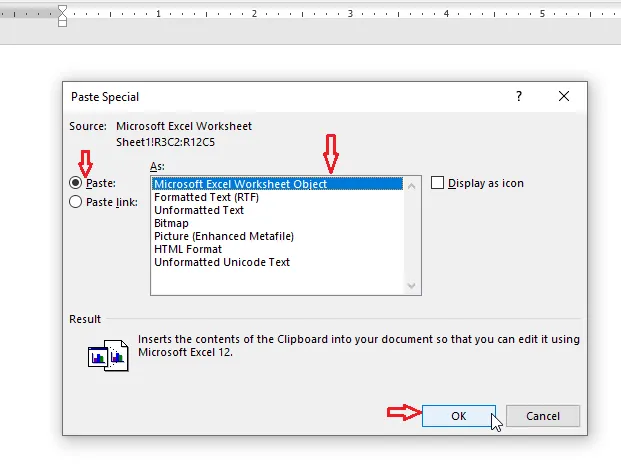
Choose Paste, select Microsoft Excel Worksheet Object, and click OK.
-
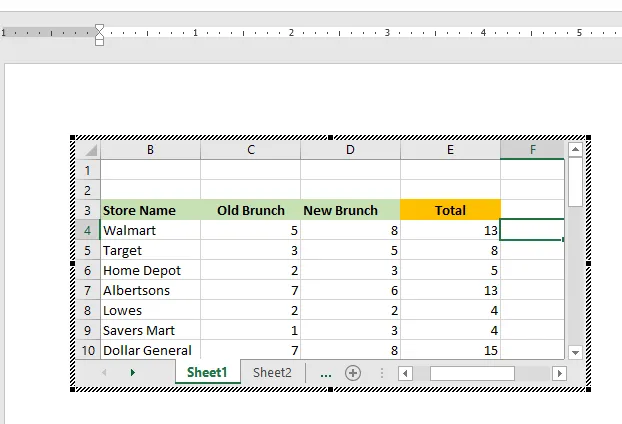
Double-click the object. Excel’s ribbon appears inside Word, and you can enter formulas and functions as usual. Click outside the object to return to Word.
Note: An embedded worksheet is a separate copy. It won’t update when the original Excel file changes. To keep Word connected to the Excel file, choose Paste link in step 4 instead (see Copy Excel Data Into Word).