How to Spell Check in Excel
Excel doesn’t underline spelling mistakes as you type, so it’s worth running a spell check before you share a workbook.
Check spelling
-
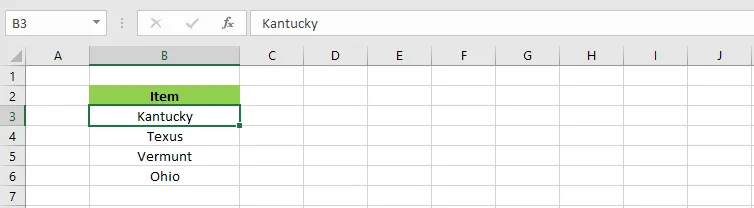
Open a workbook that has some misspelled words.
-
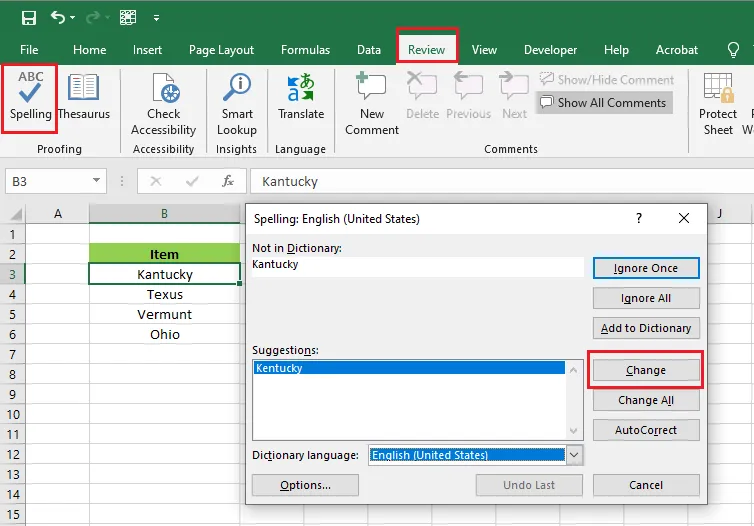
On the Review tab, click Spelling (or press F7).
-
Pick the right word from Suggestions and click Change. Excel corrects the cell, here B3, and moves on to the next mistake.
-
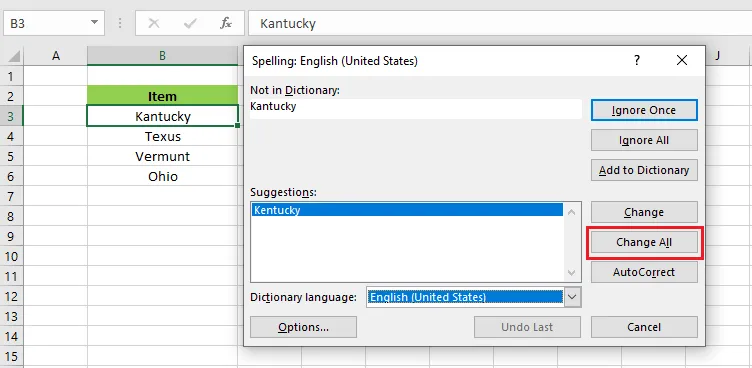
To fix every place the same word is misspelled, click Change All.
-
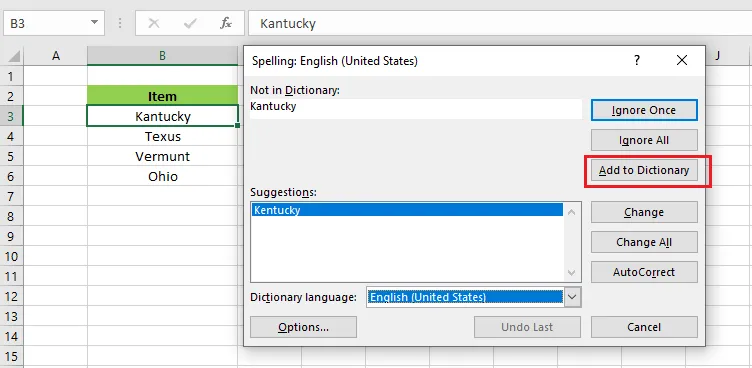
If a word is correct but Excel doesn’t know it, like a name or a technical term, click Add to Dictionary so it isn’t flagged again. The Dictionary language list lets you check in another language.
-
Use Ignore Once or Ignore All to skip words you want to leave as they are.
Tip: Select a range first to check only those cells. Otherwise Excel checks the whole sheet.
Change spell-check and AutoCorrect options
-
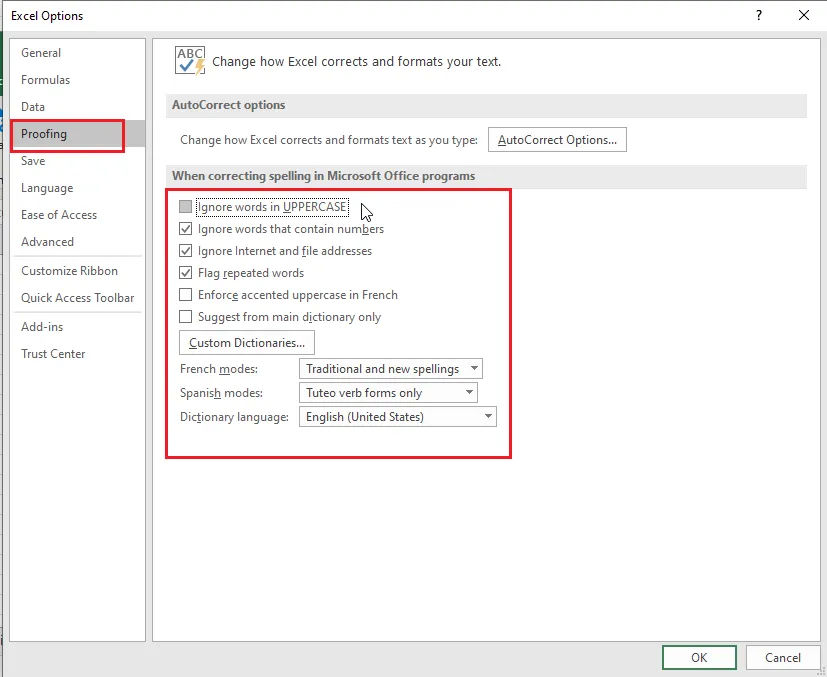
Click File > Options > Proofing.
-
Tick or untick the options to suit you, for example ignoring words in UPPERCASE or with numbers. Click AutoCorrect Options to control what Excel corrects automatically as you type.
-
Click OK.