How to Count Yes in Excel With COUNTIF
Survey data often has simple Yes / No answers, and a common question is: how many said Yes? The COUNTIF function answers it, whether the answers are typed as text or shown as ticked checkboxes.
The COUNTIF function
COUNTIF counts the cells in a range that meet a condition:
=COUNTIF(range, criteria)
- range: the cells to check.
- criteria: what a cell must match to be counted.
1. When Yes is typed as text
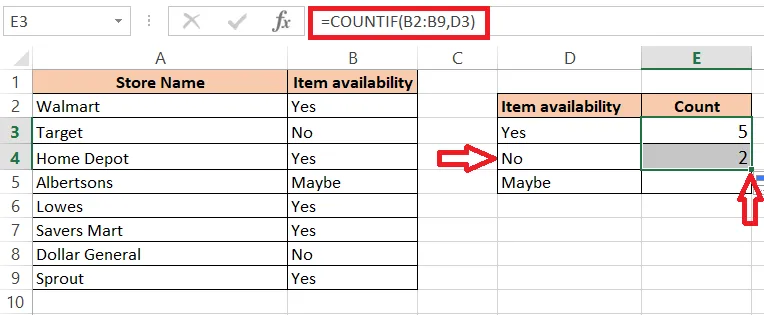
This list shows whether each store has an item: Yes, No, or Maybe (sold seasonally).
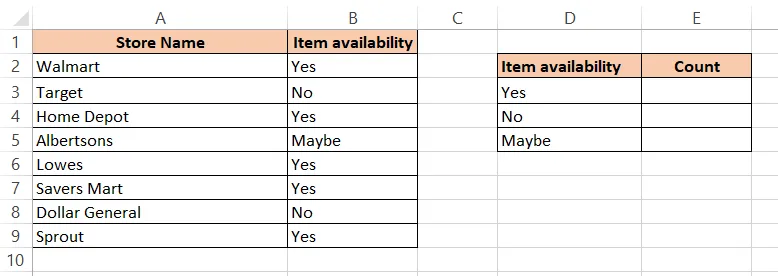
To count the Yes answers in B2:B9, type this in E3:
=COUNTIF(B2:B9,"Yes")
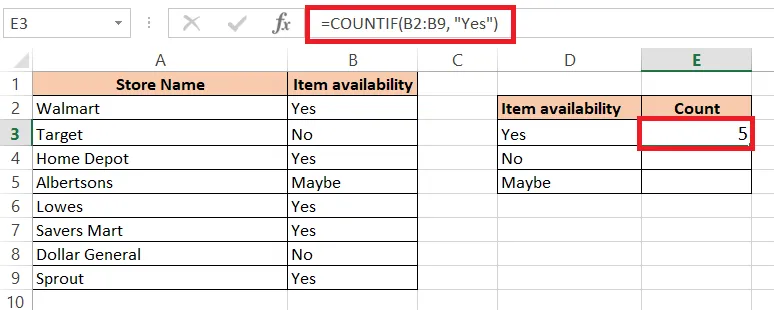
Note: COUNTIF is not case-sensitive, so it counts Yes, yes and YES alike.
To count the No answers, change the criteria to "No":
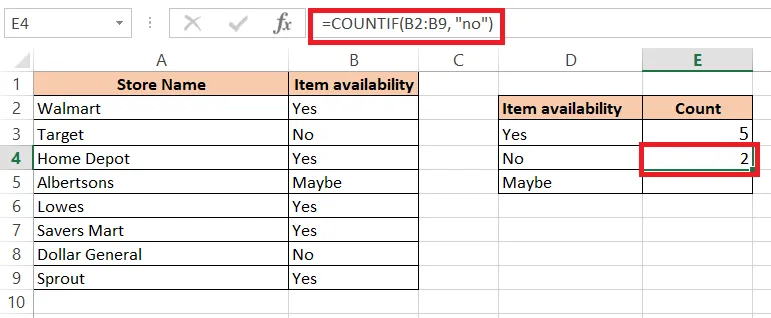
Use a cell as the criteria
Instead of typing “Yes” in the formula, you can point to a cell that contains it, such as D3:
=COUNTIF($B$2:$B$9,D3)
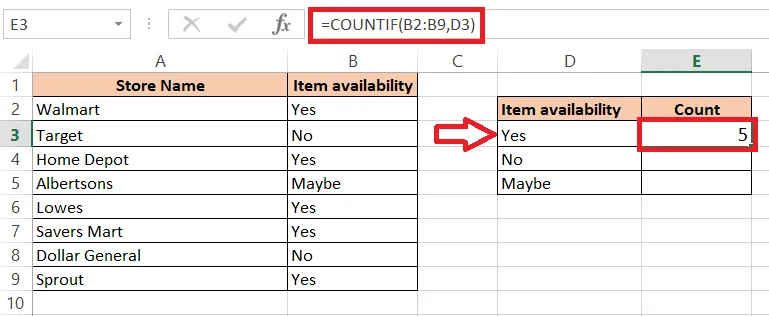
Now you can drag the fill handle down to E4, and the formula uses D4 (No) automatically, with no retyping. The $ signs keep the range fixed as you copy.
2. When Yes is a ticked checkbox
Sometimes the answers are checkboxes: ticked means Yes, empty means No.
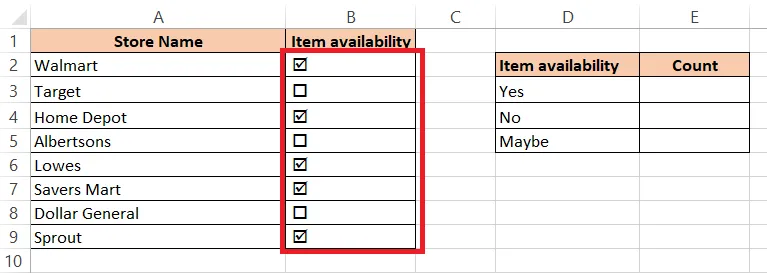
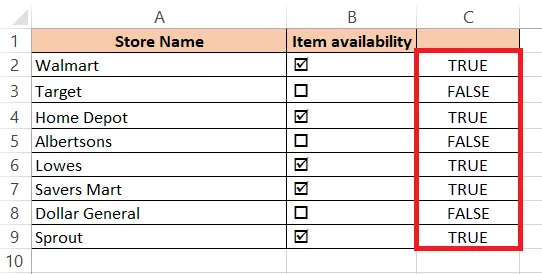
COUNTIF can’t read a checkbox directly, so first link each checkbox to a helper cell. A linked cell shows TRUE when the box is ticked and FALSE when it isn’t.
-
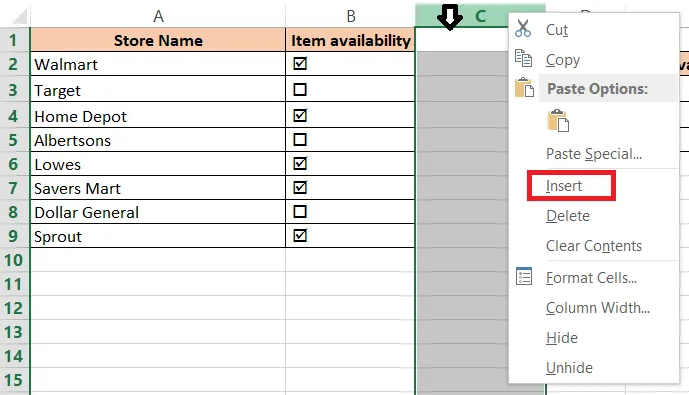
Right-click the column C heading and click Insert to add a helper column next to the checkboxes.
-
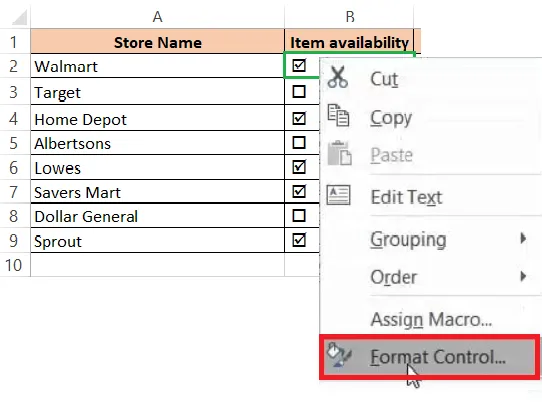
Right-click the first checkbox and click Format Control.
-
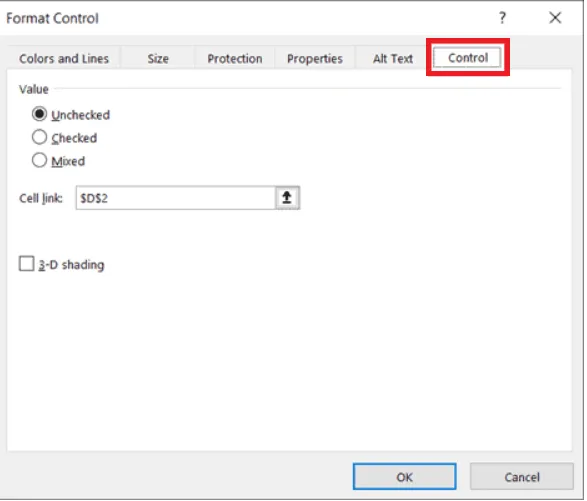
Open the Control tab.
-
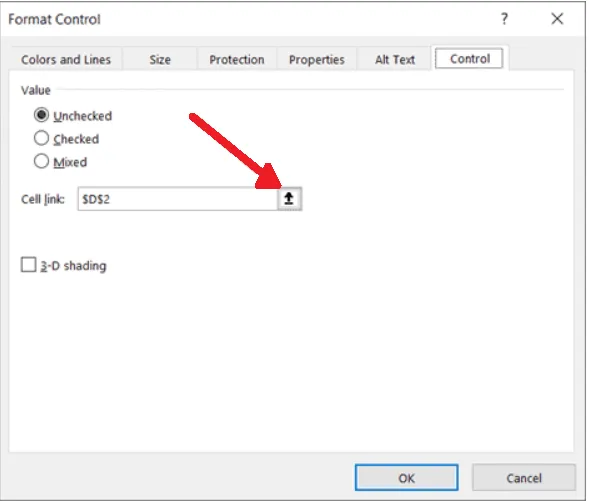
Click the button at the right of the Cell link box.
-
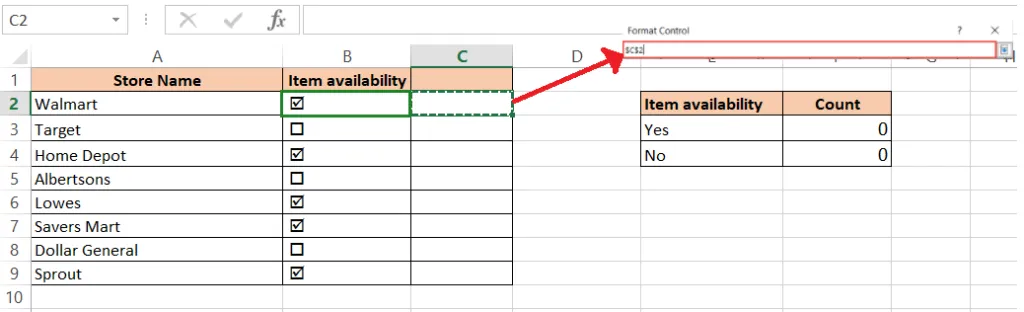
Click cell C2, the helper cell for this checkbox.
-
Click OK. C2 now shows TRUE. Repeat for each checkbox, linking each one to the cell next to it.
-
In F3, count the ticked boxes:
=COUNTIF(C2:C9,TRUE).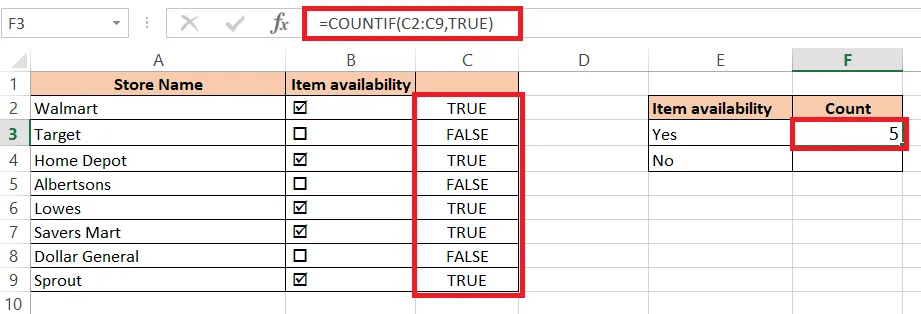
-
In F4, count the empty boxes:
=COUNTIF(C2:C9,FALSE).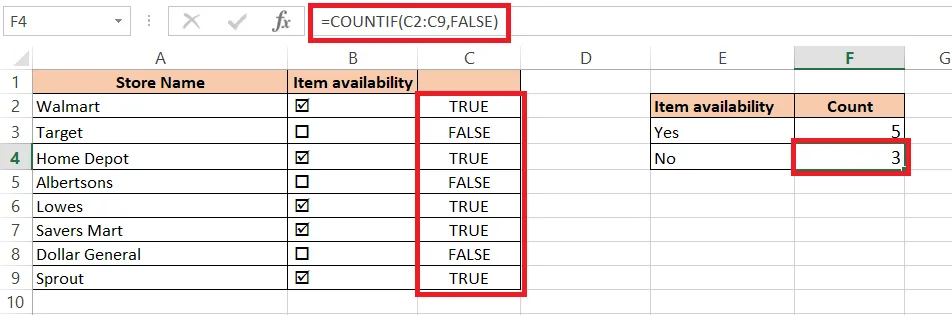
Tip: For the percentage of Yes answers, divide by the number of answers:
=COUNTIF(B2:B9,"Yes")/COUNTA(B2:B9), then click the % button. See How to Calculate Percentage.
Using Microsoft 365? The newer Insert > Checkbox puts the checkbox inside the cell itself, so the cell is already TRUE or FALSE. Just use
=COUNTIF(B2:B9,TRUE), with no helper column needed.