Advanced Find: Match Case and Wildcards
The Find and Replace dialog box has more options than it first shows. Here’s how to search the whole workbook, match case, and use wildcards.
-
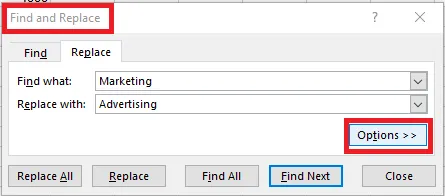
On the Home tab, click Find & Select > Find (Ctrl + F).
-
Click Options.
-
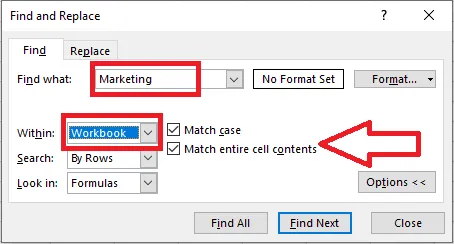
In Find what, type the text, for example Marketing. To search every sheet, choose Workbook from the Within list.
-
Tick Match case to find only text with the same capital letters (Marketing, but not marketing).
-
Tick Match entire cell contents to find cells that contain exactly Marketing and nothing else, so not Dept of Marketing or Marketing and Sales.
-
Click Find Next for the next match, or Find All to list them all.
Wildcards
Use these when you’re not sure of the exact spelling:
- A question mark (
?) stands for one character. M?rketing finds Marketing, Merketing and Morketing. - An asterisk (
*) stands for any number of characters, including none. M*rketing finds Marketing, Maaarketing and Mrketing.
Tip: To find an actual question mark or asterisk, put a tilde before it:
~?or~*.