How to Prevent Duplicate Entries
Some lists should never have repeats, such as employee IDs or invoice numbers. A custom Data Validation rule with COUNTIF blocks a value that’s already in the list.
-
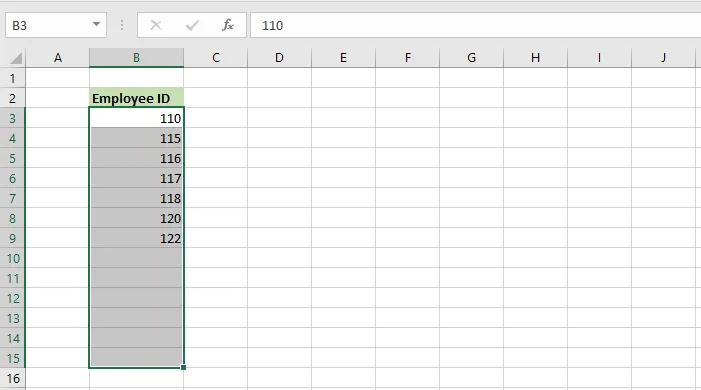
Select B3:B15.
-
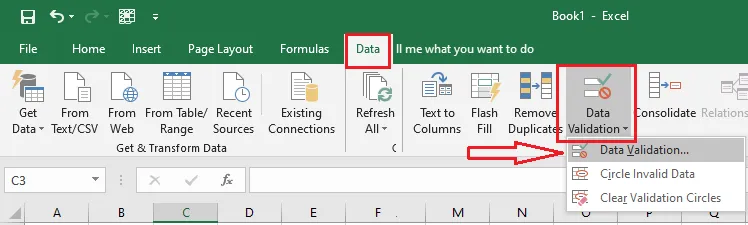
On the Data tab, click Data Validation.
-
On the Settings tab, under Allow, choose Custom. In the Formula box, type:
=COUNTIF($B$3:$B$15,B3)=1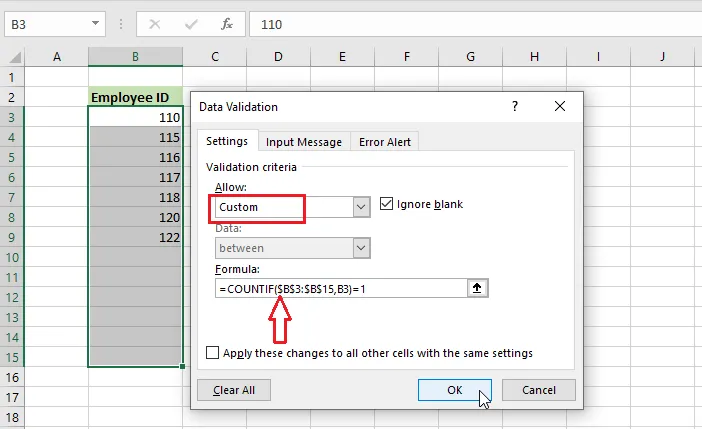
This counts how many times the new value appears in the list. If it’s more than once, the entry is rejected. The range is locked with
$signs, whileB3changes for each cell. -
On the Error Alert tab, type a title (Duplicate Employee ID) and a message (This employee ID has already been entered. Please try another ID).
-
Click OK.
-
Test it: select B10, type an ID that’s already in the list, such as 115, and press Enter.
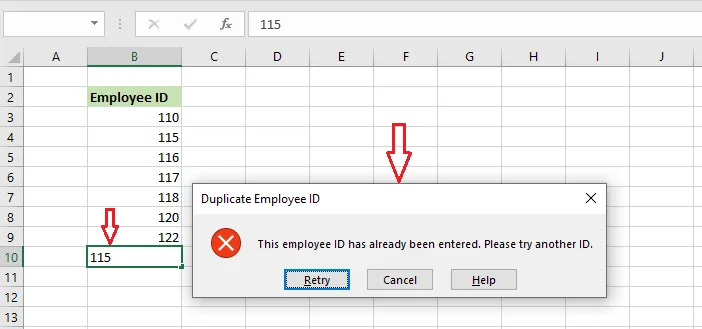
Result: Excel rejects the duplicate and shows your message.
Tip: To find duplicates that are already in a list, select it and click Home > Conditional Formatting > Highlight Cells Rules > Duplicate Values.
To remove the rule, select the range, click Data > Data Validation > Clear All, then OK.