Excel Worksheet Basics
A worksheet (or sheet) is the grid of cells where you enter and work with your data. A workbook can hold many worksheets, shown as tabs at the bottom of the window. Here’s how to manage them.
Select a worksheet
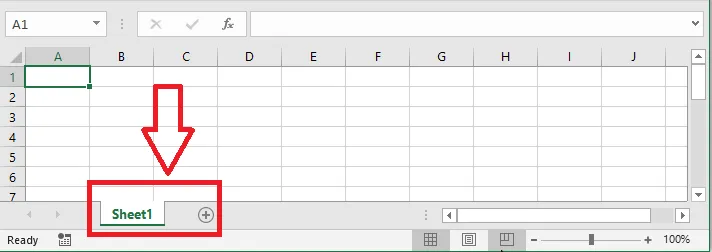
When you create a workbook, Excel opens on its first sheet, usually called Sheet1. Its name appears on the tab at the bottom. Click a tab to switch to that sheet.
Insert a worksheet
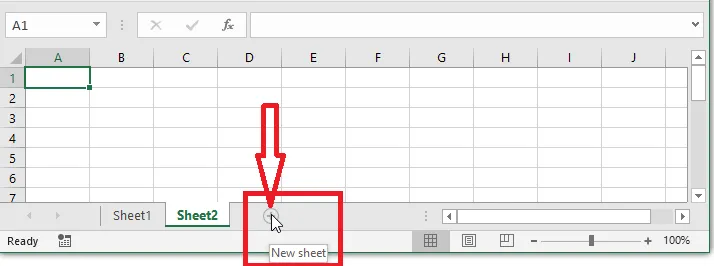
Click the + (plus) button to the right of the sheet tabs. Add as many sheets as you need.
Rename a worksheet
-
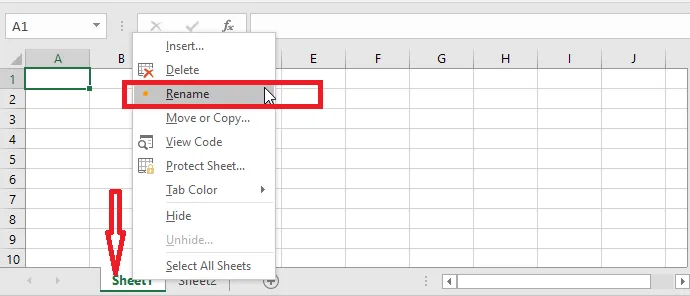
Double-click the sheet tab, or right-click it and click Rename.
-
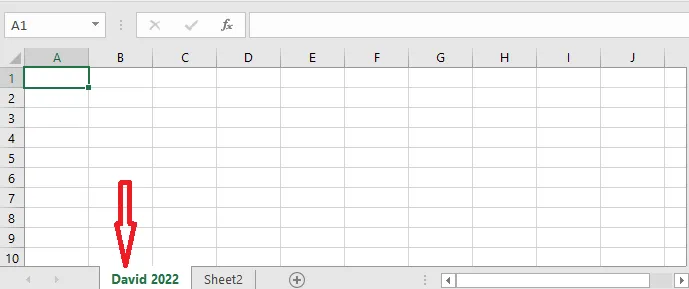
Type the new name and press Enter.
Move a worksheet
-
Drag the tab to a new position. Here we drag David 2002 between Sheet2 and Sheet3.
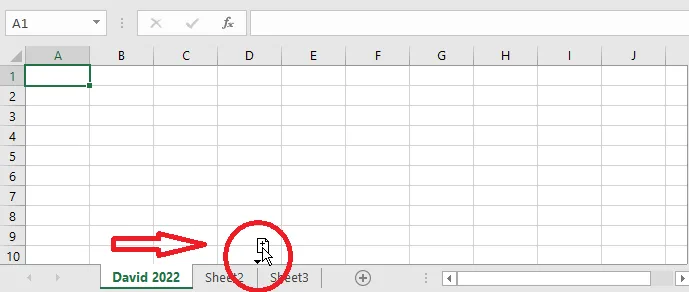
-
Release the mouse button.
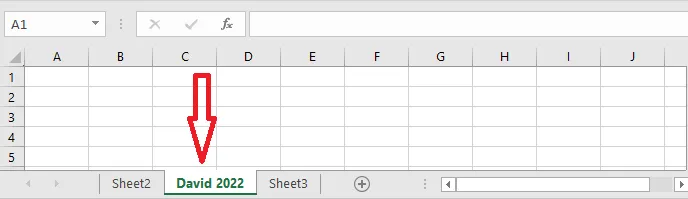
You can also right-click a tab and use Move or Copy.
Delete a worksheet
-
Right-click the tab of the sheet you want to remove, here Sheet3, and click Delete.
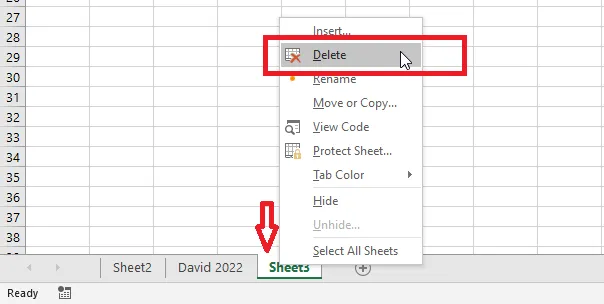
Result: the sheet is removed.
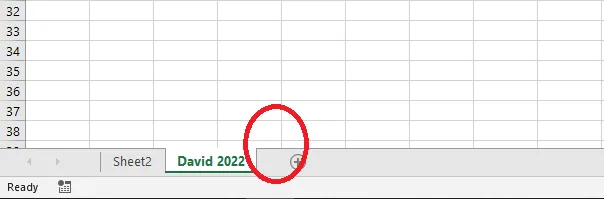
Warning: You can’t undo deleting a sheet with Ctrl + Z, so check before you delete.
Copy a worksheet
-
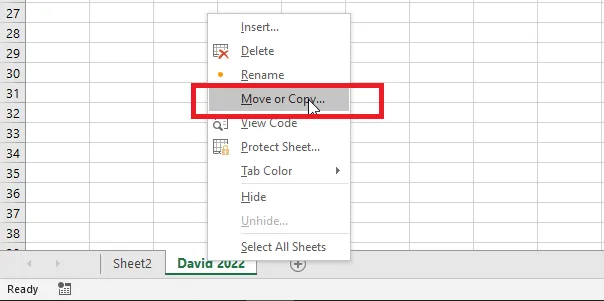
Right-click the tab of the sheet to copy and click Move or Copy.
-
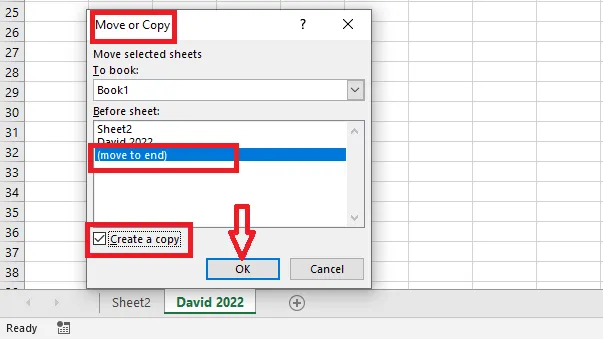
In the dialog box, select (move to end) and tick Create a copy.
-
Click OK.
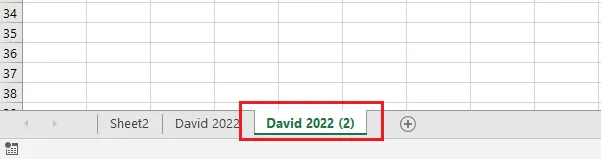
Result: a copy of the sheet appears at the end of the tabs.
Tip: In the same dialog box, the To book list lets you copy or move the sheet into another open workbook. A quicker way to copy: hold Ctrl while dragging a sheet tab.