How to Use Format Painter in Excel
Format Painter copies every bit of a cell’s formatting (fill color, font, borders, number format) and applies it to other cells in two clicks. It’s one of Excel’s biggest time-savers, and one of the most overlooked.
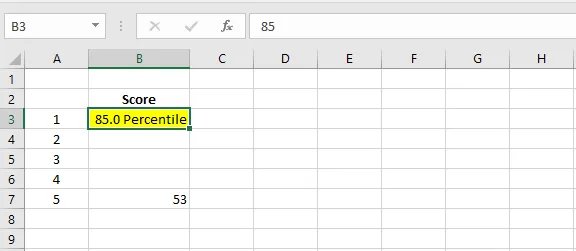
In this example, cell B3 has two kinds of formatting: a yellow fill, and a custom number format that adds the word “Percentile”. Let’s copy both to B7.
-
Select cell B3, the cell with the formatting you want.
-
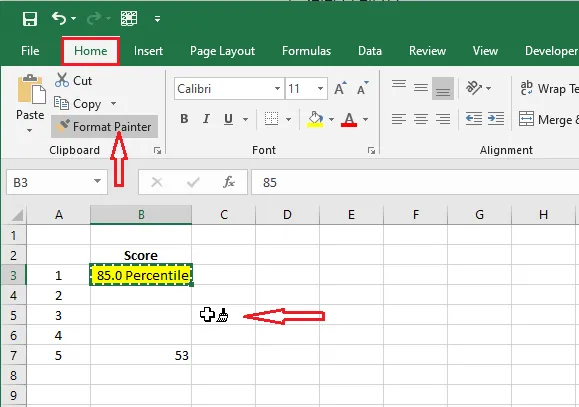
On the Home tab, click Format Painter (the paintbrush). The pointer now has a small paintbrush next to it.
-
Click cell B7.
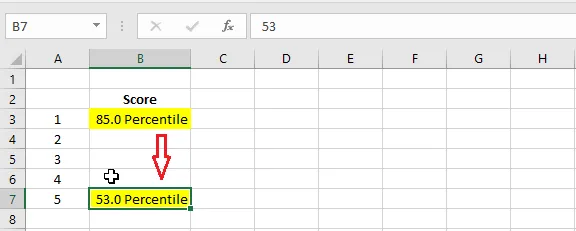
Result: B7 now has exactly the same formatting as B3. Only the formatting is copied; the value in B7 stays the same.
Tip: Double-click Format Painter to keep it on, so you can paint as many cells as you like. Press Esc when you’re done.