How to Repeat Header Rows When Printing
When a long table prints on several pages, only the first page shows the column headings. Print Titles repeats them at the top of every page.
-
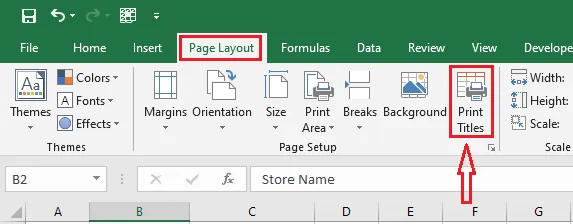
On the Page Layout tab, click Print Titles.
-
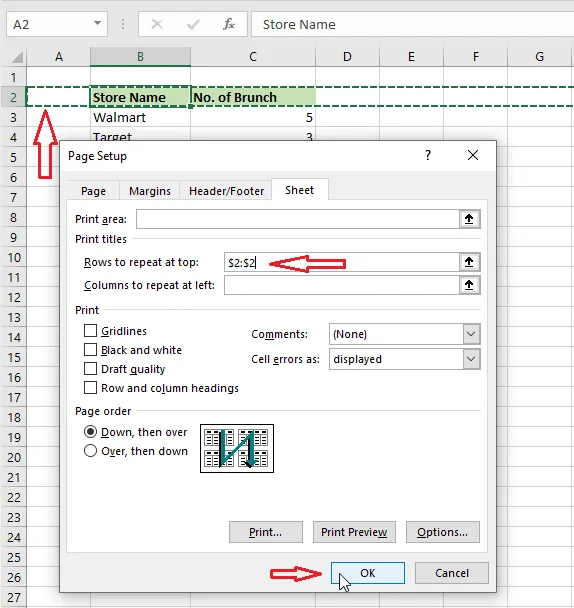
In Rows to repeat at top, type
$2:$2to repeat row 2 (or click in the box and select the row on the sheet). -
Click OK.
-
Click File > Print to check the preview. The heading row appears at the top of every page.
Tip: To repeat columns on the left of each page instead, for example names in column A, use Columns to repeat at left and type
$A:$A.
Note: Print titles only affect printing. To keep headings in view while you scroll on screen, use Freeze Panes.