How to Transpose Data in Excel
Transposing turns rows into columns, or columns into rows. There are two ways to do it: a quick one-time copy with Paste Special, or the TRANSPOSE function, which keeps updating when the original data changes.
Method 1: Paste Special
-
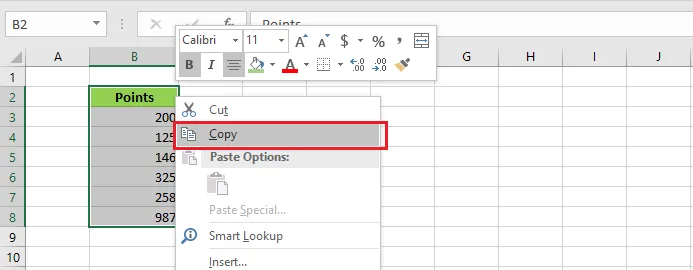
Select the column you want to turn into a row, here B2:B8.
-
Right-click and click Copy.
-
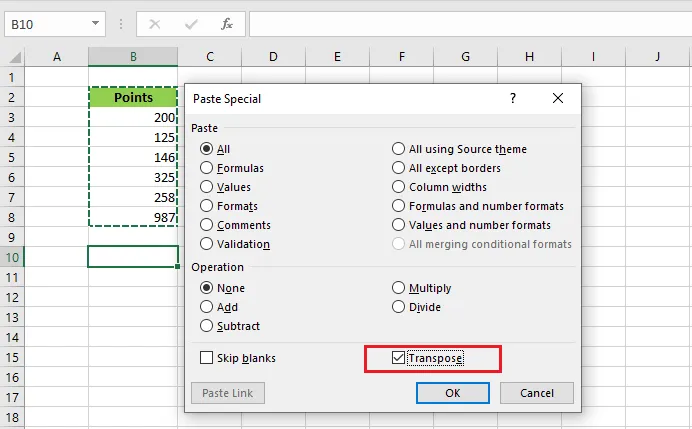
Right-click cell B10 and click Paste Special.
-
In the Paste Special dialog box, tick Transpose.
-
Click OK.
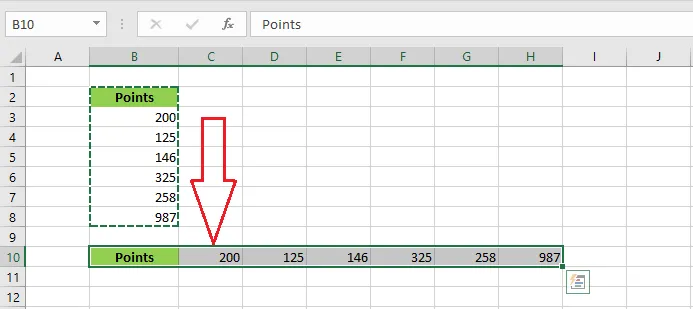
The pasted data is a fixed copy: if you change the original cells, it won’t update.
Method 2: the TRANSPOSE function
The TRANSPOSE function creates a live link, so the result changes whenever the original data does.
-
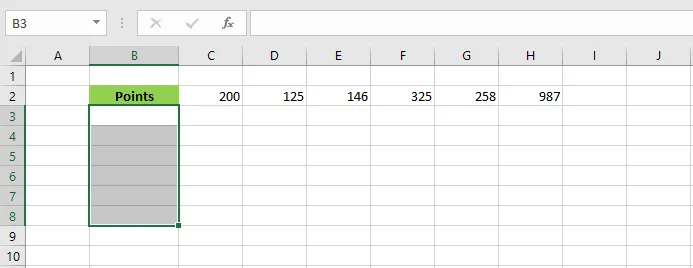
Select the cells for the result, here B3:B8 (6 cells, one for each value in the row).
-
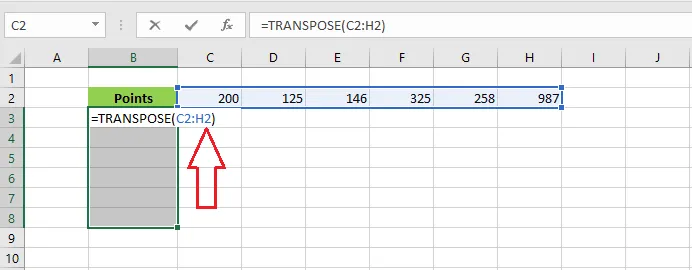
Type
=TRANSPOSE( -
Select the original row, C2:H2, and type the closing parenthesis
).
-
Press Ctrl + Shift + Enter.
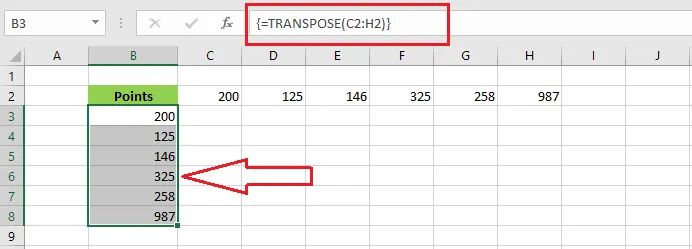
Note: In older versions of Excel the formula shows curly braces,
{=TRANSPOSE(C2:H2)}, meaning it’s an array formula. In Microsoft 365 you can simply type=TRANSPOSE(C2:H2)in the first cell and press Enter: the result spills into the cells below by itself.
Transpose data with blank cells
-
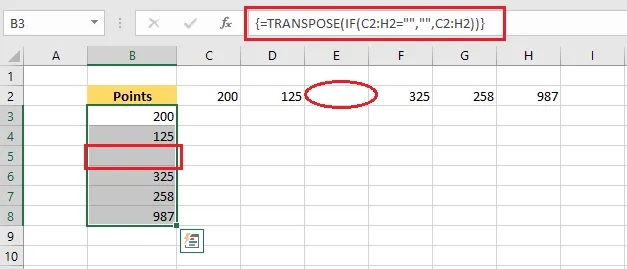
Cell E2 is empty. TRANSPOSE turns the empty cell into a 0.
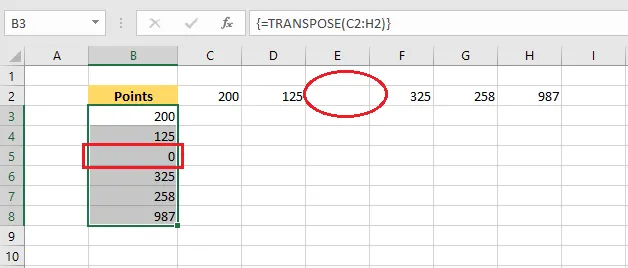
-
To keep it blank instead, wrap the range in an IF function:
=TRANSPOSE(IF(C2:H2="", "", C2:H2))