excel read-only workbook

How to make workbook read only

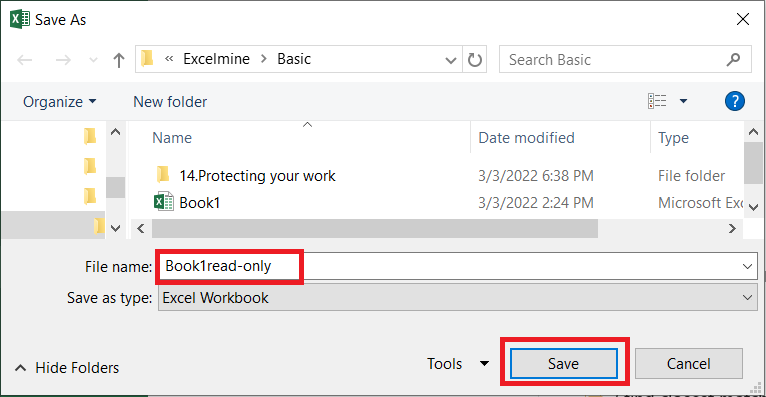
Make Workbook Read Only Excel has a built-in option to make a workbook read only. If you want to make a read-only workbook, follow the steps below. Note that you can still save the changes in a copy of the workbook. You can protect the sheet for better protection. 1. Open a workbook. 2. Go […]

How to make workbook read only Read More »
protect excel workbook

How to Protect Excel Workbook

Protect Excel Workbook This tutorial will show you how to protect Excel workbook from other users. That means other users cannot modify, insert, delete or do any type of changes in your workbook. Let’s follow the steps below: 1. Open a workbook. 2. On the Review tab, go to Protect group and click on Protect

How to Protect Excel Workbook Read More »

protect excel sheet

How to Protect Excel Sheet

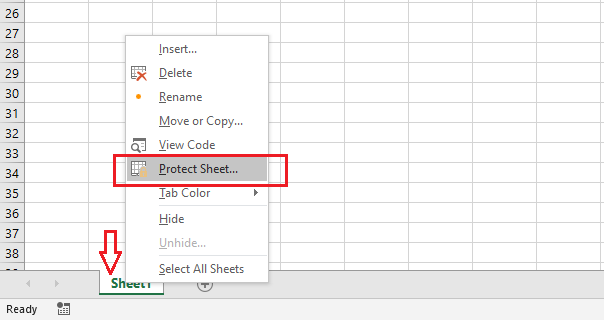
Protect Excel Sheet In case of sharing a file with other users, you may want to protect Excel sheet from being changed. Follow the steps below: 1. Right click on the Sheet1 tab and select “Protect Sheet…”. 2. Enter a password (our password is “protect”). 3. Check the boxes to allow other users to work

How to Protect Excel Sheet Read More »

lock cells in excel

How to lock cells in Excel

Lock Cells in Excel Lock Specific Cells| Lock Formula Cells You can lock cells by using Excel’s built-in options. Locking a cell protects it from being edited by other users. We have divided this tutorial into three different sections: lock all cells, lock specific cells, and lock formula cells. Lock All Cells If you protect

How to lock cells in Excel Read More »

protect excel file

How to Protect Excel File

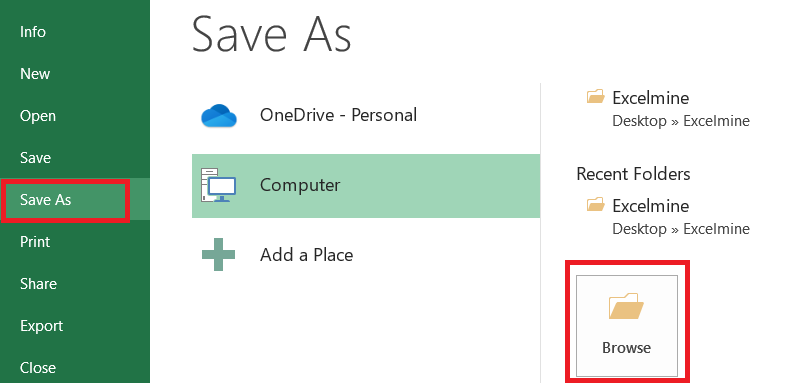
Protect Excel File In order to protect Excel file, you can encrypt a file with a password. The encrypted file can not be opened without a password. Here is how you can password protect an Excel file. 1. Open a file in Excel. 2. Click the File tab and click Save as. 3. Click Browse.

How to Protect Excel File Read More »

insert comment in excel

How to Insert Comments in Excel

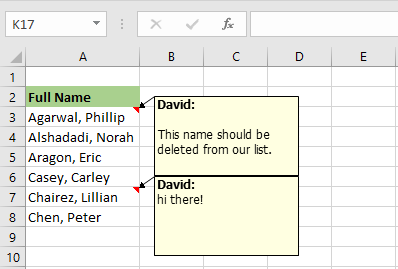
Insert Comments in Excel Delete Comments | Show Comments You can insert comments in Excel by right click your mouse and then click “Insert Comment.” Comments are used to start a conversation or give feedback regarding content. This page will show you how to insert, show, and delete comments from a worksheet. Inserting Comment 1.

How to Insert Comments in Excel Read More »

skip blank excel

How to Skip Blanks in Excel

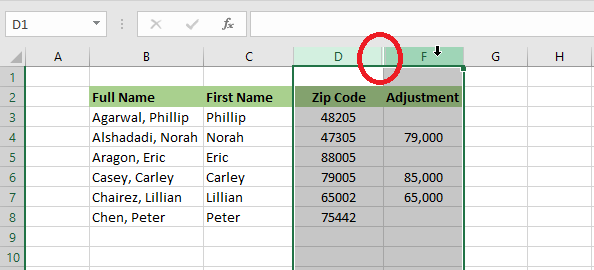
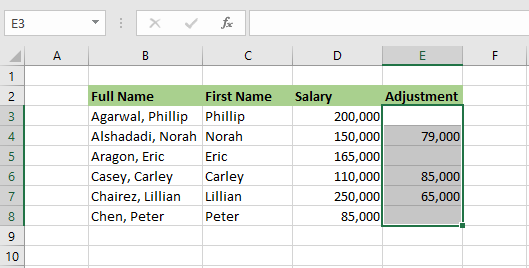
Skip Blanks in Excel Skip blanks in Excel is the “Paste Special” option. When using this option checked, Excel will not overwrite existing cell values with blanks. Let’s understand this better with the example below. 1. Select the cell range E3:E8. 2. Right click and copy the selected range (keyboard shortcut: CTRL+c) 3. Select cell

How to Skip Blanks in Excel Read More »