Excel autofill

How to AutoFill in Excel

Excel AutoFill Example 2 | Example 3 | Example 4 To autofill in Excel, you can drag the cell by its fill handle or use Excel Flash Fill. You are going to learn each of these methods with examples below. Example 1 1. Enter the value 15 in cell B2 and 20 in B3. 2. […]

How to AutoFill in Excel Read More »
excel autofit

How to AutoFit in Excel

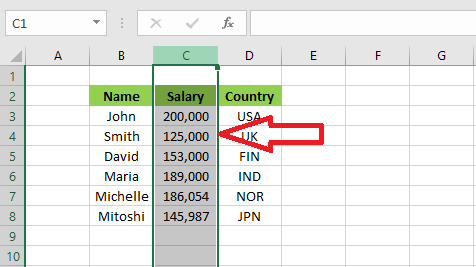
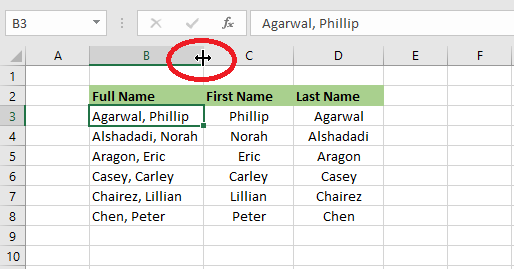
Excel AutoFit AutoFit Row Height The AutoFit in Excel is done by either dragging the column border to your liking or double-clicking at the border. Let’s take a few examples and learn more about these step by step. AutoFit Width of a Column 1. To change the width of a column, drag the right border

How to AutoFit in Excel Read More »

excel transpose

How to Transpose Data in Excel

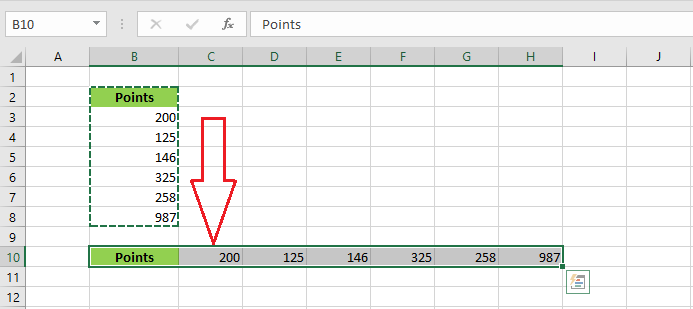
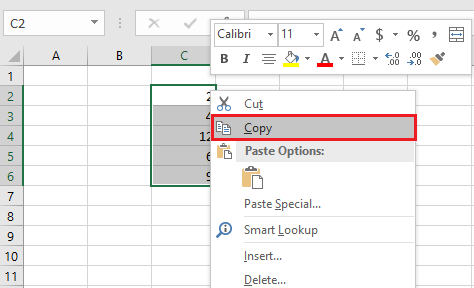
Transpose Data in Excel Transpose function | Transpose with Blank Cells We can transpose data in Excel using the “Paste Special” option or the TRANSPOSE function to switch rows to columns or vice-versa. Using Paste Special 1. To switch the column to a row, select the range B2:B8. 2. Right-click and click copy. 3. Select

How to Transpose Data in Excel Read More »

use Excel Ribbon

How to use Excel Ribbon

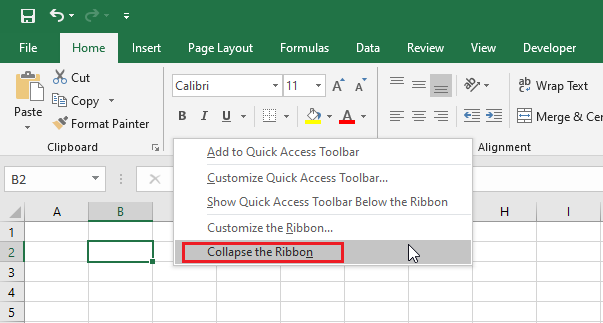
Excel Ribbon Groups| Using Ribbon | Collapse Ribbon At the start, Excel automatically selects the Home tab of the ribbon for you. Let’s learn more about Ribbon. Tabs Generally speaking, the tabs on the ribbon are File, Home, Insert, Page Layout, Formulas, Data, Review, View, and Help. However, additional tabs may appear when you add

How to use Excel Ribbon Read More »

split cells in excel

How to Split Cells in Excel

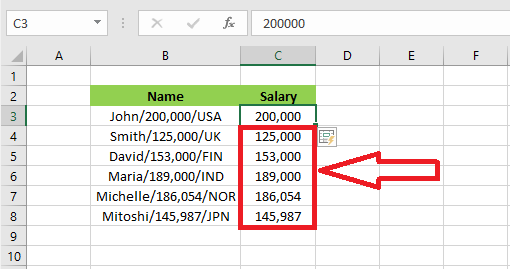
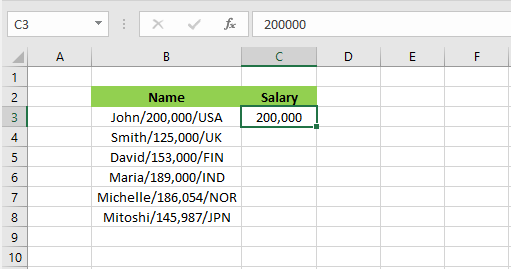
Split cells in Excel Using Wizard | Flash Fill | Formulas We can split a cell in Excel by adding a new column and then merging cells. We can also split the content of a cell into multiple cells by using Text to Column Wizard, Flash Fill, and formulas. Splitting a Cell 1. Smith is

How to Split Cells in Excel Read More »

What is Flash Fill in Excel?

Excel Flash Fill Combining information | Format numbers | When Flash Fill does not work Flash Fill in Excel is used to automatically extract or combine data from a cell. Flash fill works perfectly when Excel can recognize a pattern. At the end of the post, we will also show when Flash fill does not

What is Flash Fill in Excel? Read More »

move excel column

How to Move Excel Columns

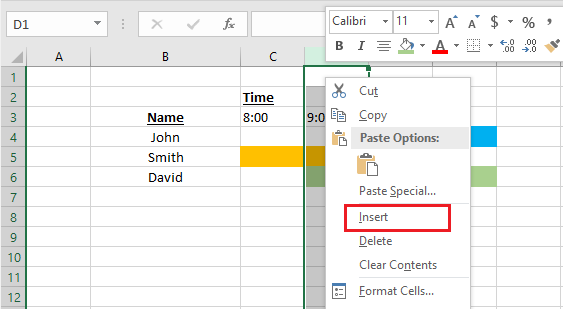
Move Excel Columns Inserting Cut Cells | Using Excel Menu We can move Excel columns in at least three different ways: using Shift Key, inserting cut cells, and using the Excel menu. Using Shift Key 1. Select a column. Hover the mouse pointer over the border of the selected cell. When a four-sided arrow appears,

How to Move Excel Columns Read More »

excel range

What is Excel Range?

Excel Range Range Example | Filling Range | Moving Range | Copy & Paste Range | Inserting Row & Column A range in Microsoft Excel is the collection of cells. In this chapter, you will learn some commonly used range operations. To further your understanding, you are recommended to browse through a few more examples

What is Excel Range? Read More »